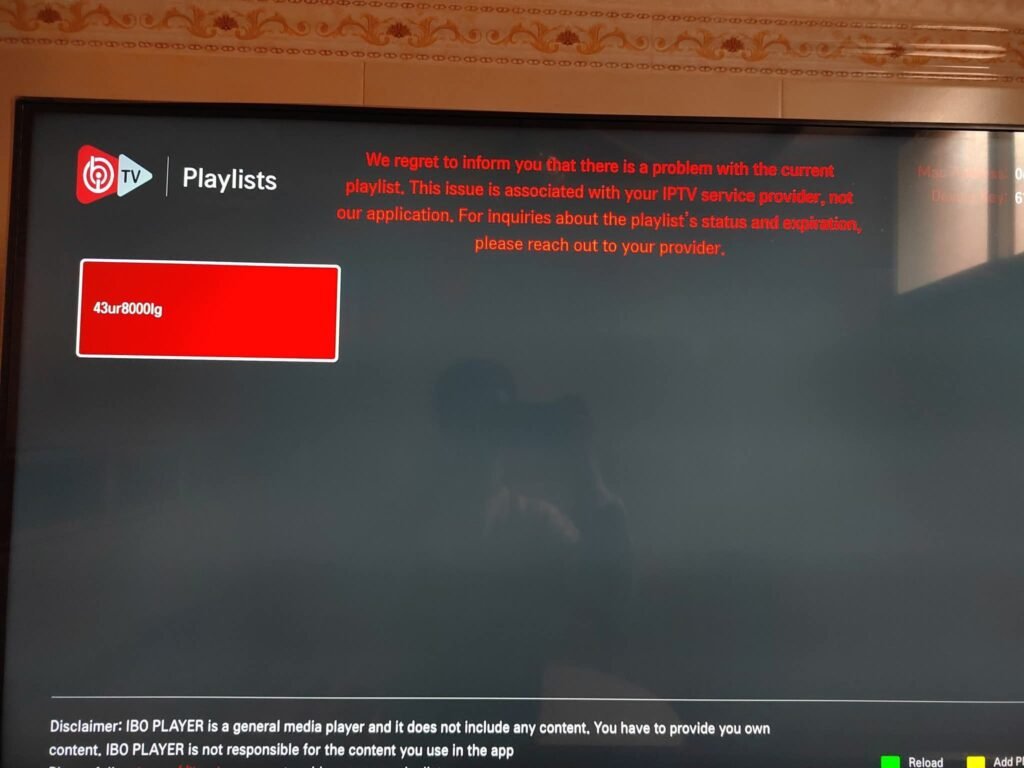
When IBO Player is working, it’s brilliant.
When the screen suddenly turns black after a few minutes, it’s infuriating.
This guide walks you, step by step, through the most common causes and fixes for the IBO Player screen turns black problem on Firestick, Android TV boxes, Smart TVs and more.
We’ll keep things simple, focus on real-world fixes, and show where a good, legal IPTV provider like ukiptvsub can make a big difference to stability.
UKIPTVSUB is the most stable IPTV I’ve used – no buffering even during live sports!
 Rated 4.8| Excellent
 Trustpilot
Quick Summary
If your IBO Player screen turns black after a few minutes, it’s usually caused by a weak internet connection, device power-saving/screensaver settings, wrong playback engine, app cache issues, or an unstable IPTV server. You can normally fix it by checking your network, adjusting device and IBO Player settings, and, if needed, reinstalling the app or switching to a more reliable IPTV service.
Key steps:
- Test your internet speed and try wired (Ethernet) or 5 GHz Wi‑Fi
- Disable screensaver and power-saving/sleep modes on your device
- Change IBO Player playback/decoder engine and lower quality if needed
- Clear cache/data or reinstall IBO Player on your device
- Make sure your IPTV subscription is stable and fully legal in the UK
Table of Contents
Table of Contents
- Context / Basics
- Step-by-Step Fix: IBO Player Black Screen (2026)
- Tips, Best Practices, and Mistakes to Avoid
- Examples, Use Cases, and Device Recommendations
- Troubleshooting and Common Problems
- FAQ
- Conclusion & Next Steps
Context / Basics
IBO Player is an IPTV player app. It doesn’t provide channels by itself; it simply plays streams you load from an IPTV provider.
When the IBO Player screen turns black after a few minutes:
- Sometimes audio continues but video disappears
- Sometimes both audio and video stop
- Sometimes it happens only on certain channels or at busy times (e.g. big football matches)
In my experience with UK users, the main culprits are:
- Inconsistent home internet (especially Wi‑Fi)
- Device power-saving or screensaver kicking in
- Wrong playback engine or codec settings
- Overloaded or poor-quality IPTV servers
Legal note (UK)
IBO Player is just software. To use it legally in the UK:
- Only connect it to licensed, legal IPTV services
- Don’t use pirate streams or restream copyrighted content you don’t own
- Always follow UK copyright law and your ISP’s terms
At ukiptvsub, we operate as a legal, subscription-based IPTV service with licensed content and UK-focused support. This guide assumes you are streaming legally.
Step-by-Step Fix: IBO Player Black Screen (2026)
Follow these steps in order. After each step, test a live TV channel for 5–10 minutes to see if the IBO Player black screen problem is gone.
For beginners: Don’t worry if you’re “not techy”. I’ll keep the steps very clear and tell you exactly where to click.
Step 1: Check if it’s IBO Player, your device, or your IPTV service
- Try another app on the same device
- Open YouTube, Netflix, iPlayer or ITVX.
- Watch a video for 5–10 minutes.
- If these also freeze or go black, it’s likely your internet or device, not IBO Player.
- Test another channel or VOD inside IBO Player
- If only one channel goes black, the issue is probably on the provider’s stream for that channel.
- If all channels turn black after a few minutes, continue with the steps below.
- Test the same IPTV subscription on another device (phone, tablet, another TV if possible)
- If it works fine on other devices, your original device or app install is the problem.
Screenshot suggestion: IBO Player channel list screen with a few live channels visible.
Step 2: Check your internet speed and stability
For smooth IPTV in the UK:
- Aim for at least 20 Mbps for HD
- 40–50 Mbps+ if multiple people are streaming or you watch 4K sports
- Run a speed test
- On a browser, go to Speedtest.net on the same device or on a phone connected to the same Wi‑Fi.
- Check both download speed and ping (latency). High ping (over 80–100 ms) often causes buffering and black screens.
- If speed is low or unstable:
- Restart your router (turn off for 30 seconds, then back on).
- Move your device closer to the router.
- If possible, use a wired (Ethernet) connection or at least 5 GHz Wi‑Fi.
- UK-specific tip:
- With ISPs like BT, Sky, Virgin Media, TalkTalk, and Plusnet, evening congestion can cause issues. If black screens mainly happen in peak hours, your line may be overloaded.
If your speed is fine but the IBO Player stops playing after a few minutes, move on.
Step 3: Disable screensaver and power-saving on your device
A very common mistake is leaving screensaver or sleep timers on. The video fades to black after a few minutes – it looks like an app issue, but it’s your device.
On Amazon Fire TV / Firestick
- Go to Settings → Preferences → Screensaver
- Set Start Time to a higher value (e.g. 1 hour) or Never
- Go to Settings → Preferences → Power (or Sleep) and turn off aggressive sleep settings if available
Official guide if you’re stuck: Amazon Fire TV help.
Screenshot suggestion: Firestick “Screensaver” settings page.
On Android TV / Google TV (Nvidia Shield, Chromecast, etc.)
- Go to Settings → Device Preferences → Screen saver
- Set to None or increase the timeout
- Disable any “Sleep” or “Energy saving” modes if they turn off the display
Reference: Google Android TV support.
On Smart TVs (Samsung, LG, etc.)
- Look under Settings → General → Eco / Power Saving / Screen Saver
- Turn off any options that dim or switch off the screen after a few minutes
After changing this, test a channel in IBO Player for 10+ minutes.
Step 4: Change IBO Player playback/decoder settings
If the IBO Player buffering black screen happens mainly on HD/4K channels, the default decoder might not suit your device.
The menus may differ slightly by version, but generally:
- Open IBO Player
- Go to Settings (often a gear icon on the main screen)
- Look for options such as:
- Player type (e.g. “Default / ExoPlayer / VLC”)
- Decoder (e.g. “Hardware / Software”)
- Buffer size / cache
- Try these combinations:
- If set to Hardware, change to Software, then test
- If set to Default player, switch to another option if available (e.g. ExoPlayer)
- Increase the buffer size slightly if your connection is stable
Screenshot suggestion: IBO Player Settings page showing playback/decoder options.
Make one change at a time, then test a channel for a few minutes.
Step 5: Lower stream quality and avoid overloading the device
Some budget boxes and older Smart TVs struggle with heavy 4K or high-bitrate streams.
- If your IPTV provider or playlist offers different qualities (e.g. 4K / FHD / HD / SD), test the HD or SD versions.
- Close other apps on your device so only IBO Player is running.
- Avoid casting from a phone while also running apps in the background.
If you’re using Firestick, and you see broader performance problems, our dedicated guide on Fire TV Stick setup issues and troubleshooting can help optimise your stick.
Step 6: Clear cache and data for IBO Player
Over time, app cache can become corrupted and cause playback issues.
On Firestick
- Go to Settings → Applications → Manage Installed Applications
- Find IBO Player
- Select Force Stop
- Select Clear Cache
- If problems persist, also select Clear Data (you’ll likely need to re-enter your IPTV details afterwards)
On Android TV / Android box
- Go to Settings → Apps → See all apps → IBO Player
- Tap Force stop
- Tap Storage & cache → Clear cache
- If needed, also Clear storage / data
Now reopen IBO Player, re-add your playlist or portal details if necessary, and test again.
Step 7: Reinstall and update IBO Player
If you’ve had IBO Player installed for a long time, a clean install can fix hidden bugs.
- Uninstall IBO Player from your device
- Restart the device (turn it fully off, then on)
- Reinstall IBO Player from the official app store or its official website source
- Enter your Device ID / MAC and IPTV credentials again (you’ll find a separate guide on activation like our IBO Player Pro activation walkthrough)
After a fresh install, test a couple of channels for at least 10 minutes each.
Step 8: Check with your IPTV provider (and consider upgrading)
If:
- Other apps work fine
- Your internet is solid
- You’ve tried the steps above
- The IBO Player playback issue still appears only with your IPTV subscription
…then the weak link is probably the IPTV server.
Unstable, overloaded or unlicensed providers often cause:
- Black screen after a few minutes
- Constant buffering or “stuck” channels
- Streams that die whenever there’s a big sports event
In that case, it’s worth testing a reliable, legal IPTV service with solid UK infrastructure.
At ukiptvsub, we focus on:
- Stable UK and international channels
- Sports (Premier League, Champions League, etc.), movies, series and VOD
- 24/7 support experienced with IBO Player, Firestick, Android TV and more
If you’re tired of random black screens, have a look at our IPTV subscription plans here: start your IPTV subscription.
Tips, Best Practices, and Mistakes to Avoid
Internet and network tips
- Prefer Ethernet where possible – especially for main TVs in the living room
- If using Wi‑Fi, connect to 5 GHz, not 2.4 GHz, for better speed and less interference
- Don’t hide your router in cupboards or behind the TV – it kills Wi‑Fi performance
- Avoid heavy downloads (game updates, cloud backups) while streaming IBO Player
For more on UK broadband performance, Ofcom has a clear guide on broadband speeds.
Device and app best practices
- Keep your Firestick/Android box firmware up to date
- Reboot your streaming device at least once a week
- Clear cache occasionally if you’re a heavy user
- Keep some free storage space – when devices are nearly full, they slow down
Common mistakes to avoid
- Mistake: Blaming IBO Player when it’s really screensaver/sleep mode
- Fix: Turn off screensaver and eco modes (Step 3)
- Mistake: Using very cheap, underpowered “no-name” Android boxes
- Fix: Use reputable devices (Firestick 4K, Chromecast with Google TV, Nvidia Shield, etc.)
- Mistake: Running a VPN with slow servers
- Fix: Either use a premium, fast VPN or no VPN at all (depending on your needs and provider’s policy)
Examples, Use Cases, and Device Recommendations
Here are some typical setups and what works best with IBO Player.
Example viewing setups
- Sports fan in the UK
- Device: Fire TV Stick 4K on the living room TV
- Connection: Wired via Ethernet adapter or strong 5 GHz Wi‑Fi
- Goal: Stable 1080p/4K streams during live matches, no black screens
- Family with kids
- Device: Android TV in the lounge + Firestick in the bedroom
- Needs: Simple remote, reliable IPTV app that doesn’t crash when kids spam the buttons
- Older or non-technical user
- Device: Smart TV with IBO Player installed directly
- Needs: Minimal extra boxes/cables, easy to launch from TV home screen
Comparison table: Devices for stable IBO Player playback
| Device type | Pros for IBO Player | Cons / Notes |
|---|---|---|
| Fire TV Stick 4K / 4K Max | Cheap, powerful enough, great Wi‑Fi, easy to use | May need Ethernet adapter for best stability |
| Android TV box (Nvidia etc.) | Very strong performance, lots of apps, Ethernet built-in | Usually more expensive |
| Smart TV app (Samsung/LG) | No extra box, one remote, convenient | Not all TVs are powerful; app updates can be slow |
| Android phone/tablet + cast | Flexible, portable, easy to test provider | Casting is more complex for non-tech users |
If you mainly stream via Firestick and have other playback issues (crashes, no sound, etc.), our article on Fire TV Stick setup issues and troubleshooting covers deeper fixes.
If your TV sometimes shows “No Signal” instead of IBO Player or HDMI, that’s a separate HDMI/TV input issue – see our guide: TV says no signal – how to fix.
Troubleshooting and Common Problems
IBO Player stops playing after a few minutes
Likely causes:
- Screensaver / sleep mode
- Weak Wi‑Fi signal
- IPTV server disconnecting idle sessions
Fix:
- Disable screensaver and sleep (Step 3)
- Improve connection (Step 2)
- Ask your IPTV provider if they have session timeouts or anti-freeze options
IBO Player black screen but audio still playing
Likely causes:
- Decoder/player compatibility issue
- GPU (graphics) problem on the device
Fix:
- Change playback engine and decoder (Step 4)
- Reduce stream resolution (Step 5)
- If on Firestick, try a different HDMI port or ensure the TV is set to the correct HDR/4K mode
IBO Player buffering black screen (spins then goes black)
Likely causes:
- Network drops or jitter
- Overloaded provider
- Insufficient buffer
Fix:
- Test your speed and ping (Step 2)
- Increase buffer size in IBO Player settings
- If issue occurs only with your current provider, test with a more stable, legal IPTV service like ukiptvsub.
All channels black, IBO Player menus still visible
Likely causes:
- Wrong or expired playlist/portal details
- IPTV subscription expired or blocked
- Provider-side outage
Fix:
- Double-check your URL, username and password
- Confirm your subscription is still active
- Contact your IPTV provider’s support
- If you’re regularly left in the dark during outages, consider moving to a more reliable provider with clear IPTV subscription plans.
IBO Player not working at all (won’t open or crashes)
Likely causes:
- Corrupted app install or cache
- Outdated app version
- OS update conflict
Fix:
- Clear cache and data (Step 6)
- Reboot the device
- Reinstall IBO Player with the latest version (Step 7)
- If the device is very old or underpowered, consider using another device
For some users, changing player app (for example to 8K Player VIP or others) helps; if you go that route, our Firestick tutorial for player issues here may help: 8K Player VIP not working on Firestick – fix guide.
FAQ
Why does my IBO Player screen turn black after a few minutes?
Usually because of one or more of:
- Device screensaver or sleep mode
- Unstable internet connection or Wi‑Fi
- Wrong playback/decoder settings
- IPTV server dropping the connection
Follow the step-by-step fix above, starting with your network and power-saving settings.
How do I fix IBO Player black screen on Firestick?
On Firestick, focus on:
- Settings → Preferences → Screensaver → increase or disable
- Settings → Preferences → Power → stop it sleeping too quickly
- Settings → Applications → Manage Installed Applications → IBO Player → Force Stop & Clear Cache
- Reinstall IBO Player if needed and test with a stable IPTV provider
Is IBO Player causing the problem, or my IPTV provider?
If other apps and streams work perfectly but IBO Player black screen happens only with one IPTV subscription, the provider’s server is likely the issue. IBO Player is just the player; it can only play what the server sends.
Can a VPN cause IBO Player playback issues?
Yes. A slow or overloaded VPN server can:
- Reduce your speed
- Increase latency
- Cause buffering and black screens
If you must use a VPN, pick a fast, premium provider with UK servers, and test IBO Player both with and without VPN.
What internet speed do I need to avoid IBO Player black screen?
For most UK homes:
- Minimum 20 Mbps download for a single HD stream
- 40–50 Mbps+ if multiple devices stream or you watch 4K
Also important is stability – low ping and no major spikes.
Is IBO Player legal in the UK?
IBO Player itself is just an app and is generally legal.
What matters is what you watch with it:
- Use only licensed, legal IPTV services
- Don’t stream pirated content or unlicensed sports
- Always follow UK copyright law
Providers like ukiptvsub operate as legal, subscription-based IPTV services.
Why does IBO Player work on my phone but not on my TV?
Phones often have stronger Wi‑Fi and better optimisation than cheap TV boxes. If your phone works fine:
- Your IPTV provider is probably OK
- The issue is likely with the TV, box, or its connection (Wi‑Fi quality, power-saving, or underpowered hardware)
Try using Ethernet, a better device, or adjusting settings as shown above.
How do I stop IBO Player buffering and freezing?
- Use Ethernet or strong 5 GHz Wi‑Fi
- Close other apps and downloads
- Lower stream quality (from 4K to HD)
- Increase buffer size in IBO Player
- Make sure your IPTV provider has good UK-focused servers
Will changing IPTV provider help with IBO Player black screen issues?
If you’ve checked your device, internet, and settings, and the problem only happens with one provider, then yes, changing to a more stable, legal IPTV provider will usually help a lot.
You can view our UK-focused IPTV subscription plans here: start your IPTV subscription.
Conclusion & Next Steps
When the IBO Player screen turns black after a few minutes, it’s almost always fixable with a bit of method:
- Stabilise your internet
- Turn off screensavers and sleep modes
- Adjust IBO Player’s playback engine
- Clear or reinstall the app
- And, if needed, upgrade to a more reliable IPTV provider
Once those pieces are right, IBO Player can be rock solid – especially on good devices like Firestick 4K and Android TV boxes.
If you want a stable, legal IPTV service that works smoothly with IBO Player and other popular apps, take a look at our current IPTV subscription plans. Our UK-based team can help you get set up, test your device, and enjoy buffer-free IPTV without the black-screen headaches.