Complete Beginner’s Guide 2025
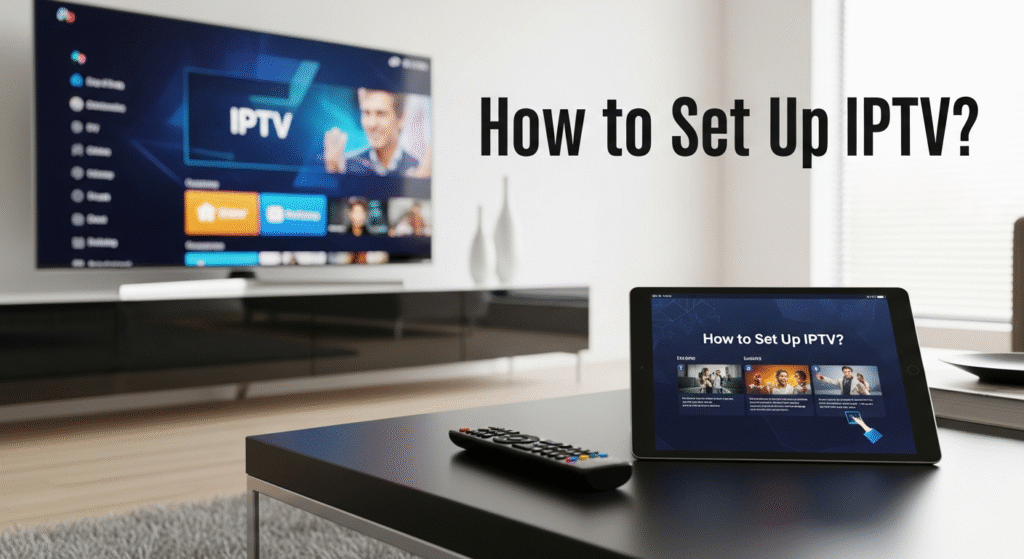
If you’ve just bought a new Smart TV or Firestick and keep hearing about IPTV, you might be asking yourself:
“How do I actually set up IPTV? What do I need and where do I start?”
You’re not alone. Many people want cheap, flexible TV with sports, movies, and series—but feel lost when they see terms like m3u, Xtream Codes, or IPTV app.
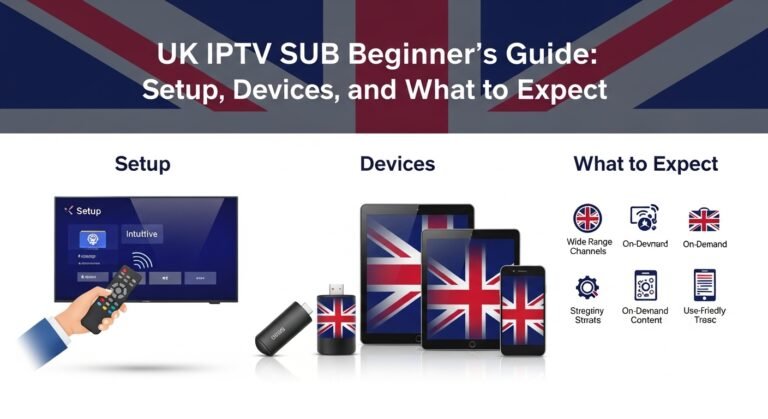
This guide will walk you through how to set up IPTV step‑by‑step, even if you’re not tech-savvy. We’ll cover:
- What IPTV is (in simple terms)
- What you need before setup
- How to set up IPTV on Smart TV, Firestick, Android, iOS, and PC
- Common problems and how to fix them
- Why a trusted provider like ukiptvsub.com makes everything easier
By the end, you’ll be streaming like a pro.
UKIPTVSUB is the most stable IPTV I’ve used – no buffering even during live sports!
 Rated 4.8| Excellent
 Trustpilot
What Is IPTV and Why Are People Switching?
IPTV (Internet Protocol Television) delivers TV channels over the internet instead of satellite or cable.
With IPTV, you can:
- Watch live TV, including sports, news, and entertainment
- Access VOD (Video On Demand): movies and series libraries
- Use your existing devices: Smart TV, Firestick, Android TV, etc.
If you want to understand the broader shift from traditional TV to internet-based viewing, you can explore Ofcom’s overview of online and on-demand video services.
What You Need Before You Set Up IPTV
Before we jump into how to set up IPTV, make sure you have these essentials:
1. A Stable Internet Connection
- Minimum 10–15 Mbps for single HD stream
- Ideally 25+ Mbps if multiple people stream at once
- A wired Ethernet connection is best, but strong Wi‑Fi can work
2. A Compatible Device
You can use:
- Smart TV (Samsung, LG, etc.)
- Amazon Firestick / Fire TV
- Android TV box
- Android phone or tablet
- iPhone / iPad
- Windows PC / Mac
3. An IPTV Subscription
Your IPTV provider gives you:
- An m3u playlist URL or
- Xtream Codes (server address, username, password)
Choosing the right provider is critical. A quality, customer-focused service like ukiptvsub.com provides:
- Clear login details
- Setup guides
- Support if something goes wrong
4. An IPTV Player App
This is the app that plays your IPTV content. The provider usually recommends supported apps based on your device.
How to Set Up IPTV on Different Devices
Best Beginner‑Friendly Tutorial
Let’s go through device-specific IPTV setup step-by-step. You can scroll to the device you use most.
How to Set Up IPTV on a Smart TV
Great if: You want to watch on the big screen with no extra boxes.
Step 1 – Install an IPTV App
- Open your TV’s App Store (Samsung Store, LG Content Store, etc.).
- Search for “IPTV” or the specific app recommended by your provider.
- Download and install the app.
Step 2 – Get Your IPTV Details
After purchasing from a provider like ukiptvsub.com, you’ll usually receive:
- An m3u URL or
- Xtream Codes (server, username, password) via email or dashboard.
Step 3 – Enter Your Details in the App
- Open the IPTV app on your TV.
- Find the Add Playlist or Login/Settings option.
- Paste the m3u URL or enter server + username + password.
- Save and wait for channels to load.
Once loaded, you should see categories like Live TV, Sports, Movies, Series, etc.
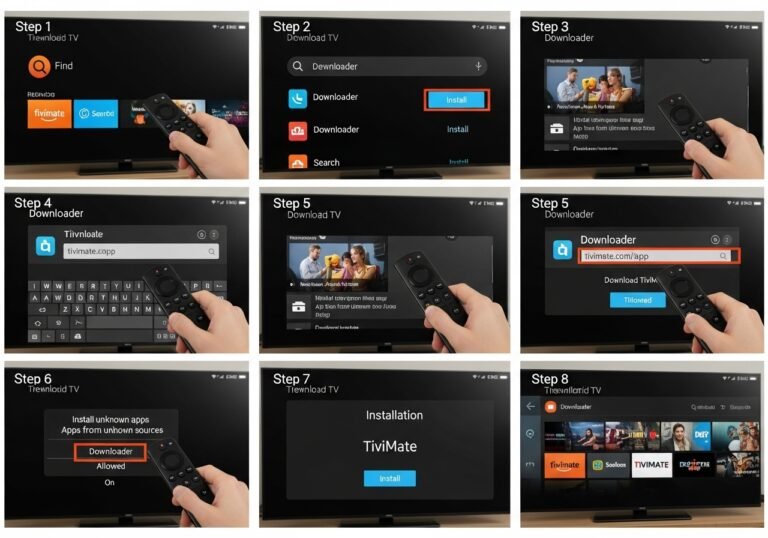
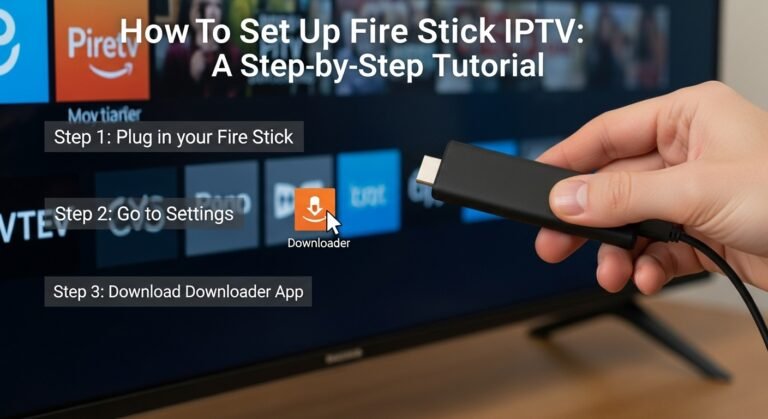
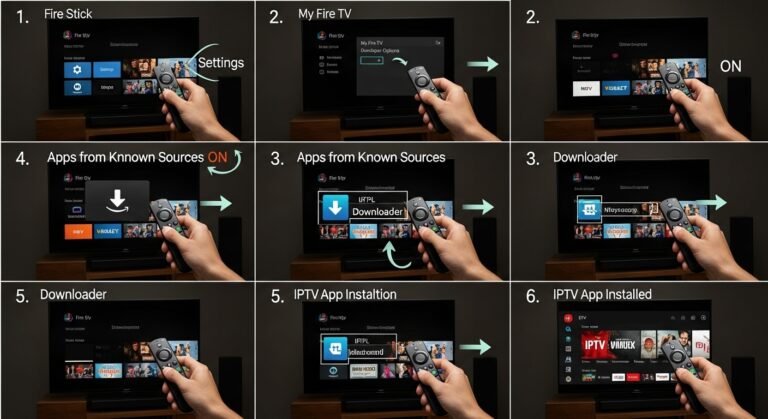
How to Set Up IPTV on Amazon Firestick / Fire TV
Great if: Your TV isn’t smart enough or you want flexibility and portability.
Step 1 – Install an IPTV Player
- From the Firestick Home screen, go to Find → Search.
- Type the name of a recommended IPTV player.
- Select and click Download / Get.
- Wait for installation to finish.
Step 2 – Log In to Your IPTV Service
- Open the IPTV app.
- Go to Settings, Accounts, or Add Playlist.
- Input your m3u URL or Xtream Codes from your provider.
- Save and let the app refresh.
Step 3 – Optimize Your Experience
- Add favourite channels to a Favorites group for fast access.
- Check if there’s an EPG (TV guide) and enable it.
If you use a reliable provider like ukiptvsub.com, they’ll usually supply a clear step-by-step Firestick guide so you’re never guessing.
How to Set Up IPTV on Android Phones & Tablets
Great if: You want IPTV on the go or on a bedroom tablet.
Step 1 – Install an IPTV App from Google Play
- Open the Google Play Store.
- Search for a compatible IPTV player.
- Install the app.
Step 2 – Add Your IPTV Playlist or Portal
- Open the app.
- Choose Add Playlist, Add m3u, or Add Provider.
- Enter your m3u link or Xtream Codes.
- Save and load channels.
You’ll now have live TV and VOD in your pocket.
How to Set Up IPTV on iPhone / iPad
Great if: You’re in the Apple ecosystem and want IPTV on iOS.
Step 1 – Install an IPTV Player from the App Store
- Open the App Store.
- Search for a reputable IPTV player.
- Install the app.
Step 2 – Sign In with Your IPTV Details
- Open the IPTV app.
- Use Add Playlist or Login with Xtream Codes.
- Enter the details from your provider.
- Save and wait for the playlist to load.
Now you can easily stream TV, sports, and movies on your iPhone or iPad.
How to Set Up IPTV on a PC or Laptop
Great if: You want IPTV in a browser window or on a large monitor.
Option 1 – Use an IPTV Player App
- Download a compatible IPTV app for Windows or macOS.
- Install and open it.
- Enter your m3u or Xtream Codes.
Option 2 – Use VLC Media Player
You can also use VLC, a popular free, open-source media player:
- Download VLC from the official site:
https://www.videolan.org/vlc/ - Install and open VLC.
- Go to Media → Open Network Stream.
- Paste your m3u URL.
- Click Play.
VLC will then load your IPTV playlist as a channel list.
Choosing the Right IPTV Provider Before You Set Up
Getting the setup steps right is important—but it’s even more important to choose a reliable, high-quality provider.
Here’s what to look for:
1. Stable, High-Quality Streams
- HD / Full HD channels
- Minimal buffering, especially during big games and events
- Regularly updated streams and VOD
2. Strong Channel & VOD Lineup
- UK and international channels
- Sports, movies, kids, documentaries
- VOD with boxsets and films
3. Device Compatibility
Check if the provider supports:
- Smart TVs
- Firestick / Android TV
- Mobile (Android / iOS)
- PC / Mac
4. Good Support & Clear Guides
This is where ukiptvsub.com stands out:
- Easy-to-follow setup tutorials for major devices
- Friendly support if you get stuck
- Structured plans and clear communication
If you’ve ever struggled with shady IPTV resellers who disappear after payment, you’ll appreciate having a proper website and support team behind your subscription.
Common IPTV Setup Problems (and How to Fix Them)
Even if you follow every step correctly, you might run into a few issues. Here’s how to handle the most common ones.
1. IPTV Buffering or Freezing
Possible causes:
- Weak Wi‑Fi or low internet speed
- Too many users on the network
- Server congestion during peak times
Fixes:
- Restart your router and device
- Use a wired Ethernet connection if possible
- Move closer to your router or upgrade to better Wi‑Fi
- Close other big downloads or streaming apps
Quality-focused providers like ukiptvsub.com usually manage server capacity more carefully, which significantly reduces buffering.
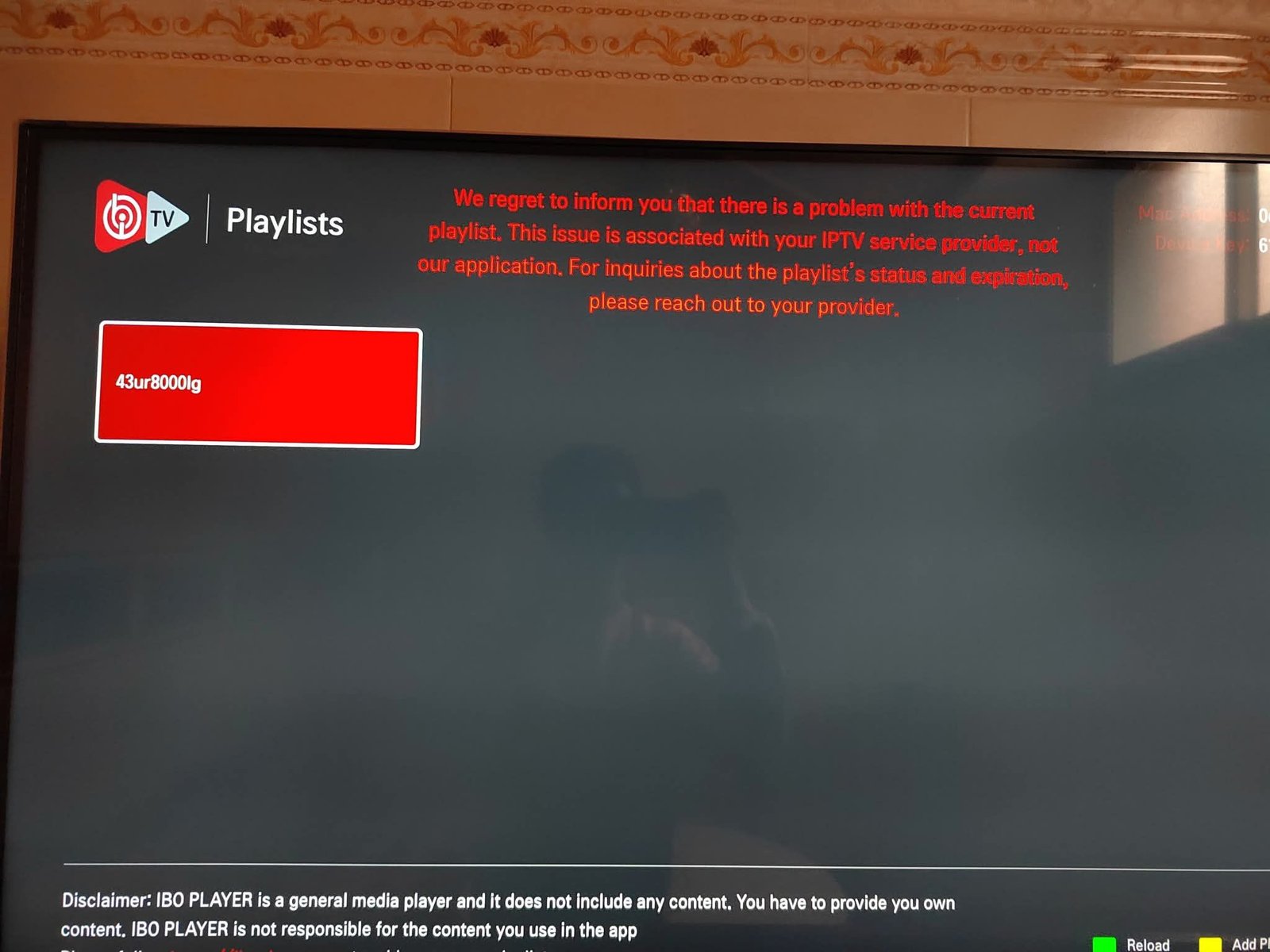
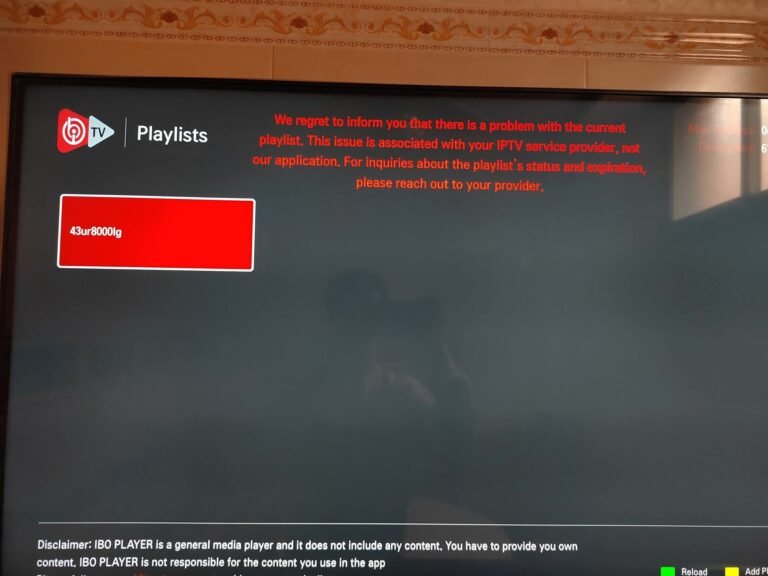
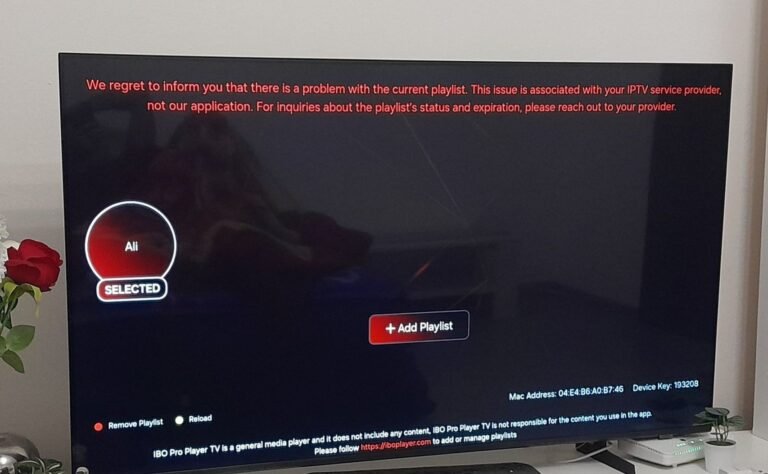
2. Channels Not Loading
Fixes:
- Exit and reopen the IPTV app
- Refresh or re-import your playlist
- Double-check your subscription is active
- Contact your provider with specific channel names and times
3. EPG (TV Guide) Not Showing
Fixes:
- Ensure your provider supplies an EPG source
- Enable EPG in your IPTV app settings
- Reload EPG data from within the app
4. App Crashes or Not Opening
Fixes:
- Update your IPTV app to the latest version
- Uninstall and reinstall the app
- Restart your device
- Try a different recommended IPTV player
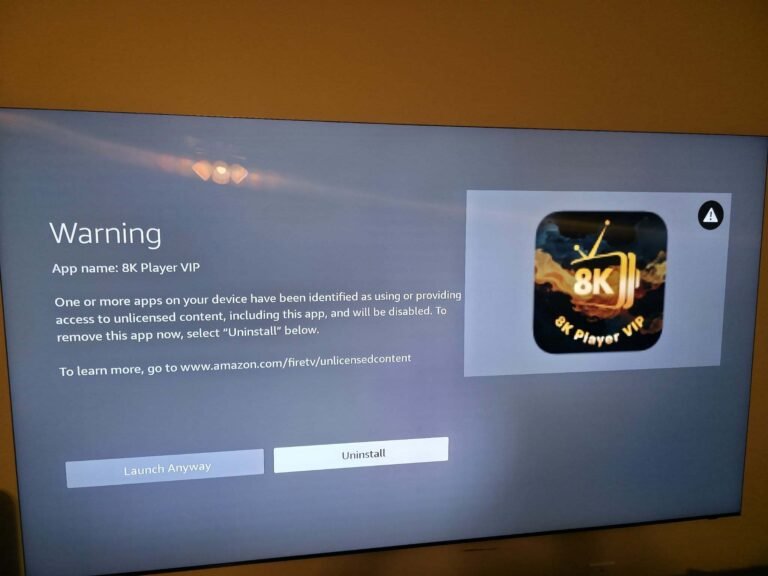
Is It Legal to Set Up IPTV?
A common concern alongside “how to set up IPTV” is whether it’s legal.
- IPTV technology itself is legal.
- What matters is whether the content is properly licensed for distribution.
For more context on copyright, see the UK Government’s copyright overview.
To protect yourself:
- Avoid super‑cheap, anonymous “lifetime” deals
- Use reputable providers with professional websites and support
Featured Snippet Summary: How to Set Up IPTV
To set up IPTV, you need a stable internet connection, a compatible device (Smart TV, Firestick, Android, iOS, or PC), an IPTV subscription, and an IPTV player app. After purchasing a subscription from a trusted provider like ukiptvsub.com, enter the m3u URL or Xtream Codes they send you into your IPTV app, save the settings, and load the channels to start watching live TV and on-demand content.
Frequently Asked Questions: How to Set Up IPTV
1. What is the easiest way to set up IPTV for a beginner?
The easiest setup is usually:
- Get a Firestick or use your Smart TV.
- Subscribe to a user-friendly provider like ukiptvsub.com.
- Install the recommended IPTV app.
- Enter your login or m3u details.
Most beginners are fully set up within 20–30 minutes.
2. Do I need a special box to set up IPTV?
Not necessarily. You can use:
- Smart TV
- Firestick
- Android TV
- Phone, tablet, or PC
A dedicated IPTV box is optional, not required.
3. How do I set up IPTV with a VPN?
- Install a VPN app on your device or router.
- Connect to a nearby, fast VPN server.
- Open your IPTV app and use it as normal.
A VPN can help with privacy and sometimes reduce ISP throttling, but it doesn’t change whether content is licensed.
4. How long does IPTV setup usually take?
If you have:
- Internet ready
- Device at hand
- Subscription from a provider like ukiptvsub.com
Then actual setup usually takes 10–30 minutes, depending on your familiarity with apps and typing in URLs.
5. Why is my IPTV buffering after setup?
Common reasons:
- Weak internet or Wi‑Fi
- Many people streaming in the house
- Peak-time server load
Try plugging your device into the router with Ethernet, upgrading your speed if necessary, or contacting your provider for advice.
6. Which IPTV provider is good for easy setup?
If you want a straightforward, supported experience, ukiptvsub.com is a solid choice. They offer clear setup instructions, helpful support, and a strong channel lineup for everyday viewers.
Final Thoughts: Setting Up IPTV Is Easier Than It Looks
When you first google “how to set up IPTV”, it can feel complicated. But in reality, it’s just:
- Get a subscription from a reliable provider like ukiptvsub.com.
- Install an IPTV app on your preferred device.
- Enter your m3u URL or Xtream Codes.
- Load channels and enjoy.
Once you’ve done it once, you’ll wonder why you ever thought it was difficult.
If you found this guide helpful and want more:
- IPTV tips and tricks
- Device-specific setup tutorials
- Honest advice on choosing safe, reliable IPTV providers
Subscribe to our updates and stay ahead of the curve in the IPTV world. Your perfect streaming setup is just a few clicks away.