How to install TiviMate IPTV on Firestick/Android TV explained step by step.
If you’ve ever tried watching IPTV with a clunky, buggy app, you know how frustrating it can be: channels freezing, EPG not loading, recordings failing right before your favorite game starts. That’s exactly why so many IPTV users switch to TiviMate IPTV Player.
UKIPTVSUB is the most stable IPTV I’ve used – no buffering even during live sports!
 Rated 4.8| Excellent
 Trustpilot
TiviMate doesn’t provide channels or content itself. Instead, it’s a powerful IPTV player that organizes the streams from your existing IPTV subscription into a slick, easy-to-use TV interface.
In this guide, you’ll learn:
- How to install TiviMate v5.2.0 on Firestick and Android TV
- How to set up TiviMate Premium
- How to add your IPTV playlist safely and efficiently
- Common problems and how to fix them quickly
Important: TiviMate is a media player. Always use it with legal IPTV services that own the rights to the content you watch. Learn more about IPTV legality here: https://en.wikipedia.org/wiki/Internet_Protocol_television.
Why TiviMate Is So Popular With IPTV Users
Imagine this: You sit down on a Sunday night ready for your favorite series, but the app your provider gave you crashes, the EPG is empty, and the stream buffers nonstop. You waste 20 minutes tinkering with settings instead of watching TV.
That’s the pain point TiviMate solves.
TiviMate IPTV Player offers:
- A clean, cable‑like interface
- Fast zapping between channels
- Excellent EPG (TV guide) support
- Support for multiple playlists (great if you use more than one provider)
- Recording options (depending on your device and storage)
For many users, pairing a reliable IPTV provider with TiviMate turns their setup into a true “cable killer.”
What You Need Before Installing TiviMate
Before you start, make sure you have:
- An Amazon Firestick / Fire TV or an Android TV device (NVIDIA Shield, Chromecast with Google TV, Xiaomi Mi Box, etc.)
- A stable internet connection (at least 25 Mbps recommended for HD/4K)
- An IPTV subscription from a legal provider (with M3U URL or Xtream Codes-style login)
- A Google account (required for buying TiviMate Premium through the Companion app on Android phones)
How to Install TiviMate IPTV on Firestick (V5.2.0)
TiviMate is not available in the Amazon Appstore, so you’ll install it via a safe method called sideloading using the Downloader app.
Note: For security, only install APKs from sources you trust.
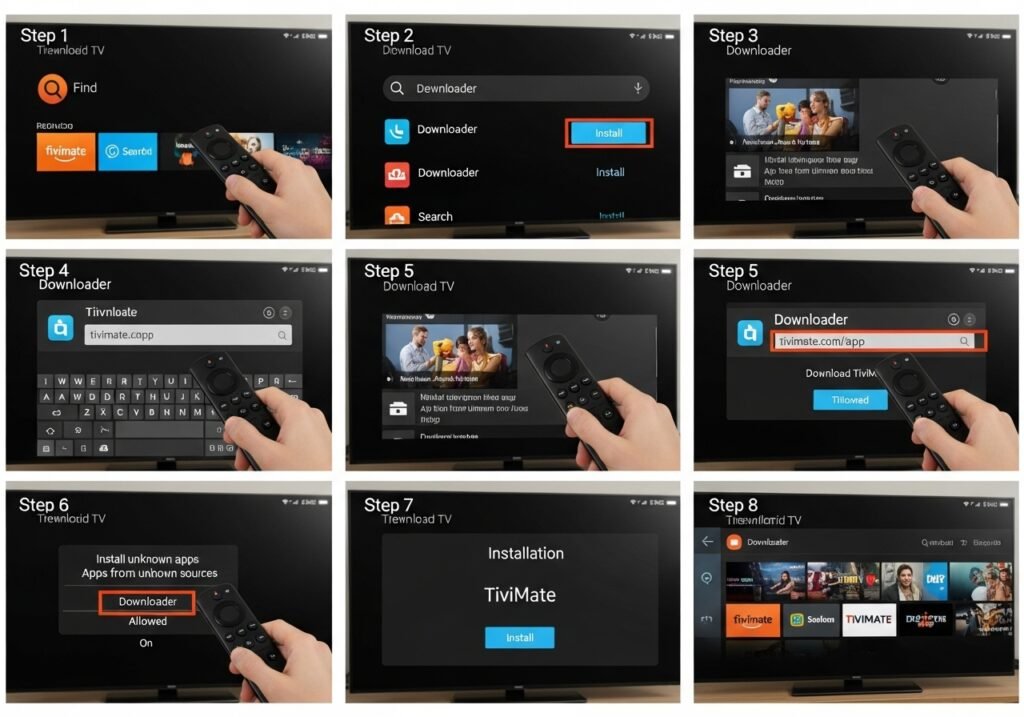
Step 1 – Prepare Your Firestick
- Install Downloader
- From the Firestick home screen, go to Find → Search.
- Type Downloader.
- Select the orange Downloader app by AFTVnews and click Download or Get.
- Allow apps from unknown sources
- Go to Settings → My Fire TV → Developer Options.
- Select Install unknown apps (or Apps from Unknown Sources on older devices).
- Turn it On for Downloader only.
For more on Fire TV sideloading basics, Amazon’s developer docs are helpful: https://developer.amazon.com/docs/fire-tv.
Step 2 – Download and Install TiviMate IPTV Player
- Open the Downloader app.
- In the URL field, enter the official download URL or a trusted source recommended by the TiviMate developer or the seller from whom you purchased the app.
- Click Go to download the TiviMate v5.2.0 APK (or the latest available version).
- When the APK finishes downloading, Downloader will prompt you to Install.
- Click Install, then Done.
- You can choose Delete in Downloader to remove the APK file and save storage (the app itself will stay installed).
Step 3 – Launch TiviMate and Grant Permissions
- From your Firestick home screen, go to Apps & Channels → See All.
- Find TiviMate, press the Menu (☰) button, and choose Move to front if you want easier access.
- Open TiviMate.
- When asked, allow any necessary permissions (for storage, etc., especially if you plan to record).
You’ve now completed the TiviMate Firestick installation. Next, you’ll add your IPTV playlist.
How to Install TiviMate IPTV on Android TV (V5.2.0)
On Android TV devices, the process is usually easier because TiviMate is available through the Google Play Store.
Option 1 – Install from Google Play Store (Recommended)
- On your Android TV home screen, open the Google Play Store.
- Search for TiviMate IPTV Player.
- Select TiviMate (by AR Mobile Dev) and click Install.
- Once installed, open TiviMate from your Apps section.
Official Play Store listing:
- TiviMate IPTV Player: https://play.google.com/store/apps/details?id=ar.tvplayer.tv
Option 2 – Sideload TiviMate on Android TV
If TiviMate is not visible in your region’s Play Store:
- Install Downloader from the Play Store (if available for your device).
- Enable installation from unknown sources for Downloader under Settings → Apps → Security (varies by manufacturer).
- Use Downloader to visit the official APK source provided by TiviMate’s developer.
- Download and install TiviMate just like on Firestick.
How to Add Your IPTV Service in TiviMate
Once TiviMate v5.2.0 is installed, you need to connect it to your IPTV provider.
- Open TiviMate.
- Select Add playlist.
- Choose how your provider gives you access:
- M3U playlist URL
- Xtream Codes (server URL, username, password)
- Enter the details exactly as your provider sent them.
- Wait while TiviMate downloads channels and EPG data.
- When it finishes, you’ll see your channel list and can start watching.
Always use legitimate IPTV providers that have the rights to the content. Avoid “free” playlists from random websites—they’re often unstable and can be illegal or unsafe.
TiviMate Free vs TiviMate Premium: Is It Worth It?
The free version of TiviMate is great for testing, but most serious IPTV users quickly upgrade to TiviMate Premium.
Key TiviMate Premium Features
Premium (in recent versions like v5.2.0) typically includes:
- Multiple playlists – Combine several IPTV providers in one app.
- Advanced EPG (TV guide) – Better control over sources, mapping, and layout.
- Favorites management – Custom channel groups and sorting.
- Catch-up and recording (where supported) – Record shows or use catch‑up from your provider.
- Auto frame-rate switching – Smoother playback on supported devices.
- Backup & restore – Save your configuration and restore it on new devices.
Pricing and licensing can change, but at the time of writing, TiviMate Premium usually offers a lifetime license for a limited number of devices (often up to five).
You’ll almost always find Premium worth it if:
- You watch IPTV daily
- You use more than one provider
- You care about EPG and recordings
How to Set Up TiviMate Premium (V5.2.0)
Here’s where many users get confused:
You can’t buy Premium directly on Firestick or Android TV. Instead, you purchase a license through a separate app called TiviMate Companion on an Android phone or tablet.
Step 1 – Install TiviMate Companion App
- On your Android phone or tablet, open the Google Play Store.
- Search for TiviMate Companion.
- Install it from the official listing:
- TiviMate Companion: https://play.google.com/store/apps/details?id=ar.tvplayer.companion
- Open the app and sign in with your Google account.
Step 2 – Buy and Activate Your TiviMate Premium License
- In TiviMate Companion, follow the prompts to purchase TiviMate Premium (usually a one‑time payment).
- Once purchased, create a TiviMate account (email + password) if prompted.
- On your Firestick or Android TV, open TiviMate.
- Go to Settings → Account (or Unlock Premium depending on version).
- Log in with the same TiviMate account you used in the Companion app.
- Your device should now show Premium activated.
If you add TiviMate to another TV device later, just repeat the last few steps—no need to repurchase, as long as you stay within the allowed device limit.
Troubleshooting: Common TiviMate Issues (and Fixes)
Running into problems? Here are some quick solutions:
- Playlist not loading
- Double‑check your M3U/portal URL, username, and password.
- Test the URL in a browser or another app. If it fails there too, contact your IPTV provider.
- No EPG data
- Go to Settings → EPG in TiviMate and verify the EPG source is set.
- Ask your provider if they supply an XML EPG URL.
- Buffering or freezing
- Run a speed test on another device to confirm your connection.
- Try a lower‑quality stream (SD instead of 4K).
- If the issue happens only on certain channels, it’s likely on the provider’s side.
- App crashing after update
- Clear cache: Settings → Apps → TiviMate → Clear cache (exact path varies by device).
- Make sure you’re on a version compatible with your OS.
Frequently Asked Questions (FAQ)
What is TiviMate?
TiviMate is an IPTV player app for Android TV and Firestick that lets you watch live TV channels using your existing IPTV subscription. It doesn’t provide channels itself; instead, it organizes and plays streams from IPTV providers via M3U, Xtream Codes, or similar formats.
TiviMate Premium Features
TiviMate Premium unlocks advanced functions, including:
- Multiple playlists
- Enhanced EPG and channel management
- Recording and catch‑up support (where available)
- Favorites and custom categories
- Backup and restore of settings
- More powerful search and series handling
These features make Premium ideal for everyday IPTV use.
How to Install TiviMate on Firestick/Android TV
- Firestick: Install the Downloader app from the Amazon Appstore, enable unknown apps for Downloader, then download and install the TiviMate APK (v5.2.0 or later) from a trusted source.
- Android TV: Install directly from the Google Play Store, or sideload using Downloader if it’s not visible in your region.
Step 1 – Prepare for Installation
- Ensure your device (Firestick/Android TV) is connected to the internet.
- Install Downloader (Firestick) or confirm you have access to the Google Play Store (Android TV).
- Enable the option to install from unknown sources if you plan to sideload the APK.
Step 2 – Install TiviMate IPTV Player
- Use Google Play Store (Android TV) or Downloader + APK (Firestick) to install TiviMate IPTV Player.
- Once installed, open TiviMate and grant any requested permissions.
- Add your IPTV playlist through Add playlist inside the app.
How to Set Up TiviMate Premium
To use TiviMate Premium, you must:
- Purchase a license via the TiviMate Companion app on an Android phone or tablet.
- Log in to your TiviMate account on your TV device to unlock Premium features.
Step 1 – Install TiviMate Companion App
- On your Android phone/tablet, open Google Play Store.
- Search TiviMate Companion and install it.
- Open it and sign in with your Google account, then follow prompts to purchase Premium.
Step 2 -Log In to TiviMate Premium
- On your Firestick/Android TV, open TiviMate.
- Go to Settings → Account/Unlock Premium.
- Log in with the same TiviMate account used in the Companion app.
- After a few seconds, your app should show that Premium is active on that device.
Final Thoughts & Call-to-Action
Installing TiviMate IPTV v5.2.0 on Firestick or Android TV is one of the easiest ways to turn a basic IPTV subscription into a smooth, cable‑like viewing experience. With Premium features like multiple playlists, advanced EPG, and recording, TiviMate becomes the control center of your home streaming setup.
If you’re serious about IPTV, it’s worth taking 10–15 minutes to set everything up correctly—you’ll feel the difference every time you pick up the remote.
Want more step‑by‑step IPTV guides, app comparisons, and setup tips like this?
Subscribe to our newsletter and get our latest tutorials, optimization tricks, and buyer’s guides delivered straight to your inbox.