How to install TiviMate IPTV on Firestick/Android TV explained step by step.
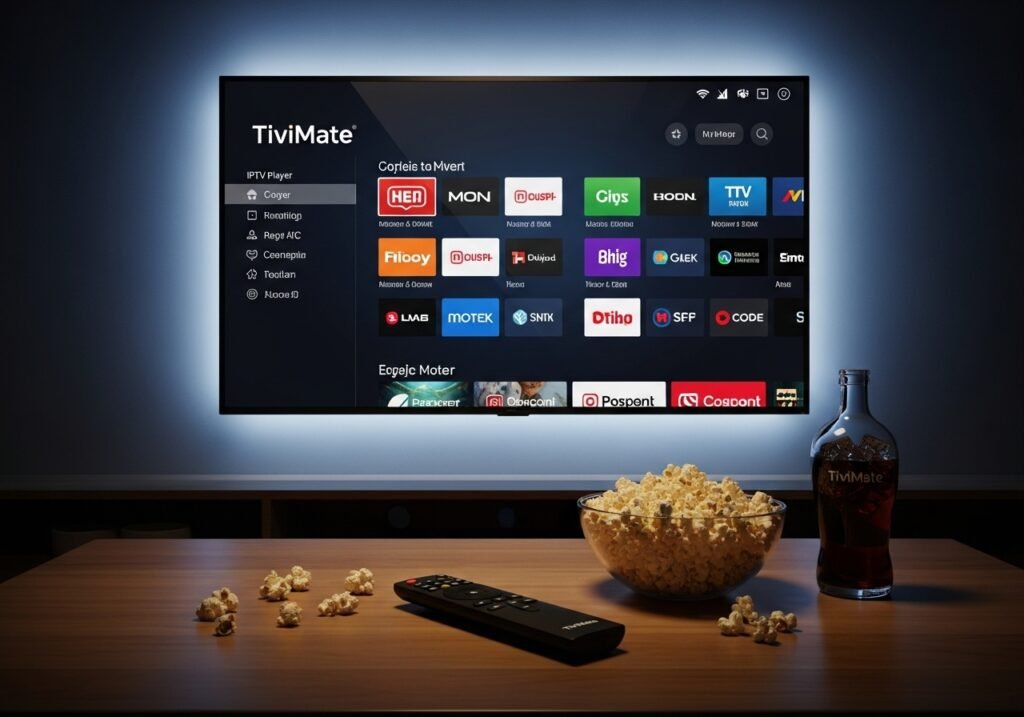
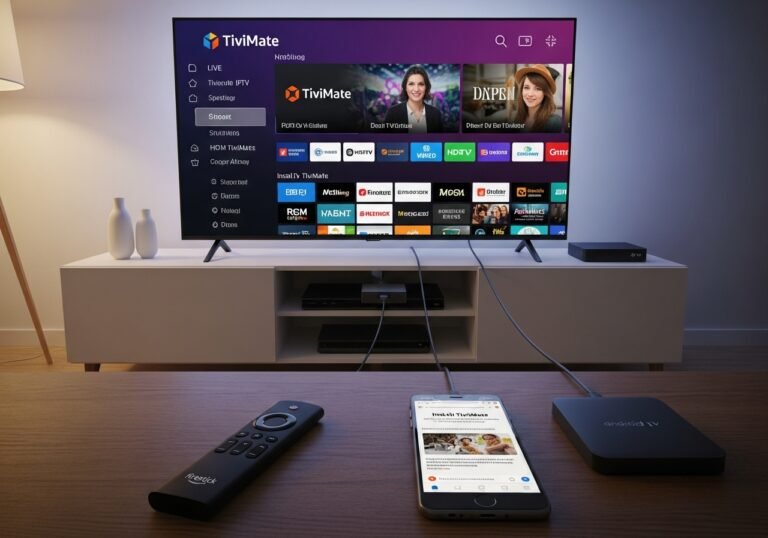
The following guide will show you how to install TiviMate on Firestick, Fire TV, and Google/Android TV devices.
This article also provides setup instructions and tips to help you get the most out of TiviMate on your preferred device.
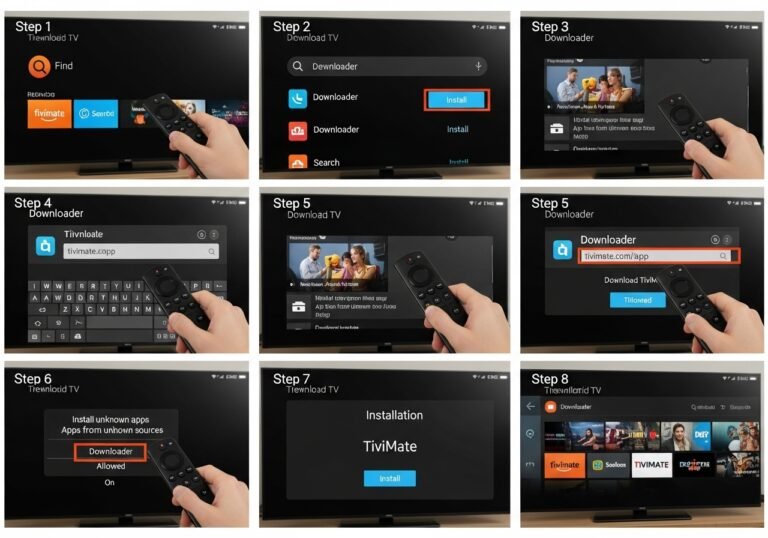
We provide a screenshot guide that covers all aspects of this fabulous application.
UKIPTVSUB is the most stable IPTV I’ve used – no buffering even during live sports!
 Rated 4.8| Excellent
 Trustpilot
What is TiviMate?
TiviMate is one of the most popular IPTV Players available today and has been for over a decade. If you subscribe to an IPTV Service, you are missing out if you don’t give TiviMate a try!
While the app alone does not contain live channels for streaming, users can integrate an M3U URL or an Xtream Code URL and access available media.
Check with your current IPTV Service Provider to see if they grant access to their M3U URL/Xtream Code API before going through this guide.
After integrating your platform within TiviMate, you can use it as a streamlined platform to watch your live channels in a central location with advanced features.
It functions in the same manner as popular Streaming Apps/APKs with dedicated categories, subcategories, and a Program Guide to enhance your overall viewing experience.
The best way to see if it is right for you is by installing it using our guide and testing it out on your preferred device!
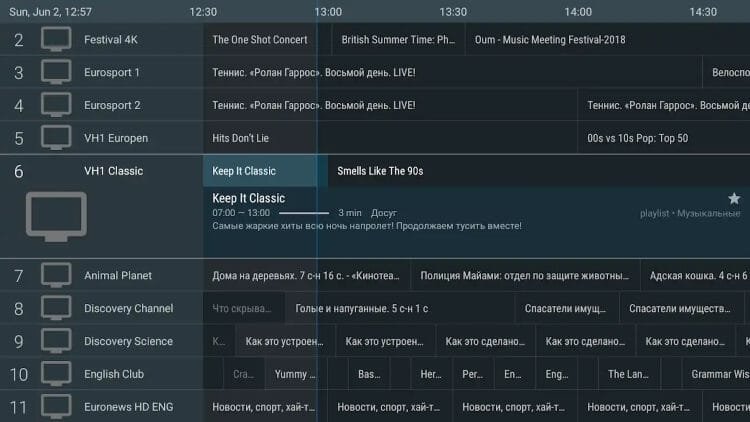
TiviMate offers both a free and a premium version of the service that currently costs $33.99 for a lifetime subscription. This includes 5 simultaneous connections.
UKIPTVSUB suggests purchasing a premium account as it unlocks tons of features not found in the free option.
NOTE: There has recently been a surge of various IPTV Providers promoting a free version of the TiviMate app. This Premium Mod APK has been cloned from the original and should be used with caution.
TiviMate Premium Features
Those who opt for the Premium plan are provided with over a dozen valuable features including:
- Scheduled recordings
- Custom recurring recordings
- Support for multiple playlists
- Backup/Restore
- UI Customization
- External Video Player
- Parental Controls
- Picture-in-Picture
- Favorites management
- Catch-up
- Customizable TV Guide update intervals
- Customizable Panels transparency and timeout
- Customize Groups and Channels
- Manual Channels sorting
- Turning on the last channel on app start
- Auto frame rate (AFR)
- Reminder to automatically play the channel
- Many More
As you can see, without the upgrade, there isn’t much sense in using the app.
How to Install TiviMate on Firestick/Android TV
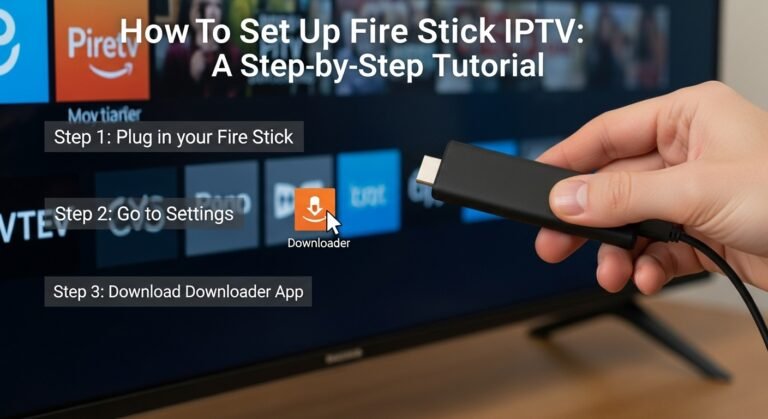
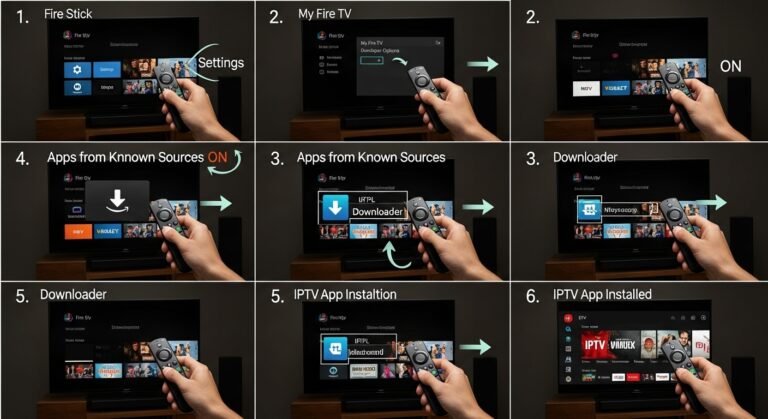
Step 1 – Prepare for Installation
1. From the home screen of your device, locate the search bar and open it.
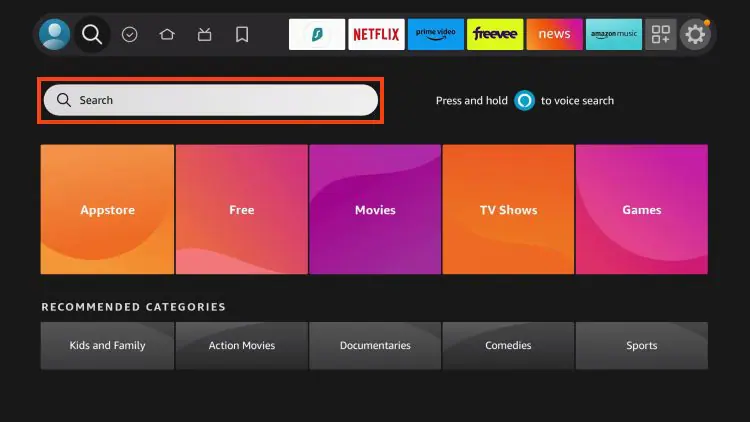
2. Search for the Downloader application.
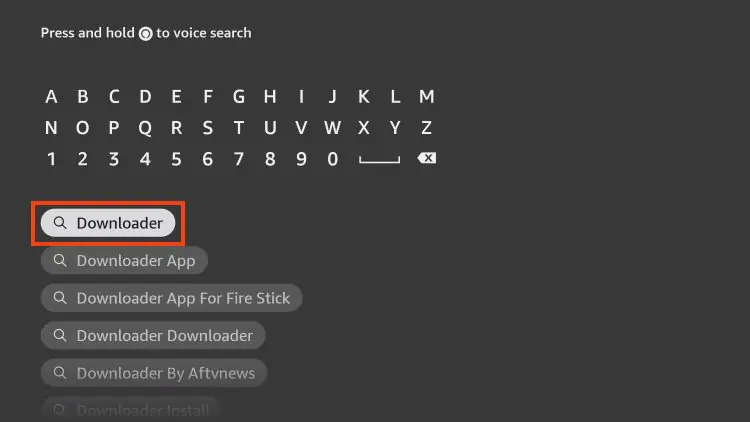
3. Select it.
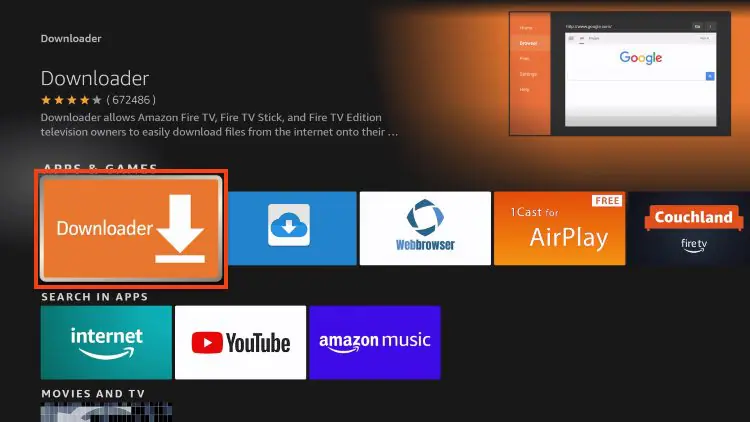
4. Choose “Download” or “Get”.
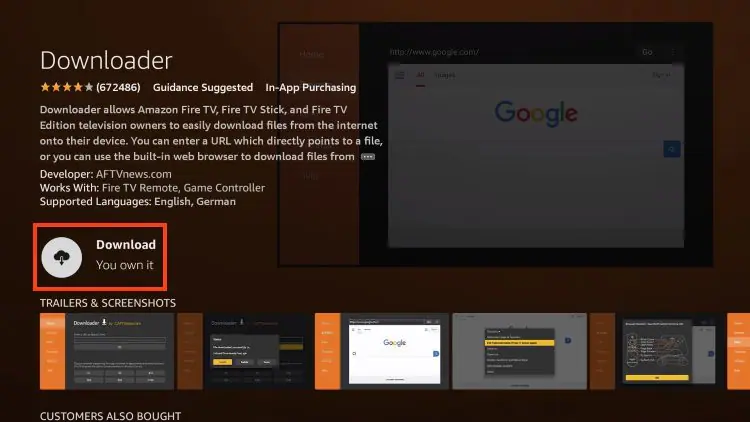
5. Wait a few seconds while the app downloads.
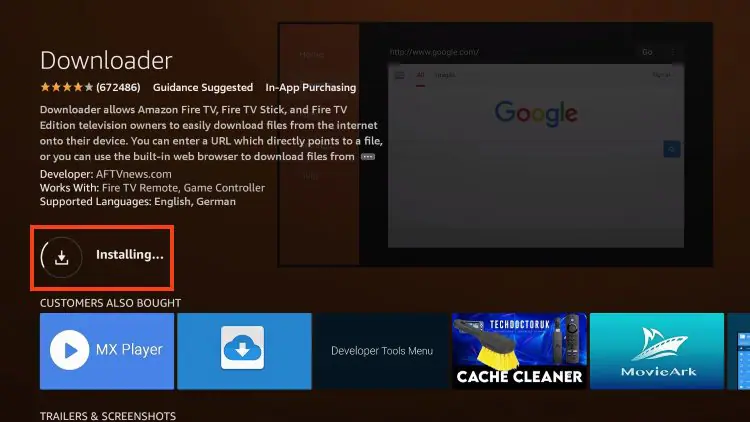
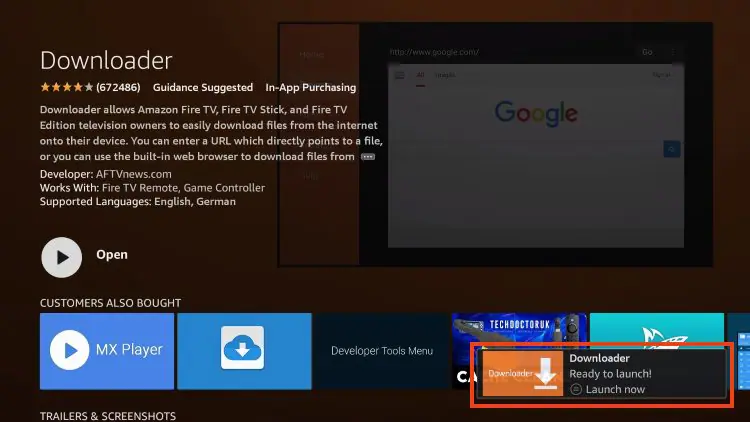
6. You are notified when the installation has been completed.
7. Go back to your Settings and click My Fire TV.
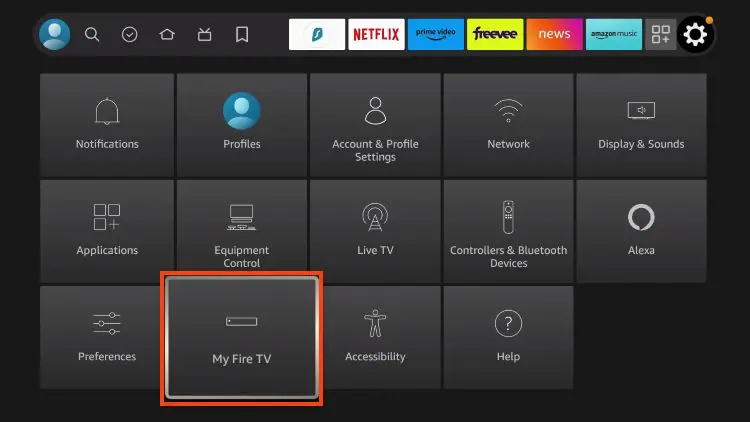
8. Choose About.
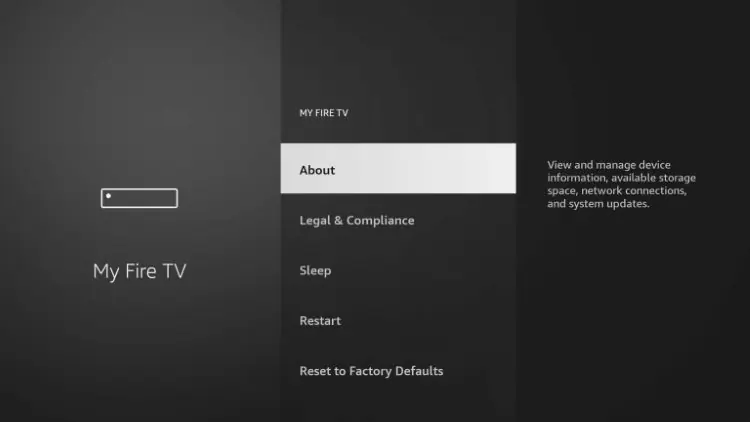
9. Hover over Fire TV Stick (or other name) and click the select button 7 times until you see “You are now a developer” message.
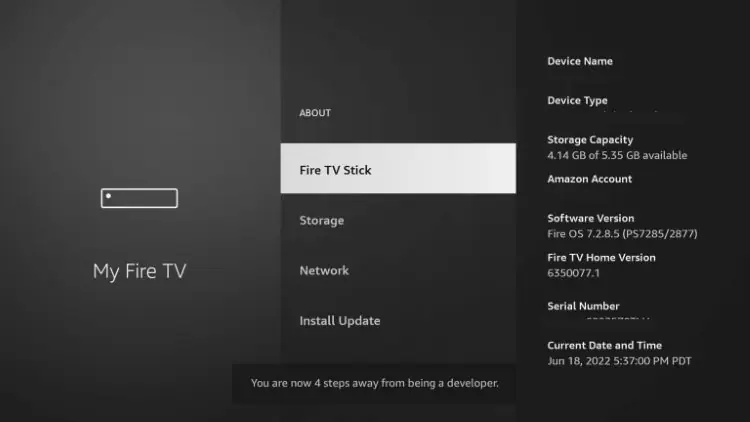
10. Return to the My Fire TV tab and Developer options is now listed.
NOTE: If you have an older model of Fire TV Stick, you will see Developer Options within My Fire TV without selecting “About”.
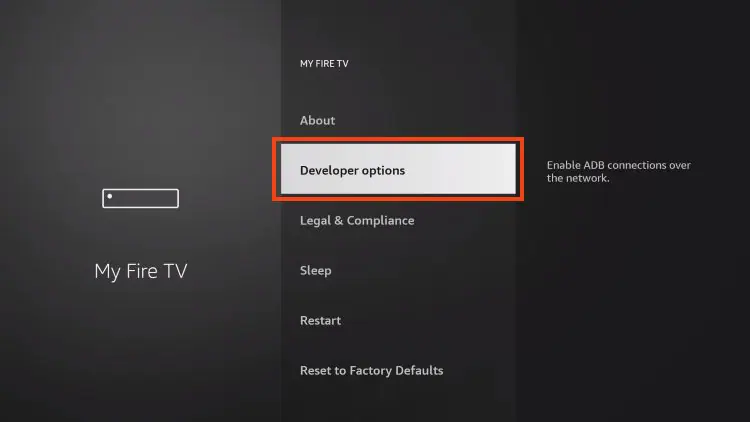
11. Choose Install unknown apps.
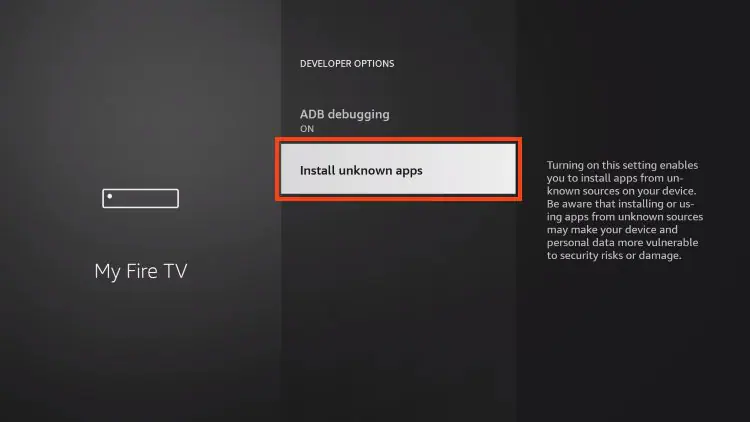
12. Select Downloader.
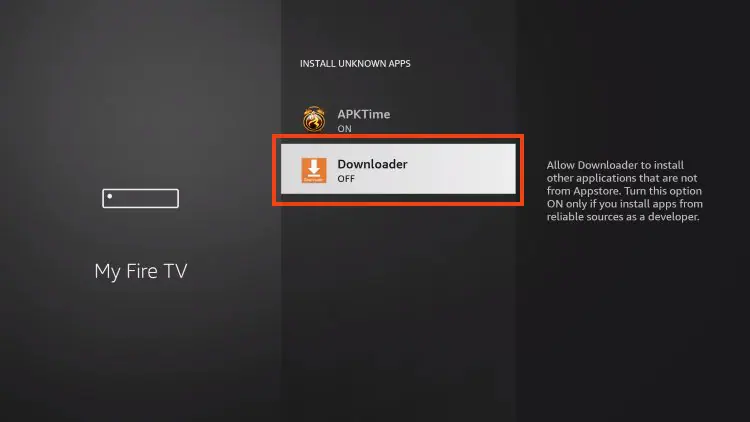
13. Unknown Sources has now been enabled for the Downloader app which we will use to install TiviMate.
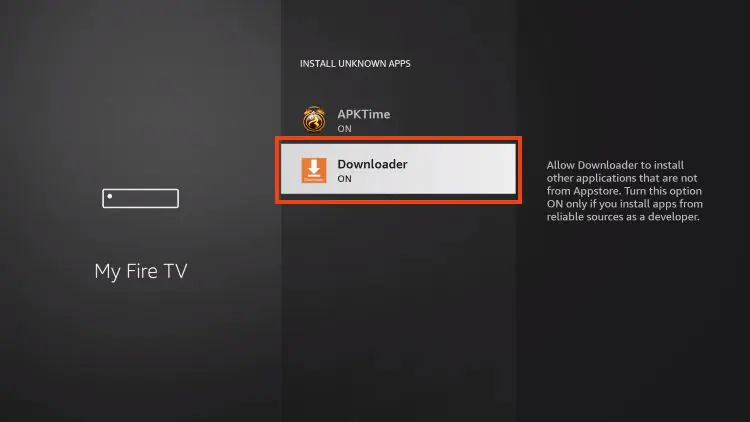
We can now continue to the downloading steps.
Step 2 – Install TiviMate IPTV Player
1. Open Downloader and click to select the URL menu bar as highlighted below.
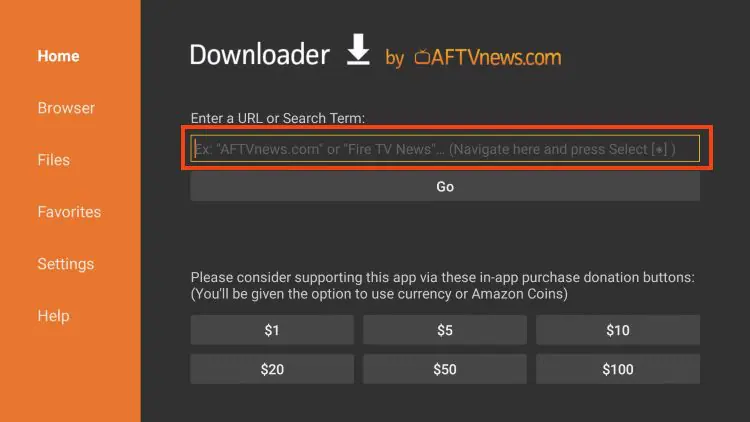
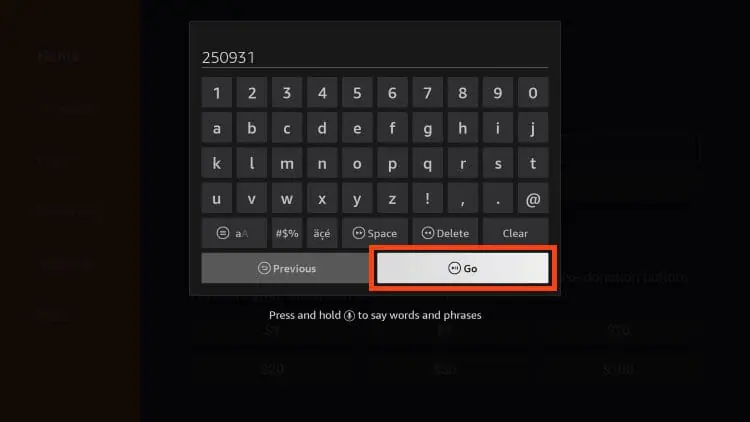
3. Input 250931 and click Go.
NOTE: For immediate install, you can insert 272483, which is the official Downloader Code for TiviMate IPTV Player.
4. Wait for the redirect page to load.
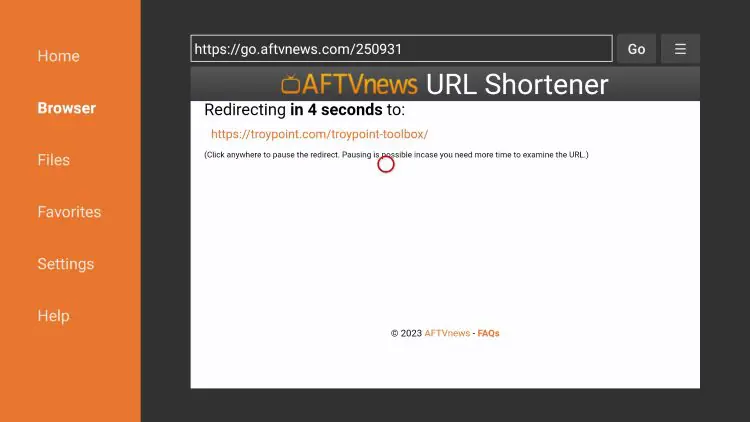
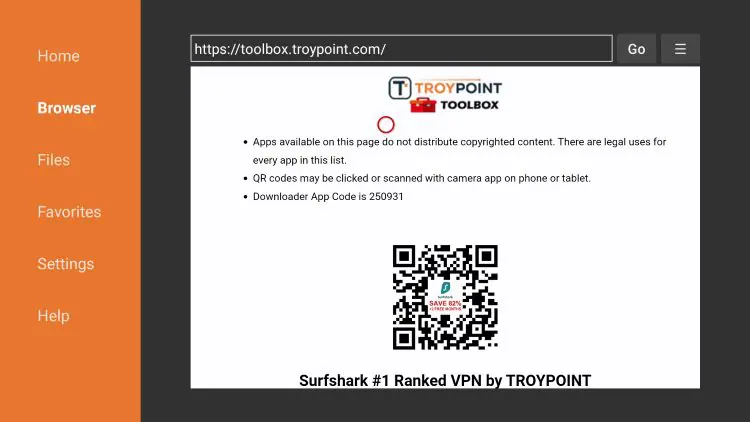
5. UKIPTVSUB Toolbox home screen is now presented.
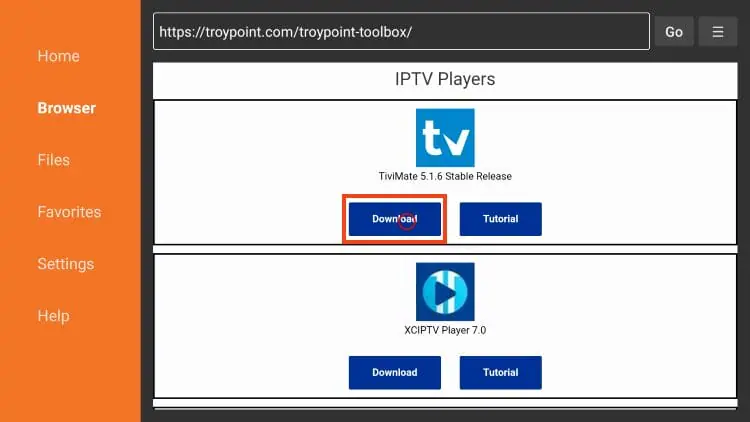
6. Scroll down to find TiviMate and click Download.
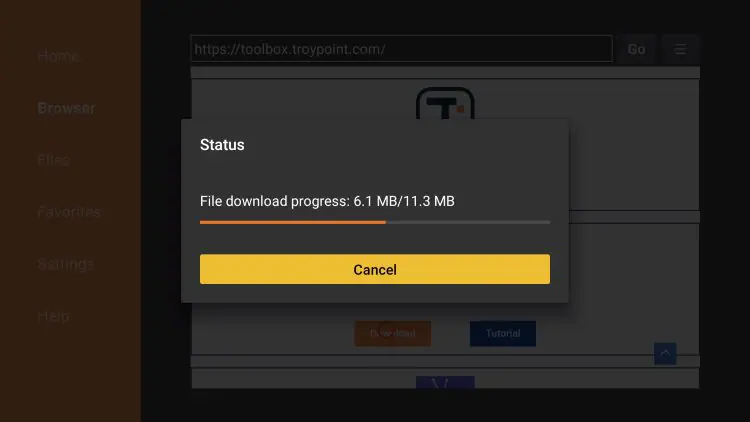
7. Wait for the app to download.
8. Click Install.
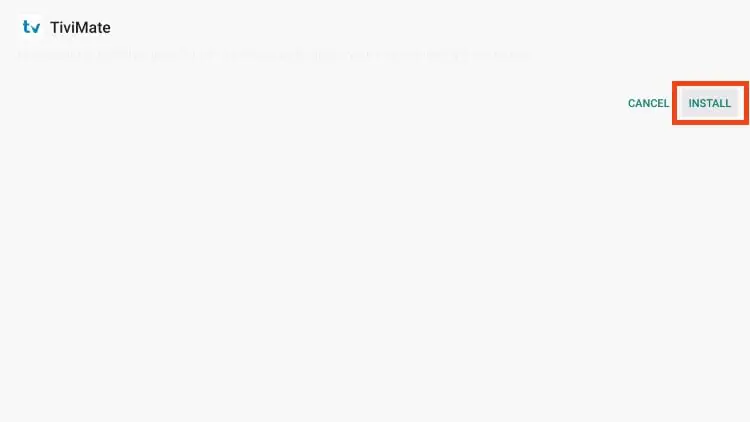
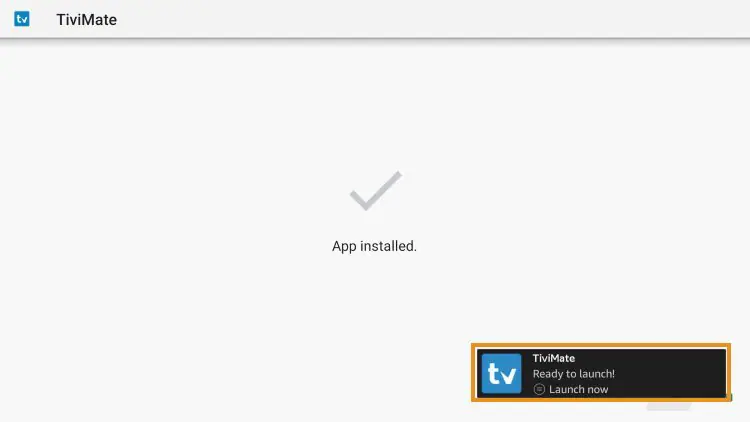
9. The TiviMate “Ready to launch!” message now appears.
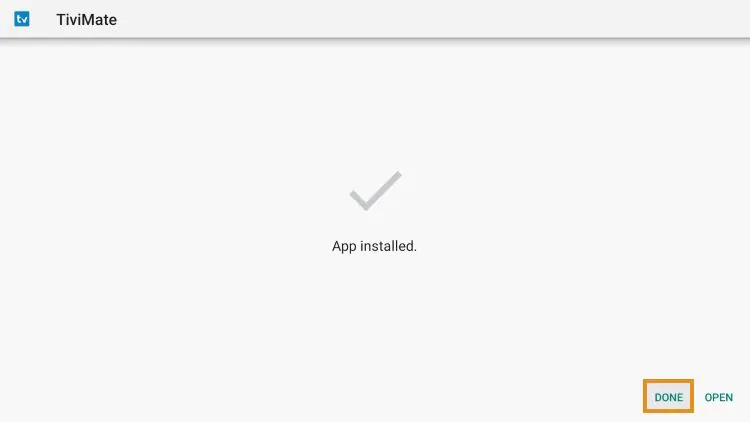
10. Click Done.
11. You will now return to the Downloader app where we can remove the installation file. Click Delete.
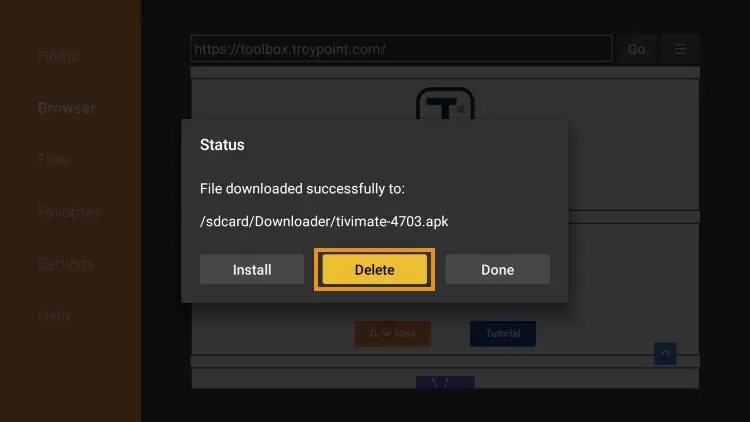
12. Click Delete again.
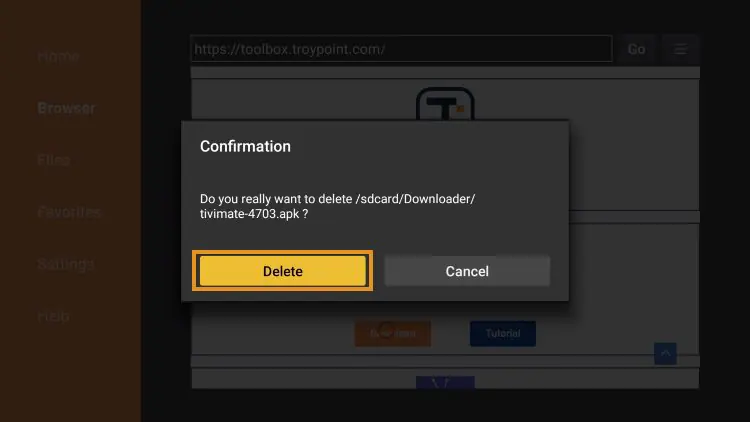
Installation is now complete