Step‑by‑Step Beginner’s Guide (2025)
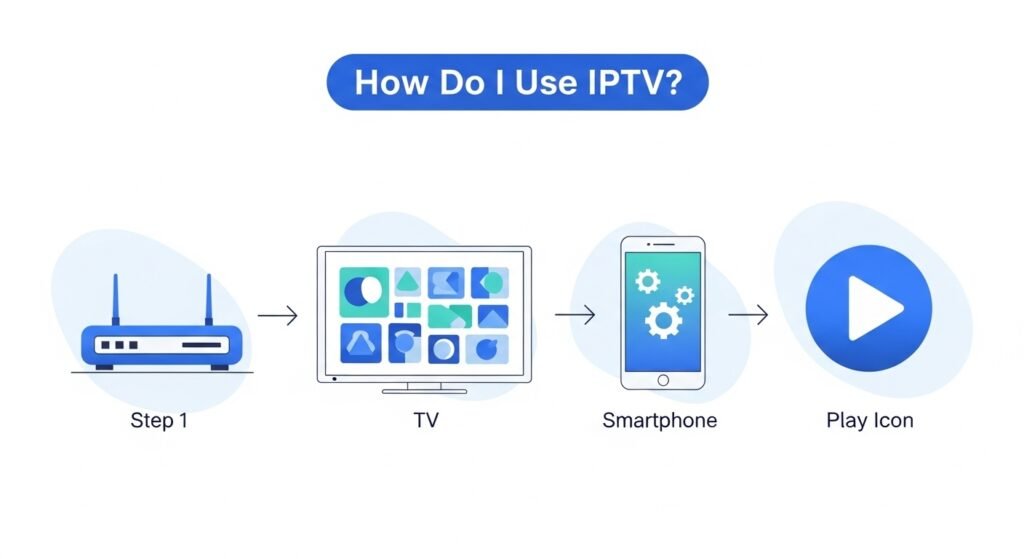
If you’ve just bought a new Smart TV or Firestick and keep hearing about IPTV, you might be wondering:
“How do I use IPTV? What exactly do I need to get it working?”
You’re not alone. Many people see phrases like m3u, Xtream Codes, MAG box, and feel completely lost.
This guide will walk you through everything in plain English:
- What IPTV is and how it works
- What you need to use IPTV
- How to set it up on Smart TV, Firestick, Android, iPhone, and PC
- How to pick a good IPTV provider
- Recommended services: ukiptvsub.com and iptvnethub.com
- Common problems and how to fix them
By the end, you’ll know exactly how to start watching IPTV like a pro, even if you’re not “techy” at all.
UKIPTVSUB is the most stable IPTV I’ve used – no buffering even during live sports!
 Rated 4.8| Excellent
 Trustpilot
What Is IPTV and How Does It Work?
IPTV stands for Internet Protocol Television. That’s just a fancy way of saying:
TV channels and movies are delivered over the internet instead of through satellite or cable.
So instead of a dish or traditional TV box, you use:
- Your internet connection
- An IPTV subscription
- An app (IPTV player) on your device
If you’re curious about how internet TV is changing broadcasting, you can read more about it on Ofcom’s online and on-demand services page.
What Do I Need to Use IPTV?
To answer “how do I use IPTV?”, let’s start with the basics. You need just four things:
1. A Stable Internet Connection
- At least 10–15 Mbps for HD streaming
- Preferably wired (Ethernet) or strong Wi‑Fi
- If several people are streaming at once, you may need a faster line
2. A Compatible Device
You can use IPTV on:
- Smart TVs (Samsung, LG, etc.)
- Amazon Firestick / Fire TV
- Android TV boxes
- Android phones/tablets
- iPhone / iPad
- Windows PC / Mac (via apps or media players)
3. An IPTV Subscription
Your IPTV provider gives you:
- An m3u URL or
- Xtream Codes (server URL, username, password)
Reliable providers like ukiptvsub.com and iptvnethub.com make this part simple by sending clear login details and setup guides after you order.
4. An IPTV Player App
Examples:
- Smart IPTV-style apps on Smart TVs
- IPTV players on Firestick
- IPTV apps on Android/iOS
Your provider will usually recommend one or more compatible players.
How Do I Use IPTV on Different Devices?
Let’s go step-by-step on the most popular devices.
Note: Exact app names may vary depending on your region and TV brand, but the basic process is always the same.
How to Use IPTV on a Smart TV
Perfect if: You want to watch IPTV on the big screen without extra hardware.
Step 1 – Install an IPTV App
- Open your TV’s app store.
- Search for “IPTV” or the app recommended by your provider.
- Install the player.
Step 2 – Get Your IPTV Details
From your provider (e.g., ukiptvsub.com or iptvnethub.com), you’ll receive:
- An m3u link or
- Username, password, and server URL
Step 3 – Connect the App
- Open the IPTV app.
- Enter the m3u URL or Xtream Codes details.
- Save or log in.
- Wait a few seconds while the channel list loads.
You should now see categories like Live TV, Sports, Movies, Series, VOD and be able to start watching.
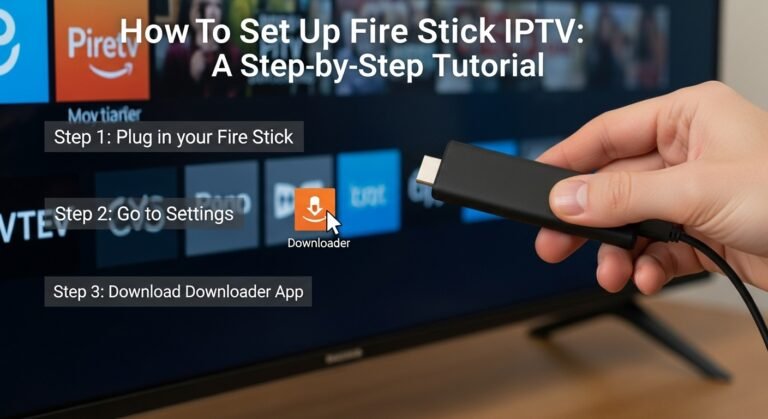
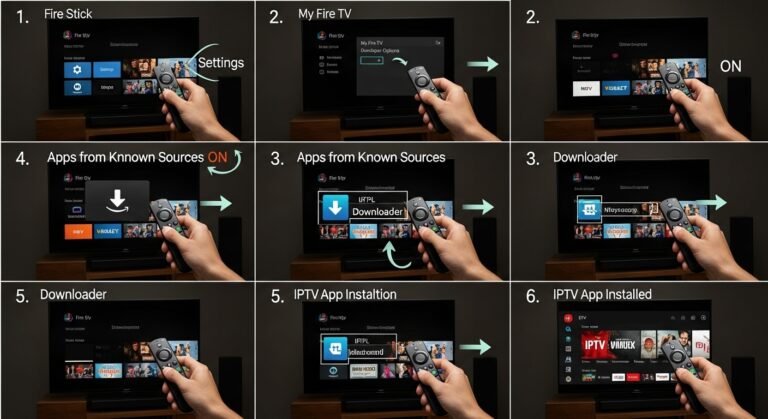
How to Use IPTV on Amazon Firestick / Fire TV
Perfect if: Your TV isn’t “smart” enough, or you want more flexibility.
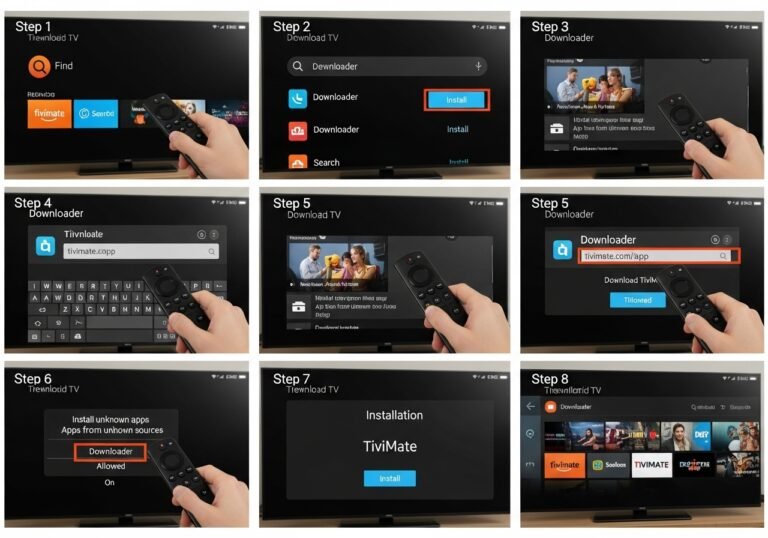
Step 1 – Install an IPTV Player
- From the Firestick Home screen, go to Find → Search.
- Search for the IPTV player recommended by your provider.
- Download and install it.
Step 2 – Enter Your IPTV Credentials
- Open the installed app.
- Go to the settings or login section.
- Paste or type in your m3u URL or Xtream Codes (server, username, password).
- Save and reload the app.
Step 3 – Organise and Enjoy
- Add your favourite channels to a Favorites list.
- Check sports, movies, and series sections.
Providers like iptvnethub.com and ukiptvsub.com usually include simple Firestick setup guides, which helps a lot if you’re new.
How to Use IPTV on Android Phones & Tablets
Perfect if: You want IPTV in your pocket or on a tablet in bed.
Step 1 – Install an IPTV App
- Open Google Play Store.
- Search for “IPTV player” (or the app recommended by your IPTV provider).
- Install it.
Step 2 – Add Your IPTV Playlist
- Open the app.
- Add a new playlist or service.
- Paste your m3u URL or enter Xtream Codes details.
Once loaded, you can watch live TV or VOD just like on a TV.
How to Use IPTV on iPhone / iPad
Step 1 – Get an IPTV Player from the App Store
- Open the App Store.
- Search for a trusted IPTV player app.
- Install it.
Step 2 – Log In with Your IPTV Details
- Open the app.
- Look for “Add playlist” or “Add provider”.
- Enter the m3u URL or Xtream Codes from your IPTV provider.
Now you can stream live channels and VOD on your iOS device.
How to Use IPTV on Windows PC / Mac
Option 1 – Use an IPTV App
- Download a compatible IPTV player for Windows or macOS.
- Enter your m3u URL or Xtream Codes.
Option 2 – Use a Media Player
Apps like VLC (a well-known open-source media player recommended by many) can open m3u playlists:
- Open VLC.
- Go to Media → Open Network Stream.
- Paste your m3u URL and click Play.
You can learn more about VLC at its official site: https://www.videolan.org/vlc/.
How Do I Choose a Good IPTV Provider?
Knowing how to use IPTV is only half the story. The other half is choosing the right provider.
Here’s what to look for:
1. Channel & VOD Quality
- HD/Full HD UK channels
- Stable streams for sports, movies, and series
- Rich VOD library updated regularly
Both ukiptvsub.com and iptvnethub.com are known for strong UK and international channel lineups plus extensive VOD content.
2. Device Support
Check if the provider:
- Works on Smart TV, Firestick, Android, iOS, PC
- Provides setup guides for your specific device
3. Customer Support
A serious provider:
- Responds to messages
- Helps you with setup
- Offers guidance for issues like buffering
4. Fair Pricing
Be wary of:
- Unrealistic “lifetime” offers
- Prices that are suspiciously low
Quality IPTV has server and support costs, so reliable providers charge realistic prices.
Common IPTV Problems (and How to Solve Them)
Even with the best provider, you may sometimes hit issues. Here’s how to handle the most common ones.
Problem 1: Buffering or Freezing
Possible causes:
- Slow or unstable internet
- Weak Wi‑Fi signal
- Many users on your network
- Overloaded server
Solutions:
- Restart your router and device
- Use a wired Ethernet connection if possible
- Close other heavy apps or devices using the internet
- Ask your provider if they have alternative servers
Quality-focused providers like ukiptvsub.com and iptvnethub.com usually manage server loads better, meaning less buffering.
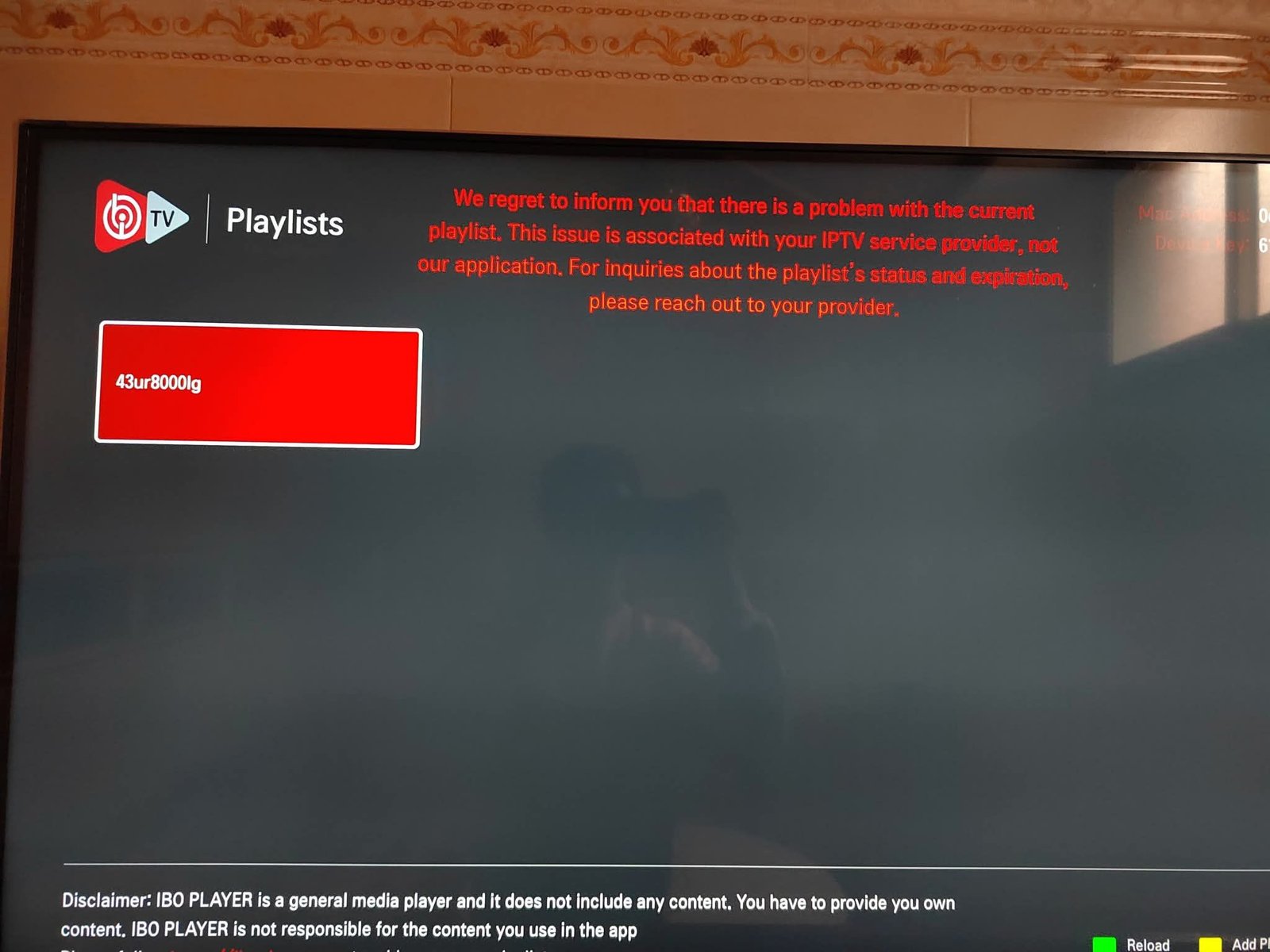
Problem 2: Channels Not Working
Solutions:
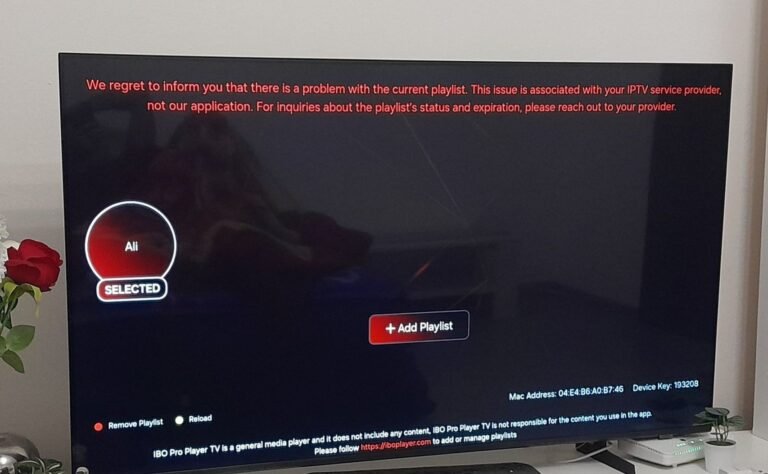
- Restart the app and reload the playlist
- Check your subscription is active
- Contact your provider and give examples (channel name, time, issue)
Good providers frequently check and update their channel list.
Problem 3: App Crashes or Won’t Open
Solutions:
- Update the IPTV app to the latest version
- Reinstall the app
- Restart your device
- Try another compatible IPTV player (your provider can suggest alternatives)
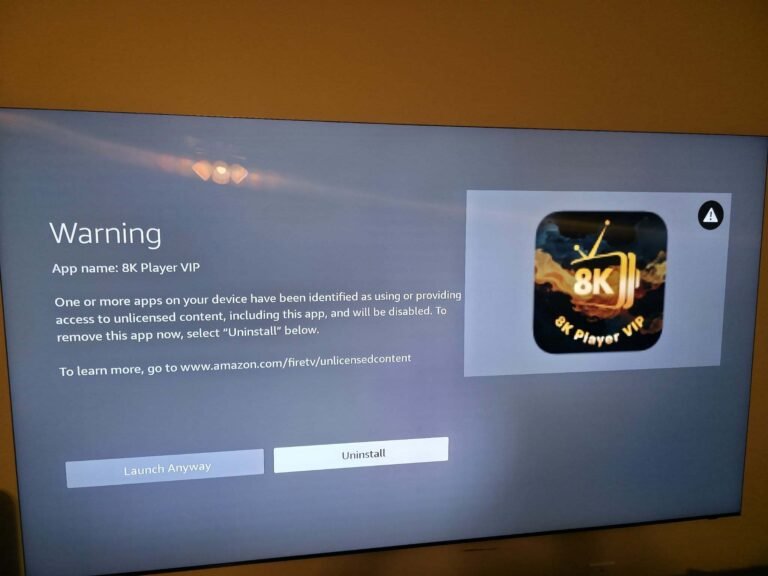
Is IPTV Legal to Use?
The question often goes from “how do I use IPTV?” to “is IPTV legal?”
The short version:
- IPTV technology is legal.
- The legality depends on the content source and rights.
- Always choose reputable providers and avoid shady, anonymous sellers.
For a deeper understanding of content rights, you can read the UK government’s copyright overview.
Quick Answer: How Do I Use IPTV?
Here’s a featured-snippet style summary:
To use IPTV, you need a stable internet connection, a compatible device (Smart TV, Firestick, Android, iOS, or PC), an IPTV subscription, and an IPTV player app. After subscribing to a reliable service like ukiptvsub.com or iptvnethub.com, your provider will send you an m3u URL or login details. You then enter these details into your IPTV app, load the channels, and start watching live TV and on-demand content.
Frequently Asked Questions: How Do I Use IPTV?
1. How do I use IPTV for the first time?
- Choose a trusted provider such as ukiptvsub.com or iptvnethub.com.
- Buy a subscription.
- Install an IPTV app on your device.
- Enter the m3u or Xtream Codes from your provider into the app.
- Load the channels and start watching.
2. Do I need a special box to use IPTV?
Not always. Many people use:
- Smart TVs (with IPTV apps)
- Firestick or Android TV
- Phones, tablets, and PCs
A “box” like an Android TV box or MAG box is optional, not required.
3. How do I use IPTV on multiple devices?
Most IPTV subscriptions allow use on one device at a time, unless you buy a multi-connection plan. If you want to watch in different rooms:
- Check with your provider about multi-room or multi-connection options.
- Use the same login details on each device, following the setup steps above.
4. How can I improve IPTV streaming quality?
- Use Ethernet instead of Wi‑Fi when possible
- Ensure your internet speed is 15–25 Mbps or more
- Choose a provider with good infrastructure (like ukiptvsub.com or iptvnethub.com)
- Close other heavy downloads or 4K streams running on your network
5. How do I use IPTV with a VPN?
- Install a trusted VPN app on your device or router.
- Connect to a nearby, fast server.
- Open your IPTV app and use it normally.
A VPN can help with privacy and, in some cases, reduce ISP throttling, but it doesn’t change the legality of the content itself.
6. What’s the easiest way to start if I’m not tech-savvy?
Use a Firestick or Smart TV, and choose a provider with simple guides:
- ukiptvsub.com – Great for beginners who want clear instructions and fast support.
- iptvnethub.com – Strong option if you want a feature-rich service with broad device compatibility.
Final Thoughts: You Don’t Need to Be a Tech Expert to Use IPTV
Once you understand the basics, “how do I use IPTV?” becomes:
“Which provider should I choose, and what do I want to watch first?”
With:
- A decent internet connection
- A device you already own (TV, Firestick, phone, tablet, PC)
- A quality provider like ukiptvsub.com or iptvnethub.com
You can be watching live TV, football, movies, and series in under an hour.
Want more practical IPTV guides, tips, and honest recommendations?
Subscribe to our updates to learn:
- How to pick the best IPTV deals
- How to fix buffering and streaming issues
- How to get the most from your Smart TV, Firestick, and more
Start streaming smarter today—your perfect IPTV setup is only a few clicks away.