Introduction
You’ve just plugged in your new Fire TV Stick, ready to stream IPTV, Premier League and your favourite UK channels.
Instead, you’re stuck on a spinning logo, the remote won’t respond, or the Fire TV Stick won’t connect to Wi‑Fi at all.
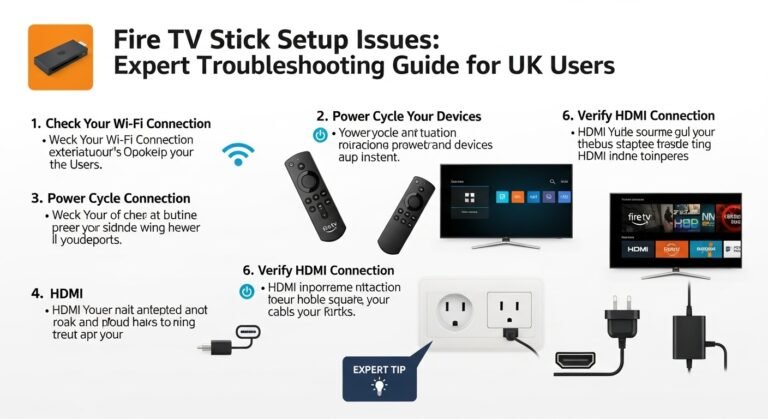
This guide walks you through the most common Fire TV Stick setup issues—what causes them, how to fix them step by step, and how to get your device ready for a legal IPTV service like UKIPTVSUB.
Whether you’re not very technical or just frustrated, follow along and we’ll get your Firestick behaving.
UKIPTVSUB is the most stable IPTV I’ve used – no buffering even during live sports!
 Rated 4.8| Excellent
 Trustpilot
Short Answer
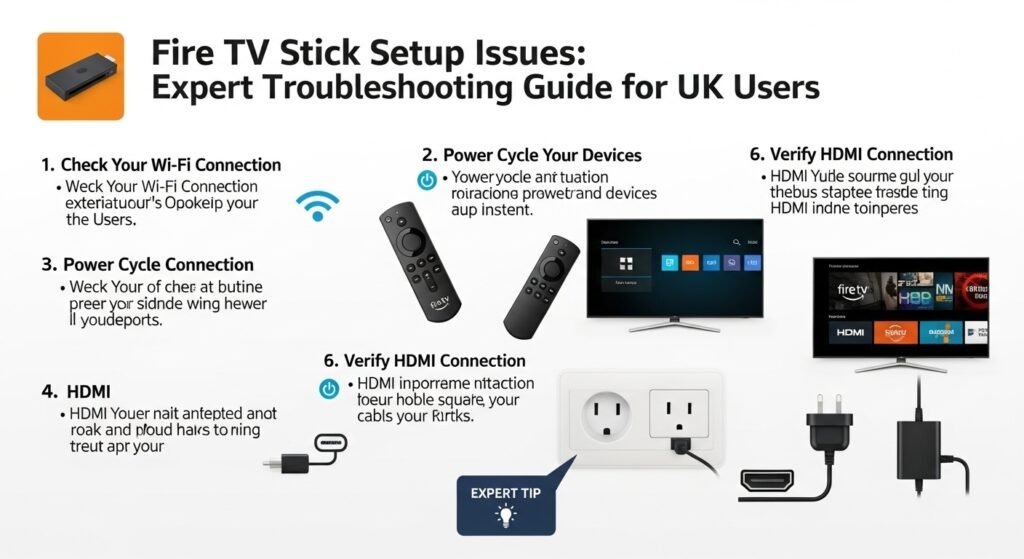
Most Fire TV Stick setup issues are caused by simple things: loose HDMI/power connections, weak Wi‑Fi, software updates getting stuck, or remote pairing problems. Work through hardware checks, Wi‑Fi fixes, software updates and app reinstall steps in order, and you’ll solve almost all Firestick setup problems without needing a technician.
Key takeaways:
- Check HDMI/power and ensure your TV is on the correct input before anything else.
- Fix “Fire TV Stick won’t connect to Wi‑Fi” by moving closer to the router, using 5 GHz, and entering the correct password.
- If your Firestick stuck on setup screen, reboot and let updates finish.
- Clear cache, update or reinstall apps if the Fire TV Stick app not working.
- Once stable, follow our IPTV setup guide to connect your Firestick with UKIPTVSUB for legal, reliable streaming.
Table of Contents
- Context: Why Fire TV Stick Setup Issues Happen
- Step-by-Step: Fixing Common Fire TV Stick Setup Problems
- Tips, Best Practices & Mistakes to Avoid
- Real-World UK Setups & Device Comparisons
- Troubleshooting: Specific Fire TV Stick Setup Errors
- FAQ: Fire TV Stick Not Working During Setup
- Conclusion: From Setup Problems to Smooth IPTV with UKIPTVSUB
Context / Basics
Why Fire TV Stick is popular for IPTV in the UK
The Amazon Fire TV Stick is one of the most popular streaming devices in the United Kingdom because:
- It’s cheap and widely available (Amazon, supermarkets, high-street retailers).
- It plugs directly into your TV’s HDMI port—no extra box on a shelf.
- It supports apps for legal IPTV services, catch-up TV, and streaming platforms.
For a subscription-based service like UKIPTVSUB, the Firestick is often the easiest way to get IPTV onto your main TV without buying a separate Android box.
Why Fire TV Stick setup issues are so common
Most people only set up a Firestick once, so it’s easy to:
- Miss a step in the on‑screen instructions.
- Enter a Wi‑Fi password incorrectly.
- Ignore an important software update.
- Get confused when the Firestick seems “stuck” on a logo or loading screen.
Add in UK‑specific issues like:
- Older BT/Sky/Virgin routers in awkward spots.
- Thicker walls in older properties.
- Varying broadband speeds across the country.
…and it’s no surprise we see lots of Fire TV Stick setup problems before people even get to their IPTV apps.
Quick legal note about IPTV
In this guide we’ll mention installing IPTV apps on your Firestick.
- IPTV itself is legal. The important part is where the streams come from.
- Always use legal, subscription-based IPTV services such as UKIPTVSUB, which only distribute content they’re allowed to.
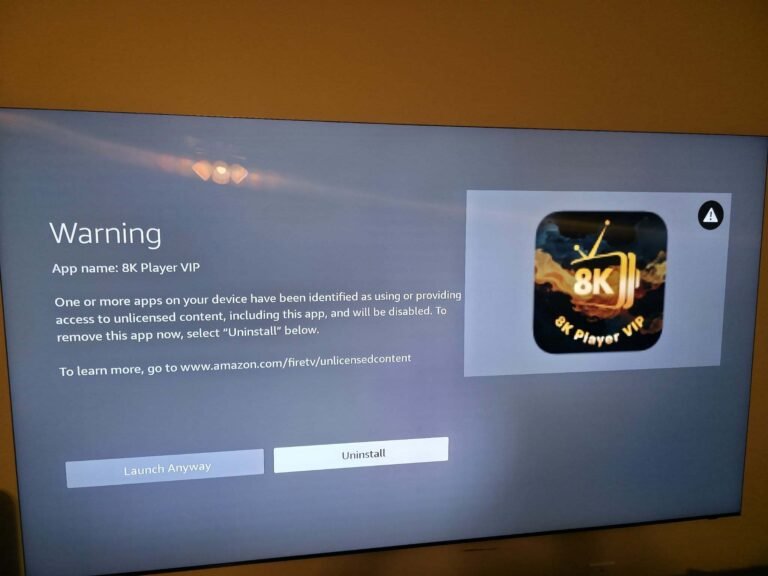
- Avoid “fully loaded” or pirate apps/boxes, which may be illegal and are usually unstable.
For more about legality, see: Is IPTV legal?
Main How-To / Steps
This section is your Firestick setup troubleshooting guide from start to finish.
Step 1: Check Cables, Power and TV Input
Many “Fire TV Stick not working during setup” complaints are simply incorrect connections.
- HDMI
- Ensure the Firestick is firmly plugged into a working HDMI port.
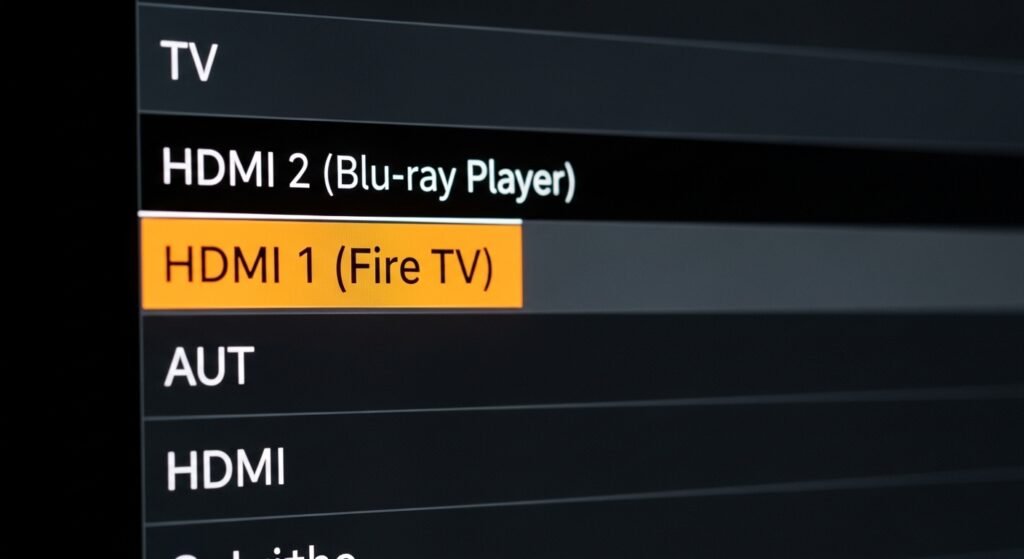
- Note which HDMI input (e.g. HDMI 1) you used.
- Power
- Use the original USB power adapter supplied with the Firestick.
- Avoid powering directly from the TV’s USB port; some UK TVs don’t supply enough power.
- TV Input
- On your TV remote, press Source/Input and select the HDMI port where the Firestick is plugged in.
If you see the Fire TV logo or setup screen, your hardware is fine—move to Step 2.
Step 2: Pair or Fix the Fire TV Remote
If nothing responds, your remote may not be paired.
- New Firestick: The remote usually pairs automatically when you insert the batteries.
- If it doesn’t:
- Hold the Home button (the house icon) for about 10 seconds while pointing at the Firestick.
- Wait for a message confirming the remote is paired.
If still not working:
- Replace the batteries with fresh ones.
- Move closer to the TV.
- Make sure there’s no obvious interference (metal cabinets, very thick glass, etc.).
Official help: Amazon – Fire TV remote not working
Step 3: Complete Language & Region Setup
On first boot, the Firestick will ask for:
- Language: Choose English (United Kingdom).
- Region/time zone: This helps with content availability and correct time for EPGs.
Just follow the on-screen prompts using the remote.
If the Firestick freezes here, restart it:
- Hold Select + Play/Pause together for about 5 seconds, or
- Unplug it from power, wait 10 seconds, plug back in.
Step 4: Connect to Wi‑Fi (If Fire TV Stick Won’t Connect)
This is one of the most common Fire TV Stick setup issues.
- On the Wi‑Fi screen, select your home network name (SSID).
- Enter your Wi‑Fi password carefully (case sensitive).
- If you have both 2.4 GHz and 5 GHz:
- Prefer 5 GHz when the Firestick is within the same room or nearby—better for HD/4K streaming.
- Use 2.4 GHz only for longer distances or through thick walls.
If Fire TV Stick won’t connect to Wi‑Fi:
- Double‑check the password (many routers have it on a sticker).
- Move the router or Firestick so there is less obstruction.
- Restart your router and try again.
- If possible, test another device (phone/laptop) on the same Wi‑Fi to ensure the network itself works.
Official UK support: Amazon Fire TV network issues
Step 5: Sign in with Your Amazon Account
You’ll need an Amazon account (doesn’t have to be Prime) to complete setup.
- Either sign in with existing Amazon details, or
- Create a new account on your phone or laptop first, then use those credentials.
If you get login errors:
- Ensure your email and password are correct (case sensitive).
- If 2FA (two-factor authentication) is enabled, follow the SMS/email code instructions.
Step 6: Let Updates Complete (Stuck on Setup Screen?)
After account sign‑in, the Firestick usually:
- Downloads and installs system updates.
- This is where some people see “Firestick stuck on setup screen”.
If it seems stuck:
- Give it 5–10 minutes; large updates can take a while, especially on slower UK broadband.
- If still frozen after ~15 minutes, restart the Firestick and it will usually resume or complete the update.
Avoid unplugging mid‑update unless it is clearly frozen for a long time.
Step 7: Adjust Basic Display & Audio Settings
Once you reach the Fire TV home screen:
- Go to Settings → Display & Audio.
- Under Display, set:
- Video Resolution: Auto (or 1080p if your TV is Full HD).
- Match Original Frame Rate: ON (optional, but can improve motion).
- Under Audio, leave defaults unless you use special AV equipment.
These settings help prevent picture issues once you start using apps and IPTV.
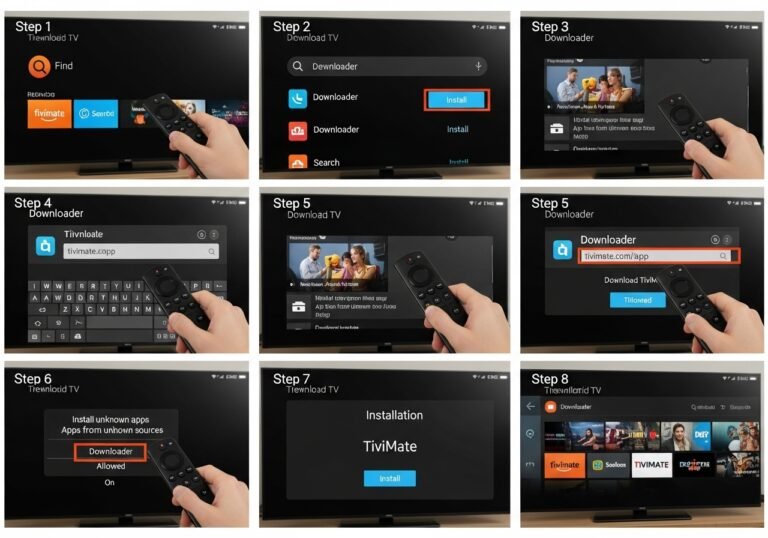
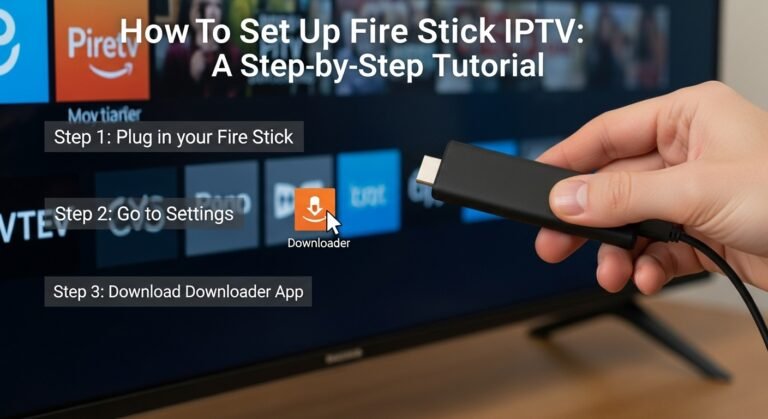
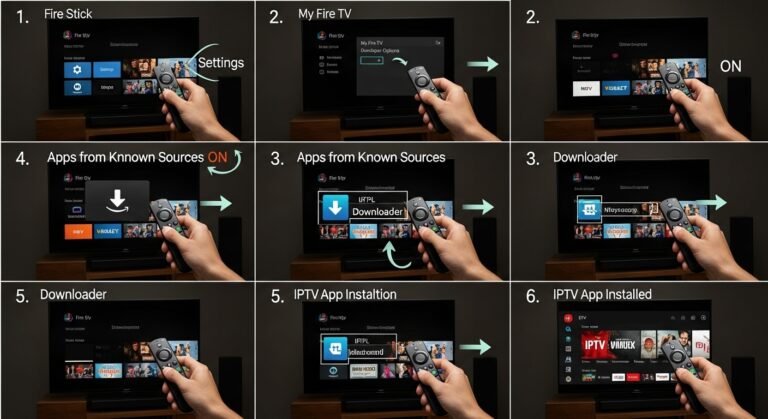
Step 8: Install IPTV and Streaming Apps
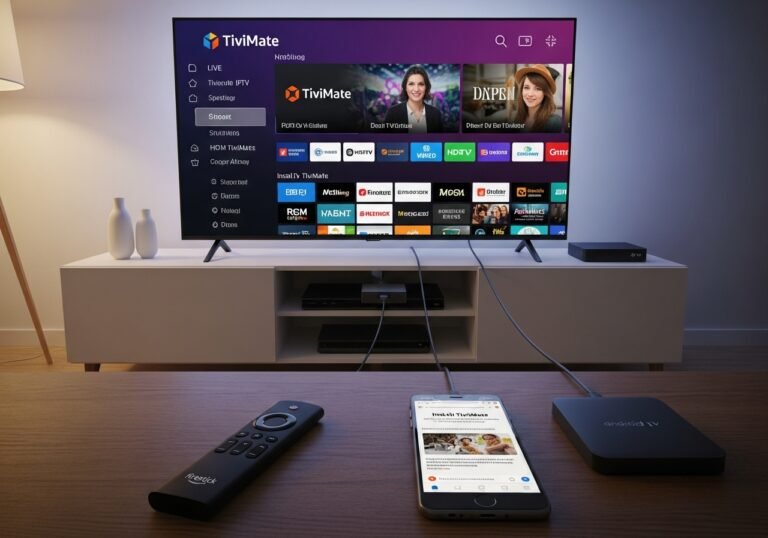
Now your Firestick is technically set up; you can add apps.
For legal IPTV like UKIPTVSUB:
- Follow our dedicated guide: How to set up Fire Stick IPTV
In short:
- From the Fire TV home screen, go to Find → Search.
- Type the name of the IPTV app recommended by UKIPTVSUB.
- Select it and choose Download / Get.
- Open the app and log in using the details from your UKIPTVSUB account.
Once that’s done, you’re ready to start streaming UK channels and sports.
Tips, Best Practices, and Mistakes to Avoid
Best Practices for a Smooth Fire TV Stick Setup
- Use the original power adapter rather than your TV’s USB port.
- Keep the Firestick well‑ventilated—don’t trap it behind metal or inside a tight cabinet.
- Position your router somewhere central and elevated for better Wi‑Fi coverage.
- Complete all initial updates before installing lots of apps.
- Note your Amazon and Wi‑Fi passwords somewhere safe in case of future resets.
Avoid These Common Mistakes
- Skipping updates because you’re in a hurry—this leads to more Fire TV Stick setup errors later.
- Trying to sideload random apps from unknown sources (can cause crashes or legal issues).
- Entering the wrong Wi‑Fi password over and over instead of double‑checking the router label.
- Powering through the TV’s USB port which can cause random reboots and “Fire TV Stick not working during setup”.
Tips Specifically for IPTV Users
- Ensure your internet speed is sufficient (aim for 25 Mbps+ for HD IPTV).
- Once setup is complete, follow a clear IPTV guide:
- Use a legal IPTV provider like UKIPTVSUB to avoid shady apps and “disappearing services”.
Mid-Article CTA
Once your Firestick is fully set up and stable, the next step is choosing a reliable IPTV subscription.
You can compare UKIPTVSUB’s IPTV subscription plans—built for UK channels, Premier League viewers and families—here:
👉 View IPTV subscription plans at UKIPTVSUB
Examples, Use Cases, or Recommendations
Example 1: New Firestick in a UK Family Living Room
- Scenario: Parents and kids want BBC, ITV, Premier League, Netflix, and IPTV sports.
- Setup:
- Firestick 4K on HDMI 1, powered by the original adapter.
- BT fibre broadband with router in hallway.
- Firestick on 5 GHz Wi‑Fi, video set to Auto/1080p.
- IPTV app from UKIPTVSUB + mainstream streaming apps.
Why it works:
All basic setup issues solved upfront: correct input, strong Wi‑Fi, updates done, tested with YouTube before adding IPTV.
Example 2: Fire TV Stick in a Bedroom with Weak Wi‑Fi
- Scenario: Firestick stalls on setup or fails Wi‑Fi.
- Fix:
- Move router slightly closer or higher.
- Use a Wi‑Fi extender or mesh node near the bedroom.
- Stick to 2.4 GHz if distance is long but accept lower maximum speeds.
Tip: For IPTV and sports, Ethernet or strong 5 GHz is always best where possible.
Example 3: Firestick vs Android TV vs Smart TV for IPTV
If you’re still deciding which device is best for IPTV (like UKIPTVSUB), here’s a quick comparison:
| Device Type | Ease of Setup | App Support for IPTV | Performance for Streaming | Best For |
|---|---|---|---|---|
| Fire TV Stick | Very Easy | Excellent | Very Good | Most UK homes, tech beginners |
| Android TV Box/TV | Medium | Excellent | Excellent | Power users, more control/customisation |
| Smart TV (Samsung/LG) | Easy | Good (varies) | Good | Minimal clutter, one-remote setups |
For most UK users starting out, a Fire TV Stick is the best balance of price, simplicity and performance—especially when paired with a solid IPTV service.
Troubleshooting and Common Problems
Here we’ll go deeper into specific Fire TV Stick setup problems and how to solve them.
Fire TV Stick Not Working During Setup (No Signal/Black Screen)
Likely causes:
- Wrong TV input selected.
- Loose HDMI or power connection.
- Underpowered USB port.
Fix:
- Confirm the TV is set to the correct HDMI input.
- Make sure the Firestick is firmly connected and powered by the original power adapter.
- Try another HDMI port or even another TV to rule out a faulty port.
- If still nothing, perform a Firestick restart (unplug, wait 30 seconds, plug back in).
Fire TV Stick Won’t Connect to Wi‑Fi
Likely causes:
- Incorrect Wi‑Fi password.
- Router too far or behind obstacles.
- Router or broadband having issues.
Fix:
- Re-enter your Wi‑Fi password carefully (use the router sticker to confirm).
- Move router or Firestick slightly for clearer line-of-sight.
- Restart router and then Firestick.
- Connect another device to the same Wi‑Fi; if that fails too, the issue is your network, not the Firestick.
Firestick Stuck on Setup Screen or Spinning Logo
Likely causes:
- System update taking longer than expected.
- Software glitch during installation.
Fix:
- Wait at least 10–15 minutes to ensure it’s not just a slow update.
- Restart the Firestick by unplugging and re‑plugging the power.
- If it repeatedly fails at the same point, perform a factory reset (only if nothing else works):
- Hold Back + Right on the directional pad for about 10 seconds and follow on‑screen instructions.
Fire TV Stick Setup Errors When Signing in to Amazon
Likely causes:
- Typo in email or password.
- Amazon account issue (locked, 2FA problems).
- Date/time mismatch (rare).
Fix:
- Verify your Amazon login on a phone/PC first.
- If asked for 2FA codes, ensure you have access to your email or phone.
- If you changed password recently, use the new one on the Firestick.
IPTV App Not Working After Setup
Once Firestick setup is complete, you may see issues only inside your IPTV app (crashing, buffering, login fails).
Fix:
- Confirm your IPTV subscription is active (e.g. via the UKIPTVSUB website).
- Clear the app cache: Settings → Applications → Manage Installed Applications → [App] → Clear cache.
- Update or reinstall the app.
- Check your internet speed and Wi‑Fi strength again; IPTV is more sensitive to drops than many other services.
For a deeper dive into IPTV issues (buffering, channels, etc.), see:
FAQ
How do I fix Fire TV Stick setup issues if I’m not technical?
Follow the simple order:
- Check HDMI/power and correct TV input.
- Pair the remote.
- Connect to Wi‑Fi using the right password.
- Let updates finish.
- Then install your apps (IPTV, Netflix, etc).
Each step is on-screen and your Firestick will guide you—this article just fills in the “what if it goes wrong” bits.
Why is my Fire TV Stick not working during setup but my TV is fine?
If other HDMI devices work on the TV but the Firestick doesn’t:
- Test a different HDMI port.
- Use the original power brick, not TV USB power.
- Try the Firestick on another TV to see if the stick itself is faulty.
My Fire TV Stick setup problems started after an update. What now?
Occasionally updates introduce bugs or don’t install cleanly.
- First, reboot the Firestick and re-test.
- Clear caches for problematic apps.
- If the entire system is glitchy, a factory reset (last resort) can give you a fresh start, though you’ll need to log in again.
Fire TV Stick won’t connect to Wi‑Fi but my phone does. Why?
The Firestick might be:
- Farther from the router than your phone, or
- Stuck on the 2.4 GHz band with interference.
Try:
- Switching to 5 GHz if signal is strong.
- Moving the Firestick/router slightly.
- Restarting both devices.
Some older routers from UK ISPs are also just less stable with many devices connected.
Can I use Firestick for IPTV without any special setup?
Yes. Once the basic Firestick setup is complete:
- You simply install the IPTV app recommended by your provider (e.g. UKIPTVSUB) from the Amazon Appstore or via their instructions.
- Log in with the credentials from your IPTV subscription.
No “hacking” or complicated sideloading is needed for a legal, subscription-based IPTV service.
Conclusion: From Setup Problems to Smooth IPTV with UKIPTVSUB
Fire TV Stick setup issues are frustrating, but they’re usually fixable with a handful of simple checks: correct HDMI input, solid power, working Wi‑Fi, completed updates, and a properly installed app.
Once these basics are in place, your Firestick becomes a powerful, reliable way to enjoy legal IPTV, UK channels and live sports—especially when paired with a stable, subscription-based provider like UKIPTVSUB.
If your Firestick is now set up and you’re ready to actually watch something, your next step is choosing a quality IPTV service that takes care of the streaming side for you.
👉 Explore UKIPTVSUB’s IPTV subscription plans—designed for UK viewers, Premier League fans and families—here:
View IPTV subscription plans at UKIPTVSUB
With a correctly set up Firestick and a solid IPTV subscription, you can finally enjoy smooth, modern TV without the setup headaches.