The first time I set up a Firestick for my dad, he had one request:
“Give me all the channels… but don’t make me pay for yet another subscription.”
That’s how I fell down the rabbit hole of free IPTV apps for Firestick.
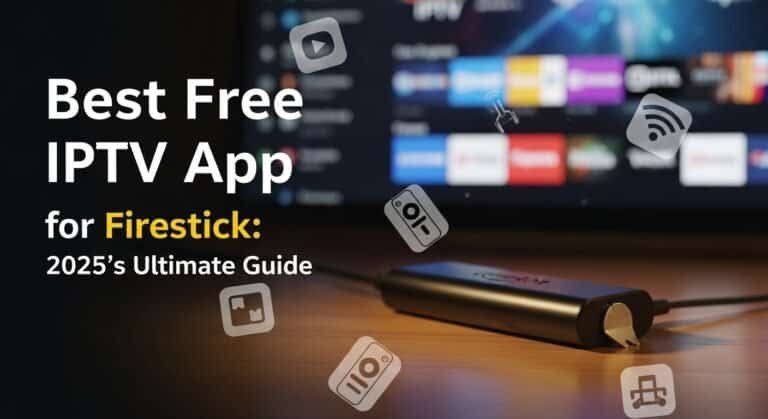
If you’re in the same spot—new Firestick in hand, hunting for the best free IPTV app for Firestick (2025) without getting lost in technical jargon or shady apps—this guide is for you.
UKIPTVSUB is the most stable IPTV I’ve used – no buffering even during live sports!
 Rated 4.8| Excellent
 Trustpilot
Estimated reading time: ~8 minutes
Key Takeaways (Before We Dive In)
- Plenty of choice: There are multiple free IPTV apps for Firestick, each with different strengths.
- Setup is simple: Installation usually takes a few minutes if you follow basic Firestick settings.
- Internet quality matters: A solid connection is more important than the app itself for smooth streaming.
- Safety first: Stick to trusted sources and understand legal boundaries.
- Test and tweak: Try more than one app; the “best” free IPTV app for Firestick often comes down to personal preference.
Table of Contents
• What is IPTV and Why You Should Care?
• Top Free IPTV Apps for Firestick • Installing IPTV Apps on Firestick • Maximizing Your IPTV Experience • Safety and Legal Considerations • Troubleshooting Common Issues • Beyond Firestick: Multi-Device Compatibility • Final Thoughts • Frequently Asked QuestionsWhat Is IPTV and Why Should You Care?
Imagine if live TV worked the way Netflix or Disney+ does—that’s essentially IPTV (Internet Protocol Television): TV delivered over the internet instead of cable or satellite. The International Telecommunication Union (ITU) defines IPTV as multimedia services delivered over IP networks with quality, security, and interactivity (ITU IPTV overview).
For Firestick users, IPTV can feel like a cheat code:
- Watch when you want: Catch up or time‑shift instead of being locked to broadcast times
- Higher quality: Many streams offer HD and even 4K (if your internet can handle it)
- Custom channels: Use playlists and apps to build your own viewing line‑up
But here’s where it gets real: IPTV is just the delivery technology. Whether what you watch is legal depends on where the content comes from—we’ll come back to this in the “Safety and Legal” section.
Top Free IPTV Apps for Firestick
Let’s talk about the apps most people end up loving on Firestick. These are players, not content providers—you usually add your own playlist or legal IPTV subscription.
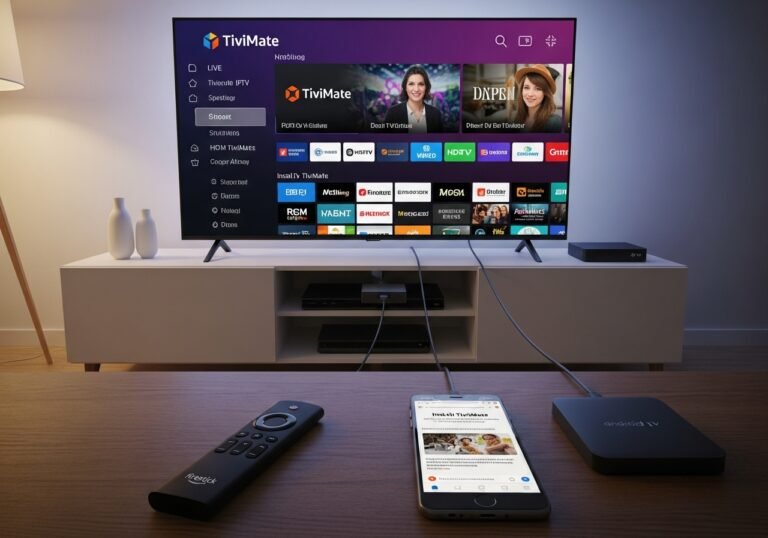
1. TiviMate (Free Version) – The “Feels Like Real TV” Experience
If you ask long‑time Firestick users what the best free IPTV app for Firestick is, TiviMate comes up again and again—especially for live TV.
Why people love it:
- Clean, TV‑style interface that feels like a modern cable box
- Designed for remote control navigation—perfect for Firestick
- EPG (Electronic Programme Guide) that looks like a proper TV guide
- Supports M3U playlists and multiple playlists
- Channel groups, favourites, and catch‑up (if your source supports it)
I once set up TiviMate for a friend who hates tech. Two days later he said, “This is the first time streaming hasn’t felt confusing.”
Note: TiviMate’s free version is limited but very usable. There’s a paid Premium version with more features, but you don’t have to buy it to get started.
For context on how IPTV players work with M3U playlists and HLS streams, see the FFmpeg streaming guide (FFmpeg Streaming Guide).
2. IPTV Smarters Player – Best for Beginners
If someone in your family will ask you for help every time the remote changes colour, start them on IPTV Smarters Player.
Why it’s beginner‑friendly:
- Simple layout: Live TV, Movies, Series, EPG tabs
- Easy login via M3U URL or Xtream Codes
- Stable playback on Firestick
- Catch‑up TV and picture‑in‑picture (PiP) support (depending on source)
- Works on Android, iOS, smart TVs, and Firestick
IPTV Smarters is very popular because it strikes a balance between simple and powerful without scaring off non‑technical users.
3. Kodi with IPTV Add‑ons – Best for Tinkerers
If you like to tweak every setting and turn your Firestick into a full media hub, Kodi is still a classic.
Why tech‑savvy users pick Kodi:
- Highly customisable interface
- Massive library of add‑ons and skins
- Plays local files, network shares, and IPTV streams in one place
- Cross‑platform: Firestick, Android, Windows, macOS, Linux
The official Kodi Foundation explains how Kodi is a media centre, not a content provider (Kodi – About). This is important: Kodi itself is legal; legality depends on what add‑ons and sources you use.
With Kodi on Firestick, you can:
- Use PVR IPTV Simple Client to load legal M3U playlists
- Combine IPTV with your own local media library
- Set up advanced playback controls and EPG views
It’s not the easiest option, but for power users, it can be the most flexible.
Installing IPTV Apps on Firestick
When I first showed my dad how to install an IPTV app, he was convinced I’d “hacked” the Firestick. In reality, it’s just a few settings.
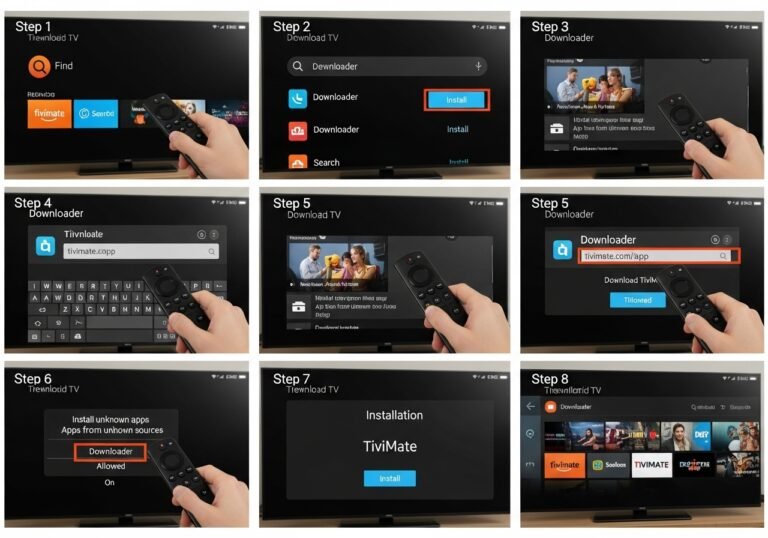
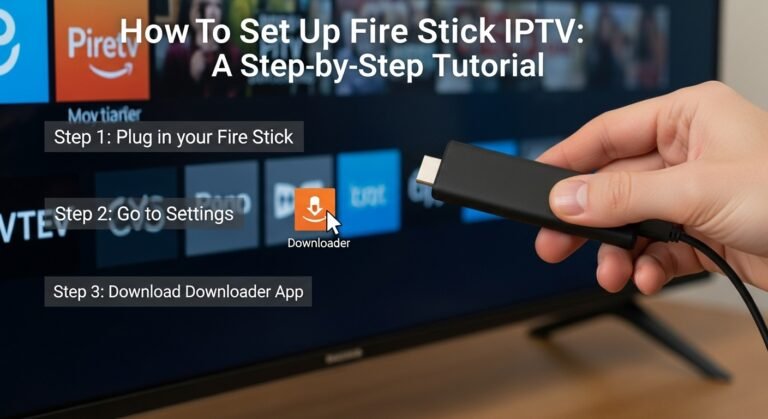
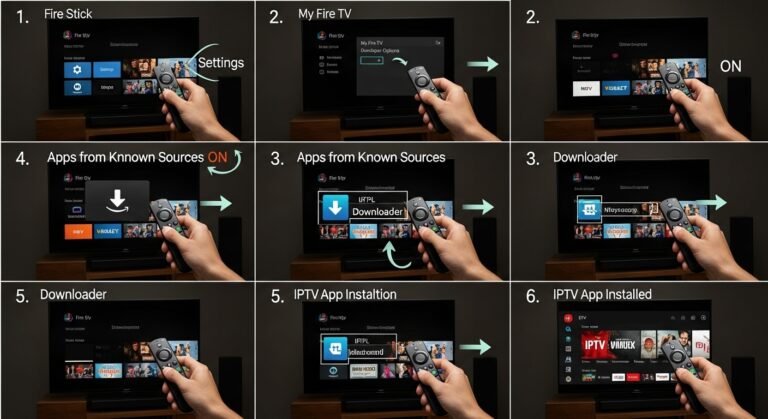
1. Allow Apps from Unknown Sources (If Sideloading)
For apps not directly in the Amazon Appstore:
- From the Firestick home screen, go to Settings
- Select My Fire TV (or Device & Software on some versions)
- Open Developer Options
- Enable Install Unknown Apps (or Apps from Unknown Sources) for the app you’ll use (usually Downloader)
Official Amazon guidance on installing apps covers the basics (Amazon – Download Apps & Games).
2. Install the Downloader App
- On the Firestick home screen, go to Find > Search
- Type Downloader
- Select and install the Downloader app from the Amazon Store
3. Use Downloader to Install Your IPTV App
- Open Downloader
- Enter the URL provided by the IPTV app’s official website (or trusted guide)
- Download and install the APK
- Launch the app and follow its setup instructions (usually adding a playlist or login)
If your IPTV app is available directly in the Amazon Store (e.g., some versions of IPTV Smarters or Kodi), you can skip sideloading and just Install it like any other Fire TV app.
Maximizing Your IPTV Experience
Even the best free IPTV app for Firestick will struggle if your setup is weak. A few small tweaks make a big difference.
1. Get Your Internet Right
Streaming experts and services like Netflix and YouTube recommend roughly:
- HD (720p–1080p): 5–10 Mbps
- 4K UHD: 15–25 Mbps
See:
- Netflix speed recommendations: https://help.netflix.com/en/node/306
- YouTube quality guide: https://support.google.com/youtube/answer/2853702
For IPTV on Firestick, I recommend:
- At least 10 Mbps per active stream
- Using 5 GHz Wi‑Fi instead of 2.4 GHz where possible
- Keeping the Firestick away from the back of the TV if Wi‑Fi signal is weak (simple HDMI extender can help)
2. Keep Things Clean and Updated
- Regularly clear cache for your IPTV app (via Firestick Settings > Applications)
- Restart the Firestick occasionally to free up memory
- Update apps when new versions are available to fix bugs and improve performance
3. Consider a VPN (Carefully and Legally)
A VPN can:
- Improve privacy by encrypting your connection
- Sometimes help with ISP throttling issues
The Electronic Frontier Foundation (EFF) offers good guidance on VPNs and privacy (EFF – Choosing a VPN).
Important:
- A VPN does not make illegal content legal.
- Always respect copyright and local laws (more on this next).
Safety and Legal Considerations
Here’s where many people get tripped up.
Is IPTV Itself Illegal?
No. IPTV is just a delivery method. What matters is:
- Where the content comes from
- Whether the provider has licences and rights
Legal IPTV:
- Official ISP services, broadcaster apps, licensed OTT/IPTV platforms
- Free legal sources (for example, public broadcasters’ official apps or authorised IPTV free tiers)
Potentially illegal IPTV:
- Services offering all premium sports, movies, and worldwide channels for a tiny one‑time fee
- Unofficial M3U lists posted in random forums with premium channels
The European Audiovisual Observatory and the EU’s AVMS Directive explain how licensing and rights work for TV and streaming in Europe (AVMSD).
Safe Download Sources
To stay safer:
- Prefer apps from the Amazon Appstore or official websites
- Avoid APKs from unknown third‑party sites packed with ads or popups
- Check user reviews and tech communities (Reddit, reputable forums) for feedback
Troubleshooting Common Issues
Even the best setup has off days. I’ve had more than one Sunday football match interrupted by buffering; here’s what usually fixes it.
1. Buffering or Freezing
- Test your internet speed (e.g., via Firefox/Downloader browser)
- Switch from Wi‑Fi to Ethernet (using an adapter) if possible
- Close other apps or streams using the same connection
- Try a different stream or backup link if your source offers it
2. App Crashing or Not Opening
- Go to Settings > Applications > Manage Installed Applications
- Select the IPTV app → Force Stop and Clear Cache
- If still broken, Clear Data and re‑enter your playlist or login
3. EPG or Channels Not Loading
- Double‑check your M3U URL or Xtream Codes login
- Make sure your subscription (if you have one) is still active
- Refresh or reload playlist/EPG inside the app’s settings
Beyond Firestick: Multi-Device Compatibility
One thing I love about most free IPTV apps: once you learn one, you can often use it everywhere.
Common platforms supported:
- Android phones and tablets
- Smart TVs (Android TV, some Samsung/LG via app stores or casting)
- Windows and macOS (via emulators, web players, or native apps)
- Other streaming devices (Android TV boxes, NVIDIA Shield, etc.)
Many IPTV players aim to be cross‑platform, so you can:
- Use Firestick on the main TV
- Use the same playlists on your phone or tablet while travelling (respecting regional and licensing rules)
Final Thoughts
Choosing the Best Free IPTV App for Firestick in 2024
If you’re just starting out and want something that “just works”:
- Start with IPTV Smarters Player for simplicity
- Try TiviMate (Free) if you want that premium TV‑guide feel and live TV organisation
- Experiment with Kodi if you enjoy customisation and want an all‑in‑one media centre
Remember:
- The best free IPTV app for Firestick is partly about your taste—interface, features, and how comfortable you are setting things up.
- Your internet quality and content source matter as much as the app itself.
- Stay on the right side of the law by using licensed content sources and reputable apps.
Over time, many users find that a small premium upgrade (e.g., TiviMate Premium) is worth it, but you can absolutely explore IPTV on Firestick with free apps first.
Frequently Asked Questions
(About the Best Free IPTV App for Firestick in 2024)
1. What is the best free IPTV app for Firestick in 2025?
There’s no one‑size‑fits‑all answer, but three top contenders are:
- TiviMate (Free Version) – Great EPG and live TV experience
- IPTV Smarters Player – Easiest for beginners, good on Firestick
- Kodi with IPTV add‑ons – Best for advanced users who like full customisation
Try at least two to see which layout and controls you prefer.
2. Are free IPTV apps for Firestick legal?
The apps themselves (TiviMate, IPTV Smarters, Kodi, etc.) are generally legal—especially when downloaded from official stores. They’re just players.
Legality depends on:
- The content source or playlists you add
- Whether those sources have proper rights and licences
- Your local copyright laws
Always respect your country’s regulations and stick to licensed or clearly legal content.
3. Do I need a VPN for free IPTV on Firestick?
You don’t have to use a VPN, but many people do for:
- Extra privacy
- Mitigating ISP throttling in some cases
If you choose a VPN:
- Pick a reputable provider with clear privacy policies (see EFF’s guide: https://ssd.eff.org/en/module/choosing-vpn-thats-right-you)
- Understand that a VPN does not legalise unlicensed streams
- Expect some impact on speed, depending on server quality
4. Can I watch live TV with free IPTV apps?
Yes—if you have a source that provides live TV channels:
- Some IPTV subscriptions (paid but used in free apps) include live TV
- Some free, legal sources (like certain news channels or public broadcasters) also have IPTV streams you can add
The app is just the player. Live TV depends on your playlist or provider.
5. What internet speed do I need for IPTV on Firestick?
For a good experience:
- SD: 3–4 Mbps
- HD: 5–10 Mbps
- 4K: 15–25 Mbps or more
These numbers are in line with recommendations from services like Netflix and YouTube (see links above). For Firestick IPTV, I’d aim for 10 Mbps+ per stream for HD content, with a bit of extra headroom.
6. Why isn’t my free IPTV app working properly on Firestick?
Common causes:
- Slow or unstable internet
- Wrong or expired M3U/playlist URL
- App cache issues or an outdated app version
- Firestick running low on memory
Try:
- Testing your internet speed
- Restarting the Firestick
- Clearing cache (and data if necessary)
- Verifying or replacing your playlist/source
7. Can I use the same IPTV app on my phone and Firestick?
In most cases, yes:
- IPTV Smarters, Kodi, and many other IPTV players are cross‑platform
- You can often use the same playlist or login on multiple devices (subject to provider rules on simultaneous connections)
This makes it easy to watch on TV at home and continue on your phone when you’re away (where content rights and your provider’s terms allow).
If you’d like, I can help you pick a specific app and walk you through step‑by‑step setup on your Firestick based on your country, internet speed, and what you like to watch (sports, movies, news, etc.).