Streaming has become the default way to watch TV. In the US, the vast majority of households now subscribe to at least one streaming service (Leichtman Research Group). Yet many people still pay high cable bills for channels they rarely watch.
Fire Stick IPTV is a flexible, budget‑friendly alternative that combines the power of Amazon’s Fire TV Stick with IPTV (Internet Protocol Television). With the right setup, you can enjoy live TV, sports, movies, and series from around the world—all through your internet connection.
If you want a ready‑to‑use IPTV solution that’s optimized for Fire Stick with clear setup support, you can check out ukiptvsub.com. Our IPTV subscriptions are designed for smooth performance on Fire TV, Android TV, and Smart TVs.
UKIPTVSUB is the most stable IPTV I’ve used – no buffering even during live sports!
 Rated 4.8| Excellent
 Trustpilot
This guide walks you through:
- IPTV basics and legal/safety tips
- Preparing and configuring your Fire Stick
- Choosing an IPTV provider and getting your playlist
- Installing an IPTV player and loading your channels
- FAQ section for common Fire Stick IPTV questions
1. Essential IPTV Streaming Basics
What Is IPTV?
IPTV (Internet Protocol Television) delivers TV channels and video content over the internet instead of traditional cable or satellite. It works like streaming services you already know:
- Content is delivered via IP networks (same basic tech as websites and apps)
- You can watch live channels, catch‑up, and on‑demand content
- Playback can be more flexible than standard broadcast TV
If you want a deeper technical background, see:
Why Use IPTV on a Fire Stick?
Combining IPTV with an Amazon Fire TV Stick offers:
- Budget‑Friendly Entertainment
IPTV subscriptions are often significantly cheaper than traditional cable/satellite bundles with similar content. - HD and 4K Streaming
With adequate internet speed, you can stream HD or even 4K channels. For general 4K streaming requirements, see Amazon’s help on 4K streaming. - Global Channel Access
Access international channels and VOD libraries that may not be available via local providers. - On‑Demand Flexibility
Watch live TV, time‑shifted content, and VOD when it suits you. - Multi‑Device Use
Many IPTV subscriptions support Fire Stick, Android TV, Smart TVs, mobile, and more with one account.
2. Legal & Safety Considerations
IPTV is simply a delivery technology. The legal aspect depends on the source of the content and licensing.
Authoritative references on streaming and copyright:
Best practices for safe and legal IPTV use:
- Choose Legitimate Providers
Use services that clearly state they have rights to the content they distribute. - Use a VPN for Privacy (Optional but Recommended)
A reputable VPN can help protect your privacy, especially on public networks, and may reduce ISP throttling. See EFF – How to use a VPN. - Ensure Sufficient Internet Speed
For IPTV on Fire Stick, aim for:- SD: 3–10 Mbps
- HD: 15–25 Mbps
- 4K: 25+ Mbps
Test at Speedtest.net.
- Avoid Obvious Piracy
Stick to legal content sources and services that respect copyright.
At ukiptvsub.com, we focus on stable, high‑quality IPTV with clear information and support so users can make informed choices.
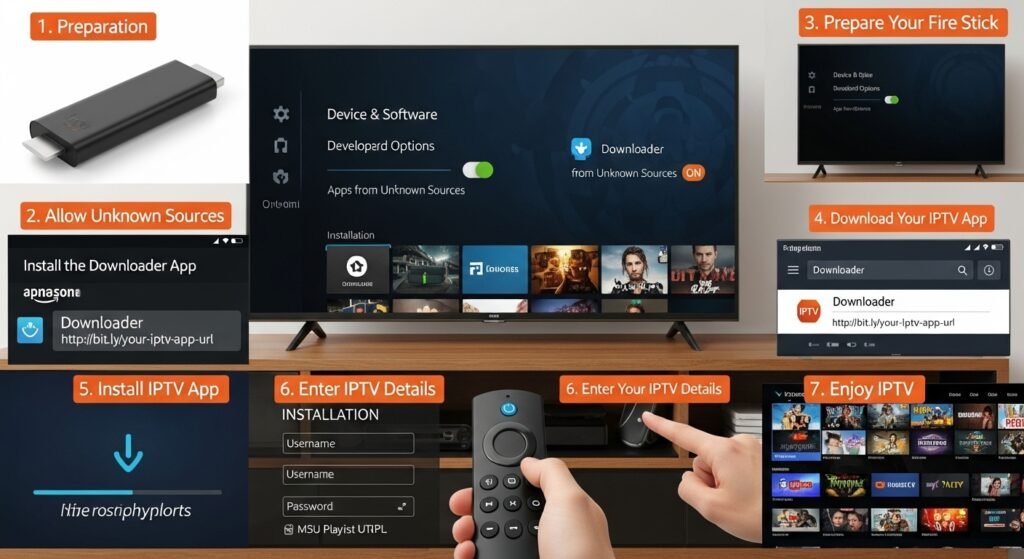
3. Preparing Your Fire Stick for IPTV
Before installing IPTV apps, configure your Fire Stick correctly.
Step 1: Update Your Fire Stick
- Go to Settings > My Fire TV > About > Check for Updates
- Install any firmware updates to ensure compatibility and stability.
Step 2: Enable Required Settings and Permissions
To sideload IPTV players not in the Amazon Appstore:
- Go to Settings > My Fire TV > About
- Highlight Fire TV Stick and press the Select button 7 times
- This unlocks Developer Options
- Go back to Settings > My Fire TV > Developer Options
- Enable:
- ADB Debugging
- Install Unknown Apps (or Apps from Unknown Sources, depending on OS version)
You may also want to review Privacy Settings under Settings > Preferences to limit data collection, as Amazon outlines in its Fire TV privacy documentation.
Step 3: Install the Downloader App
You will use Downloader to install IPTV players via direct URLs:
- From the Fire Stick Home screen, select Find > Search
- Type Downloader
- Choose Downloader (by AFTVnews) and click Download/Get
- Wait for installation and then return to Home
Step 4: Optimize Your Network
Smooth IPTV streaming depends heavily on your network:
- Use 5 GHz Wi‑Fi or a Fire TV Ethernet adapter for best performance
- Place your router centrally and away from obstructions
- Avoid running heavy downloads on other devices while streaming
For optimizing home Wi‑Fi, see FCC – Home Network Optimization.
Routine maintenance:
- Clear cache of heavy apps
- Uninstall unused apps
- Restart your Fire Stick occasionally
A VPN can add a privacy layer and sometimes improve stability if your ISP throttles streaming traffic.
4. Setting Up Your IPTV Service
Once your Fire Stick is ready, you can set up your IPTV account.
Step 1: Choosing a Reliable IPTV Provider
Providers broadly fall into:
- Official/Store‑Based Apps
- Found in the Amazon Appstore or Google Play
- Often region‑locked but fully licensed
- Custom/Third‑Party IPTV Services
- Provide M3U or Xtream Codes credentials
- Require sideloading and IPTV players
- Quality and legitimacy vary significantly
Consider:
- Channel lineup & VOD library
- Server stability and uptime
- EPG support
- Customer support response time
- Clear and transparent pricing
If you want a provider already tested with Fire Stick and Android TV, visit ukiptvsub.com. We focus on:
- Stable servers
- Clear guidance for Fire Stick setup
- Helpful support for new users
Step 2: Getting Your M3U Playlist or Xtream Codes
After subscribing, you typically receive:
- M3U Playlist URL
Example:http://server.com/get.php?username=USER&password=PASS&type=m3u - Or Xtream Codes API details:
- Server/Portal URL
- Username
- Password
Best practices:
- Save these details in a secure place (email + notes/password manager)
- Don’t share them publicly—they are tied to your account
- Confirm that your chosen IPTV player supports M3U and/or Xtream
Your M3U/Xtream details act as your digital TV guide and channel gateway.
Step 3: Setting Up EPG Integration
A good Electronic Program Guide (EPG) enhances usability:
Basic EPG features:
- Per‑channel schedules
- Current & next program info
- Future listings
Advanced features (depends on player & provider):
- Category filters (sports, movies, kids, etc.)
- Search function
- Program reminders
Many providers supply:
- An EPG URL (XML)
- Or built‑in EPG through Xtream Codes
For smooth EPG loading and quick channel zapping, aim for at least 25 Mbps.
5. Configuring Your IPTV Player on Fire Stick
The provider gives you channels. The player is how you watch them on Fire Stick.
Popular IPTV Players for Fire Stick
These are widely used and well‑regarded in the IPTV community:
- TiviMate
- One of the best IPTV players for Android/Fire TV
- Multi‑playlist support, powerful EPG, highly customizable
- Frequent updates and strong user community (see r/TiviMate on Reddit)
- IBOPRO
- Simple, user‑friendly layout
- Good for users who want straightforward live TV access
- Supports multiple accounts/subscriptions
- MaxPlayer
- Modern interface
- Full EPG, catch‑up TV, and VOD support
- Often includes a trial period for premium features
(Some services may also offer their own dedicated apps.)
Player Installation Process (via Downloader)
- Open Downloader on your Fire Stick
- If prompted, allow Install Unknown Apps for Downloader
- In the URL field, enter the official APK link for your chosen player
- Click Go, wait for the download
- Choose Install when prompted
- After installation, click Open or find the player under Your Apps & Channels
Always download APKs from trusted sources to avoid malware.
6. Loading and Testing Your IPTV Playlist
After installing the player, connect it to your IPTV subscription.
Option 1: M3U Playlist Setup
- Open your IPTV player (e.g., TiviMate, IBOPRO, MaxPlayer)
- Go to the Playlist/Account/User section
- Select Add Playlist or similar
- Choose M3U URL
- Enter your M3U URL from the provider
- Name the playlist (e.g., “UKIPTVSub Main”)
- Save and let the app load channels and EPG (if supplied)
Option 2: Xtream Codes API Setup
- In the player, choose Xtream Codes / API / Portal login
- Enter:
- Server/Portal URL
- Username
- Password
- Save and allow the player to sync:
- Live TV
- VOD
- Series
- EPG
Testing Your Setup
During initial testing:
- Open several live channels to check:
- Playback stability
- Audio/video sync
- Test HD or 4K channels if your speed allows
- Browse the EPG:
- Confirm current/next programs display correctly
- Check channel switching speed
- Try lower quality first, then increase if stable
If you experience constant buffering, test your line on Speedtest and consider using 5 GHz Wi‑Fi or Ethernet.
IPTV players sometimes request access to storage and location (for recording or regional features). Grant only what’s necessary and review permissions periodically.
7. Ongoing Maintenance & Optimization
To keep Fire Stick IPTV running smoothly:
- Restart your Fire Stick regularly
- Clear cache for IPTV and streaming apps from Settings > Applications > Manage Installed Applications
- Keep apps and Fire OS up to date
- Ensure your router firmware is current (see your router manufacturer’s support pages)
- Consider using a VPN if your ISP throttles streaming traffic
If you want a subscription and support team familiar with these optimizations, ukiptvsub.com offers IPTV services tailored for Fire Stick and Android devices.
Frequently Asked Questions (FAQ) – Fire Stick IPTV
1. What is Fire Stick IPTV?
Fire Stick IPTV is the use of an IPTV service (live TV and VOD over the internet) on an Amazon Fire TV Stick. You install an IPTV player app, add your provider’s M3U or Xtream details, and watch channels via your internet connection.
2. Is IPTV on Fire Stick legal?
IPTV technology is legal. However, content licensing is what matters:
- Legal: Providers with rights to stream the channels and content they offer
- Illegal: Services that redistribute TV channels or movies without authorization
Always choose reputable providers and avoid obviously pirated content. For more context, see:
3. Do I need a VPN for IPTV on Fire Stick?
A VPN is not mandatory, but it is often recommended because it can:
- Improve privacy by encrypting your traffic
- Help mitigate ISP throttling of streaming data
- Provide protection on public or shared networks
The Electronic Frontier Foundation (EFF) offers practical advice on VPNs:
EFF – How to use a VPN.
4. What internet speed is best for Fire Stick IPTV?
Suggested minimums:
- SD (480p): 3–10 Mbps
- HD (720p/1080p): 15–25 Mbps
- 4K (2160p): 25+ Mbps
Check your speed at Speedtest.net. If multiple people stream at the same time, you’ll need extra bandwidth.
5. Which IPTV player is best for Fire Stick?
Popular choices include:
- TiviMate – Feature‑rich, great EPG, ideal for power users
- IBOPRO – Simple and intuitive
- MaxPlayer – Modern UI with strong EPG and catch‑up
Many Fire Stick users rate TiviMate highly; you can see discussions on r/TiviMate. Your ideal player depends on how much customization you want.
6. Why is my Fire Stick IPTV buffering?
Common causes:
- Inadequate internet speed
- Wi‑Fi interference or distance from router
- Overloaded IPTV servers
- Background downloads or multiple devices streaming at once
Troubleshooting:
- Switch to 5 GHz Wi‑Fi or use Ethernet
- Move closer to the router
- Reduce stream quality temporarily
- Restart your router and Fire Stick
If buffering persists across multiple providers and devices, contact your ISP or consider using a VPN.
7. Can I use Fire Stick IPTV on multiple TVs?
Yes, but it depends on your subscription plan:
- Some providers allow multiple simultaneous connections
- Others charge extra per connection or restrict to one device
Always check your provider’s terms. At ukiptvsub.com, our plans clearly state how many devices you can use.
8. Do I need a smart TV to use Fire Stick IPTV?
No. You only need a TV with an HDMI port. The Fire Stick handles the apps and IPTV:
- Plug the Fire Stick into an HDMI port
- Connect it to power
- Connect to Wi‑Fi
- Install your IPTV player and enter your subscription details
This makes even older non‑smart TVs “smart” with IPTV capability.
9. How can a beginner set up a Fire Stick for IPTV?
Basic steps:
- Plug your Fire Stick into the TV’s HDMI and into power
- Insert batteries in the remote
- Follow on‑screen instructions to connect to Wi‑Fi and sign in to your Amazon account
- Install Downloader
- Use Downloader to install an IPTV player (e.g., TiviMate, IPTV Smarters Pro)
- Enter your IPTV subscription details (M3U/Xtream)
If you prefer guided help, ukiptvsub.com provides step‑by‑step instructions and support for beginners.
10. Is a VPN necessary for IPTV on Firestick?
A Fire Stick can run IPTV without a VPN. However, a VPN is recommended if:
- You’re concerned about privacy
- Your ISP throttles streaming
- You frequently use public Wi‑Fi
Using reputable VPN services and following local laws is essential.
Final Thoughts
Setting up Fire Stick IPTV is straightforward when you:
- Prepare your Fire Stick properly
- Choose a reliable IPTV provider
- Use a good IPTV player
- Optimize your network and settings
Once configured, you can enjoy a powerful, flexible, and cost‑effective alternative to traditional cable TV.
If you want to skip trial‑and‑error and start with a Fire Stick‑optimized IPTV service, visit ukiptvsub.com. We provide stable IPTV subscriptions, clear setup guides, and helpful support so you can enjoy your streaming experience from day one.