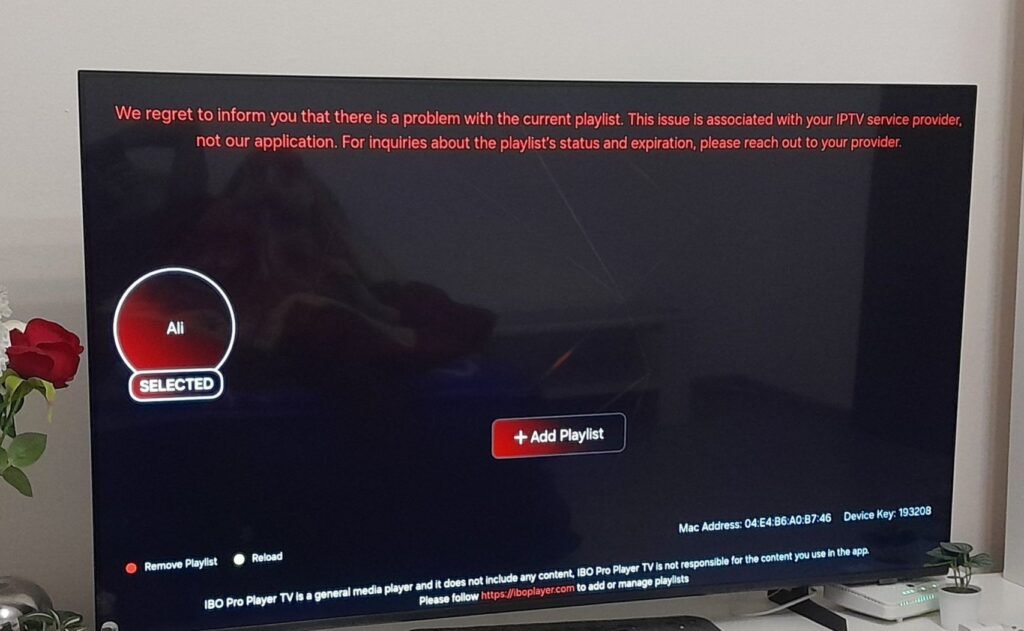
When your TV says “No Signal” just as the match is about to kick off, it’s infuriating.
The good news: in most cases, it’s something simple like the wrong input, a loose cable, or a device that needs a restart.
This guide shows you exactly how to fix no signal on TV, whether you’re using a Sky/Virgin box, a Firestick, a smart TV app, or an IPTV service like UKIPTVSUB.
We’ll keep it non-technical, step-by-step, and tailored for UK homes.
UKIPTVSUB is the most stable IPTV I’ve used – no buffering even during live sports!
 Rated 4.8| Excellent
 Trustpilot
Quick Summary
If your TV says no signal, it usually means the TV isn’t receiving a picture from the selected source (HDMI, aerial, cable box, etc.). Check you’re on the right input, make sure the connected device is powered on, and confirm all cables are plugged in firmly. A quick restart of the TV and box/stick fixes many cases.
Key steps:
- Confirm the correct input/source is selected (HDMI1, HDMI2, TV, AV, etc.).
- Check that your box, Firestick or IPTV device is powered on and not in standby.
- Reseat or replace HDMI / aerial cables and try a different port.
- Restart the TV, box/stick, and router (for smart TV / IPTV users).
- If problems keep returning, consider a more reliable IPTV setup with UKIPTVSUB.
Table of Contents
Table of Contents
- Context: What “TV Says No Signal” Actually Means
- How to Fix No Signal on TV (Step-by-Step)
- Tips, Best Practices, and Mistakes to Avoid
- Examples, Use Cases, and Recommendations
- Troubleshooting Common “No Signal” Problems
- FAQ: TV Says No Signal
- Conclusion & Next Steps
Context: What “TV Says No Signal” Actually Means
When your TV says no signal, it doesn’t usually mean the TV itself is broken. It means:
- The TV is set to an input/source (HDMI1, HDMI2, TV, AV)
- But it isn’t receiving a usable picture from that source
Depending on your setup, that source could be:
- A Sky Q / Virgin Media / Freeview / Freesat box
- A streaming device (Fire TV Stick, Roku, Android TV box, Apple TV)
- A games console (PlayStation, Xbox, Nintendo Switch)
- A smart TV’s built‑in tuner or apps
So when you see:
- “No Signal”
- “No Signal Found”
- “TV not programmed”
- “Check cable connection”
…it’s almost always a connection, input, or device issue, not the actual screen dying.
IPTV and “No Signal” messages
If you’re using IPTV (including legal services like UKIPTVSUB) there are two layers:
- TV / HDMI signal
- This is what “No Signal” on the screen refers to.
- The TV isn’t getting anything from HDMI, aerial, etc.
- IPTV stream signal
- Even if the HDMI is fine, your stream can still buffer or fail if your broadband or provider is unstable.
This article focuses on the TV “No Signal” screen, but we’ll also touch on how IPTV fits into the picture.
Quick legal note (UK)
IPTV technology itself is legal. What matters is what you watch:
- Only use IPTV services that are properly licensed for the content they show in the UK.
- Avoid pirated streams or illegal restreaming.
UKIPTVSUB operates as a legal, subscription-based IPTV service for UK viewers. For more on copyright, see:
How to Fix No Signal on TV (Step-by-Step)
Follow these steps in order. Most people don’t need to go past Step 5.
Screenshot ideas:
- TV remote with “Source/Input” button highlighted
- TV on HDMI1 vs HDMI2 selection
- Back of TV showing HDMI ports and cables
Step 1: Check the TV Input / Source
Most “no signal on TV” errors are simply the wrong source selected.
- Grab your TV remote (not the Sky/Virgin/Firestick remote).
- Press the Source, Input, or AV button.
- Cycle through options like:
- HDMI1, HDMI2, HDMI3
- TV, DTV, ANTENNA, AV, COMPONENT
- Pause a few seconds on each to see if a picture appears.
Typical setups:
- Sky Q box: often on HDMI1
- Virgin box: HDMI1 or HDMI2
- Firestick / IPTV box: any free HDMI, usually HDMI2 or HDMI3
- Freeview aerial: TV, DTV, or ANTENNA
If changing input fixes it, your TV input source no signal problem was just a source mismatch.
Step 2: Make Sure the Connected Device Is Actually On
A very common one: no signal on TV but cable box is on… except it’s not really on.
Check:
- Sky / Virgin / Freeview box has lights on, not just a tiny standby LED.
- Firestick / IPTV box has a power light, or shows the boot logo when restarted.
- Games console controller turns it on and you can hear it spinning.
If in doubt:
- Turn the box/stick off at the mains (or unplug the USB power).
- Wait 20–30 seconds.
- Plug back in and wait for it to fully boot.
If the device never powers up, that’s likely the issue – not the TV.
Step 3: Reseat or Replace HDMI / Aerial Cables
For TV no signal HDMI, cables are the next thing to check.
- Turn off the TV and box/stick at the wall.
- Unplug the HDMI cable from both the TV and the device.
- Check for:
- Bent pins at the ends
- Frayed or crushed cable
- Plug it back in firmly at both ends.
- If you have another HDMI cable, test with that as well.
- Try a different HDMI port on the TV (e.g. from HDMI1 to HDMI2).
For aerial/Freeview:
- Unscrew or pull out the coaxial aerial cable at the back of the TV.
- Check for kinks or loose fittings.
- Reseat it securely.
If a different HDMI port or cable works, you’ve fixed your TV no signal HDMI problem.
Step 4: Restart Everything (TV, Box/Stick, Router)
Simple power cycling solves a surprising number of issues.
- Turn off the TV at the wall and unplug it.
- Turn off the box/stick (Sky, Virgin, Firestick, IPTV box).
- If you’re using smart TV apps or IPTV, also restart your broadband router (BT, Sky, Virgin, TalkTalk, etc.).
- Wait 1 minute.
- Plug in and power on in this order:
- Router
- Box/stick
- TV
Once everything is fully restarted, re‑select the correct input again.
Step 5: Check Resolution and Compatibility (Especially for Older TVs)
Sometimes no signal on smart TV or HDMI happens because the device is sending a picture the TV can’t handle.
Typical examples:
- A 4K Firestick plugged into an older 1080p TV
- A console set to 4K HDR on a non‑HDR HDMI port
To test:
- On a Firestick:
- Go to Settings → Display & Audio → Display.
- Choose Auto or set 1080p 50 Hz manually.
- Amazon’s general Fire TV help is here:
- On a Sky/Virgin box:
- Go into Settings → Picture or Display and select 1080i or 1080p.
If the TV shows a picture at lower resolution, the earlier “No Signal” was a compatibility issue.
Step 6: For Smart TVs – Check Network, Not Just Signal
If you see no signal on smart TV but you’re in an app (Netflix, IPTV, etc.), it may actually be a network issue, not a TV signal error.
On Samsung smart TVs (UK):
- Press Home → Settings → Network → Network Status.
- Ensure it shows connected to the internet.
- If not, reconnect to your Wi‑Fi.
On LG smart TVs (UK):
- Press Settings (gear icon) → All Settings → Network.
- Check Wi‑Fi or wired connection.
Manufacturer support pages (for further help):
If your smart TV is online and you still get errors inside a specific app, it’s likely the app or service, not the TV.
If you’re using UKIPTVSUB via a smart TV app, our support can help you check whether your account, playlist or app setup is correct.
Step 7: When the TV Works but Channels/Streams Don’t
Once the “No Signal” message is gone and you see menus or a home screen, any further issues are usually:
- Signal from your aerial/satellite (Freeview/Freesat)
- Or your IPTV/streaming app and broadband
If:
- Freeview channels say “No information” or are missing → retune your channels.
- IPTV/streaming buffers or fails → check your broadband speed (aim for at least 25 Mbps for HD/4K).
If you’re tired of constant Freeview issues, an IPTV service like UKIPTVSUB can give you consistent UK channels, sports and VOD over the internet instead of relying on a flaky aerial.
You can see our IPTV subscription plans here:
👉 Start your IPTV subscription with UKIPTVSUB
Tips, Best Practices, and Mistakes to Avoid
Best Practices
- Label your HDMI ports
- Use small stickers or remember:
- HDMI1 = Sky
- HDMI2 = Firestick
- HDMI3 = Games console
- Use small stickers or remember:
- Use decent HDMI cables
- Cheap, very old cables can cause random “No Signal” issues, especially with 4K.
- Keep your devices ventilated
- Overheating Sky/Virgin boxes or Android TVs can glitch and drop signal.
- Restart once in a while
- A quick restart of your TV and streaming devices each week keeps them running smoothly.
Common Mistakes
- Mistake 1: Pressing the wrong remote
- Many UK homes have multiple remotes. Remember:
- TV remote: changes input/source
- Box remote: changes channels on that box only
- Many UK homes have multiple remotes. Remember:
- Mistake 2: Moving cables without noting where they were
- Always check which HDMI port you used before unplugging.
- Mistake 3: Blaming the TV when it’s the box
- If another device (like a games console) works on the same HDMI port, the TV is fine – it’s probably the box or stick.
- Mistake 4: Assuming “No Signal” means bad internet
- The classic “TV says no signal” is usually cable or input, not Wi‑Fi.
For more device-specific troubleshooting, especially for Fire TV Stick IPTV setups, see:
👉 Fire TV Stick setup issues & troubleshooting
Examples, Use Cases, and Recommendations
Let’s look at some real‑world UK scenarios and what tends to work best.
Example 1: Sports Fan with Firestick and IPTV
- Device: Fire TV Stick 4K on HDMI2
- Service: Legal IPTV (e.g. UKIPTVSUB) for Premier League, F1, rugby, boxing
- Broadband: 50–100 Mbps via BT, Sky, Virgin, or CityFibre
Common pitfalls:
- TV still set to HDMI1 (old Sky box) → “No Signal”
- Firestick powered from TV USB (underpowered, can reboot randomly)
Fix:
- Switch to HDMI2 and power Firestick from the original mains adapter.
Example 2: Family with Mixed Viewing
- Lounge: Smart TV with Freeview aerial + IPTV app
- Bedroom: Older TV with Virgin box on HDMI1
- Kids: Tablet streaming
Typical “No Signal” issue:
- Someone changes the lounge TV input to HDMI2 (for games console)
- Next person thinks the aerial is broken because Freeview disappears
Fix:
- Label inputs and remind the family:
- TV/DTV = Freeview
- HDMI1 = Virgin
- HDMI2 = Console
Traditional TV vs IPTV for “No Signal” Problems
| Setup Type | Common “No Signal” Cause | Typical Fix |
|---|---|---|
| Aerial Freeview | Loose aerial, poor reception, mis-tuned | Reseat cable, retune channels, check signal |
| Satellite (Freesat / Sky) | Dish alignment, LNB/cable issues | Check dish, call engineer if persistent |
| Cable (Virgin) | Box crash, HDMI issue | Restart box, new HDMI, change input |
| Firestick / IPTV Box | Wrong HDMI, box freeze, power issue | Change input, reboot, use proper power supply |
| Smart TV Apps / IPTV | Internet slowdown, app glitch | Restart TV/router, check broadband, reinstall app |
If you’re moving away from aerials and satellite dishes, IPTV can simplify things – as long as you choose a solid, legal provider like UKIPTVSUB and have decent broadband.
To see how our British IPTV packages are set up for UK homes, visit:
👉 British IPTV packages at UKIPTVSUB
Troubleshooting Common “No Signal” Problems
TV Input Source No Signal (All HDMI Ports)
Symptoms:
- Every HDMI input says “No Signal”
- But the TV menu and settings still appear
Likely causes:
- Faulty HDMI device
- Device not initialising properly
- Rarely, a TV HDMI board problem
Fix:
- Test a known-working device (like a games console) on each HDMI port.
- If none work, try a factory reset on the TV (check your brand’s support site).
- If still no luck, contact the TV manufacturer or a local engineer.
Brand support:
No Signal on Smart TV (Built-in Apps)
If you’re inside a smart TV app and you see no content:
Causes:
- Wi‑Fi dropped (very common with cheap ISP routers)
- DNS/router problem
- App glitch or service issue
Fix:
- Test another app (e.g. YouTube).
- If all apps fail, run a network test in TV settings.
- Restart your router and TV.
- Reinstall the problematic app.
For IPTV apps, your provider can often confirm if their servers are fine. UKIPTVSUB support can check your account and help you adjust app settings for smoother viewing.
No Signal on TV but Cable Box Is On
Symptoms:
- Virgin/Sky box lights are on
- TV still says “No Signal”
Fix:
- Double‑check the input (HDMI1/2 etc.).
- Turn the box off at the mains for 1 minute.
- Turn the TV off and on again.
- Try a different HDMI port and cable.
If another device works on that HDMI port but your box doesn’t, contact your TV provider’s support.
TV No Signal HDMI with Firestick / IPTV Box
Symptoms:
- TV shows “No Signal” when you switch to the HDMI your Firestick/IPTV box is on.
Fix:
- Ensure the device is powered from the original mains adapter, not TV USB.
- Try long-pressing the Firestick Home button to wake it.
- Test on another TV if possible.
- If it works elsewhere, that points to a handshake/compatibility issue:
- Lower the resolution in the device’s display settings.
- Use a different HDMI port.
If you’re using Firestick with IPTV and want a more stable setup, we have a dedicated guide here:
👉 Fire TV Stick setup issues & troubleshooting
When to Call an Engineer
Call a TV engineer or your TV provider when:
- Other devices also show no signal on all HDMI ports
- You hear sound but never get a picture from any source
- There’s visible damage to HDMI ports or aerial sockets
- Factory reset doesn’t change anything
For many UK households, moving more of your viewing to IPTV over broadband (while still staying legal) can reduce reliance on old aerials and dish cabling.
FAQ: TV Says No Signal
Why does my TV say no signal?
Your TV says no signal when it’s set to an input (HDMI, TV, AV) but isn’t receiving a usable picture from that source. It’s usually due to the wrong input being selected, a powered-off device, or a loose/faulty cable.
How to fix no signal on TV quickly?
To fix no signal on TV:
- Use the Source/Input button to choose the correct HDMI or TV input.
- Confirm the box/stick is powered on.
- Reseat or swap the HDMI/aerial cables.
- Restart the TV and connected device.
Why do I get no signal on TV but the cable box is on?
If there’s no signal on TV but cable box is on, either:
- The TV is on the wrong input
- The HDMI cable/port is faulty
- The box has crashed and needs a restart
Try changing HDMI ports and power-cycling the box and TV.
What does TV no signal HDMI mean?
TV no signal HDMI means the TV’s HDMI input isn’t getting a proper picture. Check that:
- The device is on and outputting video
- The HDMI cable is firmly plugged in
- You’re on the right HDMI input
- The resolution isn’t set higher than your TV supports
Why does my smart TV say no signal?
No signal on smart TV normally appears when using external devices (HDMI, aerial). Inside apps, similar messages can mean no internet or app issues. Check:
- TV input/source if using HDMI
- Wi‑Fi/network status if using apps
Is IPTV affected by TV “no signal” errors?
Yes and no:
- If the TV itself shows “No Signal”, the problem is with the input or device, and IPTV won’t show at all.
- Once the TV input is fixed, any buffering or channel issues are then down to your IPTV provider, app, or broadband.
Reliable, legal IPTV providers like UKIPTVSUB help minimise streaming issues once the TV is set up correctly.
Is it legal to use IPTV in the UK?
Yes, IPTV technology is legal. The legal issue is unauthorised content. To stay legal:
- Use licensed IPTV services that have rights to the channels and VOD they offer.
- Avoid pirate or restreamed content.
UKIPTVSUB is a legal, subscription-based IPTV service tailored for UK viewers.
Conclusion & Next Steps
When your TV says no signal, it almost always comes down to:
- The wrong input/source
- A device that’s off or frozen
- A cable or HDMI port problem
By calmly checking inputs, cables, power, and then restarting your devices, you can fix most cases in a few minutes – and get back to the match, movie, or series you were watching.
Once the TV side is stable, the next step is to make sure your content source is just as reliable. That’s where a legal, high‑quality IPTV service can transform your setup.
If you’d like UK and international channels, sports, films, and VOD on your smart TV, Firestick, or Android box – without the headache – take a look at our IPTV subscription plans:
👉 Start your IPTV subscription with UKIPTVSUB