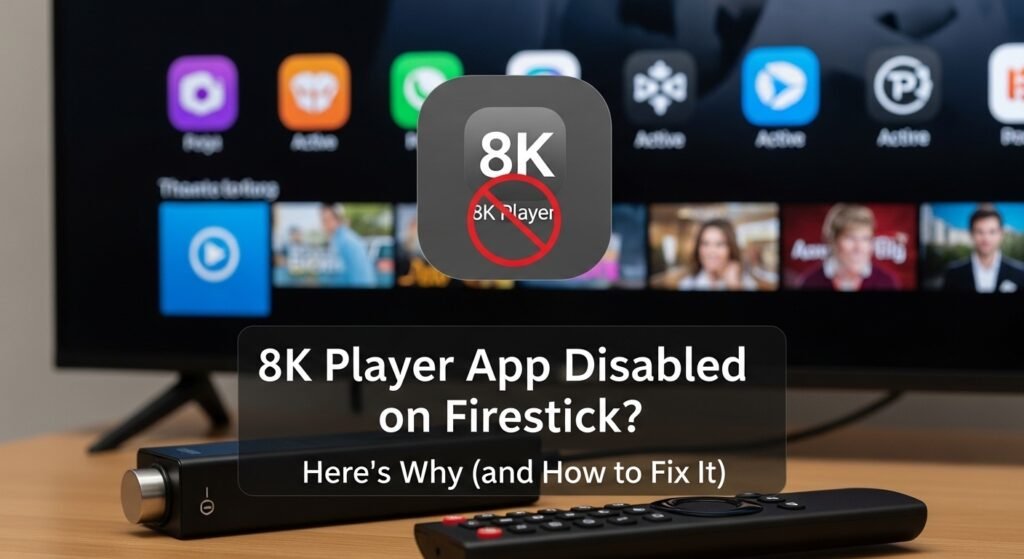
8K Player VIP Disabled on Firestick? Here’s Why (and How to Fix It)
If 8K Player VIP suddenly stopped working on your Firestick – or you’re seeing an “app disabled” type of error – you’re not the only one.
This guide walks you through why this happens, how to re‑enable or fix the app, and what to do if it keeps failing.
We’ll keep things simple, with clear steps you can follow even if you’re not technical.
You’ll also see how a reliable, legal IPTV service like UKIPTVSUB can make Firestick streaming far more stable.
UKIPTVSUB is the most stable IPTV I’ve used – no buffering even during live sports!
 Rated 4.8| Excellent
 Trustpilot
Quick Summary
If 8K Player VIP is not working on your Firestick or seems “disabled”, it’s usually down to Fire OS updates, corrupted app data, lack of storage, or security/parental settings. In most cases, you can fix it by restarting the device, clearing the app cache, updating or reinstalling the app, and checking Firestick settings.
Key takeaways:
- Restart Firestick and your router first – this fixes many “app disabled” glitches.
- Clear 8K Player VIP cache/data and free some storage space.
- Update Fire OS and reinstall the latest safe version of 8K Player VIP.
- Check parental controls, app permissions, and “Apps from Unknown Sources”.
- Use a stable, legal IPTV service (like UKIPTVSUB) to avoid stream issues.
Table of Contents
Table of Contents
- What Is 8K Player VIP and Why Firestick Apps Get “Disabled”
- How to Fix 8K Player VIP Not Working on Firestick (Step-by-Step)
- Tips, Best Practices, and Mistakes to Avoid
- Examples, Use Cases, and Device Recommendations
- Troubleshooting Common 8K Player VIP Firestick Problems
- FAQ: 8K Player VIP Not Working on Firestick
- Conclusion & Next Steps
What Is 8K Player VIP and Why Firestick Apps Get “Disabled”
8K Player VIP is an IPTV/media player app. On its own, it doesn’t provide channels – it just plays streams or playlists you add from a provider.
On Amazon Firestick, apps like this can sometimes appear to be:
- Greyed out on the home screen
- Missing from “Your Apps & Channels”
- Showing errors like “App not available”, “Unavailable”, or similar
- Crashing immediately when opened
Many users describe this as the app being “disabled”, even though technically Fire OS doesn’t show a big “Disabled” button like some Android phones do.
Why 8K Player VIP Not Working on Firestick Is So Common
Common reasons include:
- A recent Fire OS update broke compatibility with your app version
- The app’s cache/data is corrupted
- Low storage on your Firestick
- Parental controls or restrictions blocking the app
- Security settings for Apps from Unknown Sources
- A bad or modified APK, if you sideloaded 8K Player VIP
On top of that, if your IPTV provider is unstable, it can look like 8K Player VIP itself is broken even when the app is fine.
Legal note (UK users)
Using an IPTV player app like 8K Player VIP is not illegal in itself. What matters is what you connect it to.
- Only use IPTV services that are properly licensed for the content they offer in the UK.
- Avoid any pirated or restreamed content.
UKIPTVSUB operates as a legal, subscription-based IPTV service for UK viewers. Always follow UK copyright law and your provider’s terms of service. For more on copyright, see the guidance on gov.uk.
How to Fix 8K Player VIP Not Working on Firestick (Step-by-Step)
Use this section as your main How-To. Follow the steps in order; most people don’t need to go past Step 5.
Screenshot suggestion:
- Firestick home screen
- Firestick Settings menu
- App info page showing “Clear cache” and “Clear data”
Step 1: Check If 8K Player VIP Is Really Disabled or Just Glitchy
- On your Firestick remote, press and hold the Home button.
- Select Apps.
- Look for 8K Player VIP:
- If it’s there but won’t open → it’s installed but glitching.
- If it’s missing completely → it may have been uninstalled or removed by an update.
- If it appears but immediately closes → likely corrupted data or incompatible version.
If you can’t find it at all, skip ahead to Step 5 (Reinstall the app).
Step 2: Restart Your Firestick (Simple but Often Works)
A proper restart often fixes the “Firestick app disabled” problem.
- Go to Settings (cog icon on the far right).
- Select My Fire TV (or Device & Software on some models).
- Choose Restart and confirm.
Alternatively, unplug the Firestick from power for 30 seconds and plug it back in.
After the restart:
- Wait for the home screen to load fully.
- Try launching 8K Player VIP again.
Step 3: Check Your Internet Connection
If your IPTV player opens but nothing loads, the issue might be your connection, not the app.
- From the Firestick home screen, go to Settings → Network.
- Highlight your Wi‑Fi and press the Play/Pause button to run a network status check.
- Make sure it shows Connected to the internet.
Tips:
- If you’re on BT, Virgin Media, Sky, or TalkTalk, restart the router as well.
- For smooth IPTV (especially sports and 4K), aim for at least 25 Mbps download.
- If possible, use the 5 GHz Wi‑Fi band or an Ethernet adapter for Firestick.
If the internet is fine but 8K Player VIP is still not working, continue.
Step 4: Clear 8K Player VIP Cache and Data
Corrupted app data is one of the most common reasons for the Firestick IPTV app disabled problem.
- Go to Settings → Applications → Manage Installed Applications.
- Scroll and select 8K Player VIP.
- Choose Force stop.
- Select Clear cache.
- Then select Clear data (this may wipe your IPTV playlist/login, so have your details ready).
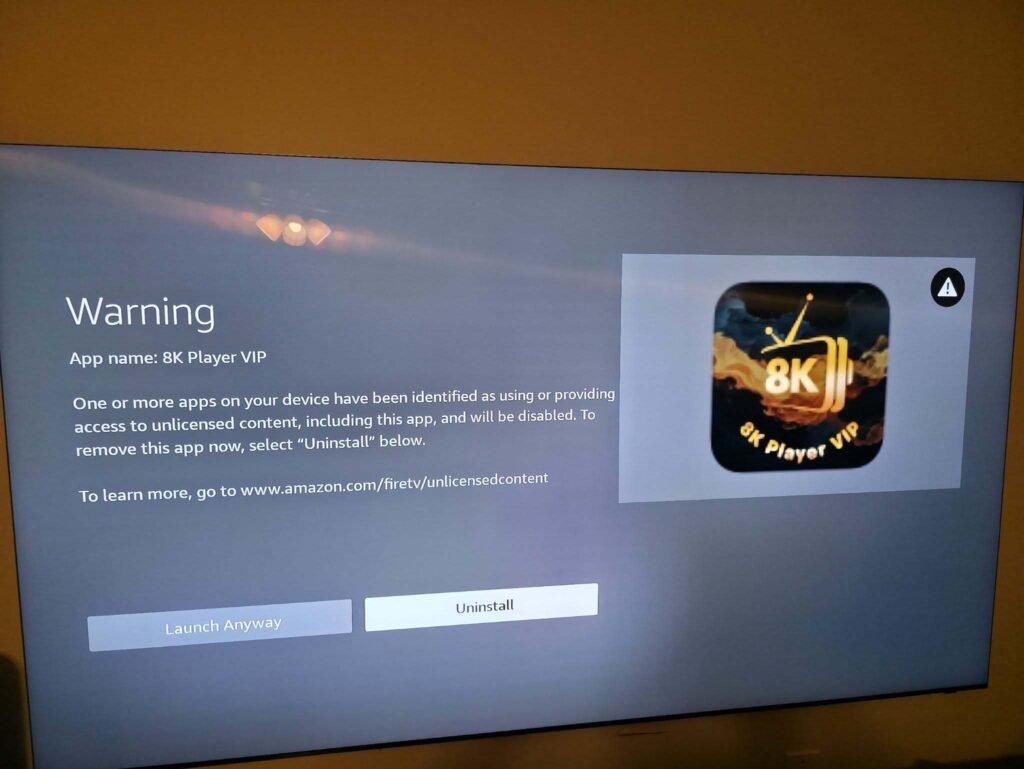
Now try opening the app again. If it opens and lets you re‑enter your IPTV details, the issue was likely corrupted data.
If it still crashes, move on.
Step 5: Free Up Storage on Your Firestick
When your Firestick is almost full, apps can misbehave or appear “disabled”.
- Go to Settings → My Fire TV → About → Storage.
- If Available space is less than ~1 GB, you should free some space.
To clear space:
- Go to Settings → Applications → Manage Installed Applications.
- Delete apps you never use (games, trial apps, etc.).
- Clear cache/data for heavy apps like streaming services.
Then restart the Firestick again and try 8K Player VIP.
Step 6: Update Fire OS and Reinstall 8K Player VIP
If 8K Player VIP stopped working after an update, it may be outdated or incompatible. A fresh install often fixes it.
A. Update Fire OS
- Go to Settings → My Fire TV → About.
- Scroll to Check for Updates.
- Install any available updates and let the Firestick restart.
B. Reinstall 8K Player VIP
- If you originally installed it from the Amazon Appstore:
- Go to Find → Search, type 8K Player VIP.
- Select it and choose Download or Get.
- If you sideloaded it:
- Make sure you only use a clean, official version from a reputable, legal source (no “modded” builds).
- Ensure you’re using a version suitable for Fire OS (usually ARMv7 32‑bit).
Important: Never install cracked or modified IPTV apps. They are risky and often violate copyright or terms of service.
Once reinstalled, open 8K Player VIP and re‑add your IPTV service details (e.g., M3U link, Xtream codes, etc.).
Step 7: Check Parental Controls and Security Settings
Sometimes Firestick settings are the reason 8K Player VIP is not working on Firestick.
- Go to Settings → Preferences → Parental Controls.
- If ON, check if apps or content are restricted by age rating or PIN.
- If you sideloaded 8K Player VIP, go to:
- Settings → My Fire TV → Developer Options (or Developer Tools on newer models).
- Ensure Apps from Unknown Sources is allowed for the installer you used (e.g. Downloader).
If parental controls are blocking the app, you may see a padlock icon or be asked for a PIN when trying to launch it.
Step 8: Test With and Without VPN (If You Use One)
VPNs can help with geo‑blocking, but they can also break or slow IPTV.
- If you normally use a VPN:
- Turn it off, then test 8K Player VIP.
- If you don’t use a VPN and your IPTV provider recommends one:
- Try a reputable VPN and choose a UK server to stabilise routing.
If things improve when you toggle the VPN, you’ve found part of the cause (routing, blocking, or throttling).
Step 9: Use a Reliable, Legal IPTV Service
Sometimes the problem is not 8K Player VIP or Firestick at all – it’s the IPTV provider.
Warning signs of a poor provider:
- Channels constantly buffering or going offline
- VOD not loading
- Service only works on certain devices
- No real customer support
A legal, well‑maintained service like UKIPTVSUB is built to work smoothly across Firestick, Android TV, Smart TVs, and more.
If you’re fed up with streams failing in 8K Player VIP, it may be time to:
- Switch to a more reliable IPTV provider
- Or set up your UKIPTVSUB login on 8K Player VIP or another supported player
You can explore our IPTV subscription plans and supported devices here:
👉 Start your IPTV subscription with UKIPTVSUB
UKIPTVSUB is the most stable IPTV I’ve used – no buffering even during live sports!
Rated 4.8| Excellent
Trustpilot
Tips, Best Practices, and Mistakes to Avoid
These tips will help keep IPTV apps like 8K Player VIP stable on your Firestick.
Best Practices
- Use 5 GHz Wi‑Fi where possible
- Less interference than 2.4 GHz, better for HD / 4K sports.
- Keep Fire OS up to date
- Amazon often fixes bugs in updates that affect apps.
- Restart weekly
- A quick Settings → My Fire TV → Restart once a week clears up minor glitches.
- Use quality HDMI & power
- Always power your Firestick with the original power adapter, not a TV USB port.
Common Mistakes to Avoid
- Mistake 1: Blaming 8K Player VIP for every issue
- Often it’s Wi‑Fi, ISP, or the IPTV provider, not the player itself.
- Mistake 2: Installing random “modded” APKs
- These can be unstable, insecure, and sometimes illegal. Use official builds only.
- Mistake 3: Ignoring storage
- Running with less than 500 MB free space is asking for trouble. Clean up old apps regularly.
- Mistake 4: Overloading the Firestick
- Running multiple heavy apps or background processes can slow down everything, including IPTV.
For more Firestick-specific advice, see our detailed guide:
👉 Fire TV Stick setup issues & troubleshooting
Examples, Use Cases, and Device Recommendations
Different setups work better for different people. Here’s how 8K Player VIP and IPTV fit into real-world UK homes.
Example Setups
- Sports fan in the living room
- Fire TV Stick 4K or 4K Max
- 8K Player VIP (or alternative IPTV player) + UKIPTVSUB sports channels
- 5 GHz Wi‑Fi, minimum 50 Mbps
- Great for Premier League, F1, rugby, and boxing.
- Family household
- One Firestick in the lounge, another in the bedroom
- Legal IPTV with kids’ channels, catch‑up, and VOD
- Stable provider like UKIPTVSUB so kids aren’t bugging you when streams fail.
- Flatshare / student house
- Shared broadband (Virgin/Sky), multiple devices
- Firestick or Android TV box in the main TV area
- Priority on reliable provider & low-hassle setup.
Device Comparison for IPTV Apps Like 8K Player VIP
| Device Type | Pros for IPTV Players (e.g. 8K Player VIP) | Cons | Best For |
|---|---|---|---|
| Firestick 4K / Max | Cheap, popular in UK, easy remote, good performance | Limited storage, Amazon may restrict some apps | Most UK cord-cutters, sports fans |
| Android TV Box | More storage, flexible apps, easier sideloading | Quality varies by brand, more techy to manage | Power users, enthusiasts |
| Smart TV App Only | No extra device, simple remote | App choice limited, updates vary by brand | Casual viewers, small setups |
If you’re unsure where to start, Firestick plus a good IPTV service is usually the simplest choice. For a UK-focused channel lineup and reliable service, see our guide:
👉 Best UK IPTV service guide
You can also learn more about our UK-focused packages here:
👉 British IPTV packages at UKIPTVSUB
Troubleshooting Common 8K Player VIP Firestick Problems
This section digs into specific problems you might see and how to fix them.
1. 8K Player VIP Says “App Not Installed” or “Unavailable”
Likely causes:
- Incomplete or failed installation
- Fire OS update removed an incompatible build
- You moved or deleted key app files
Fix:
- Go to Settings → Applications → Manage Installed Applications.
- If 8K Player VIP still appears, Uninstall it.
- Restart your Firestick.
- Reinstall 8K Player VIP from a trusted source (ideally Appstore).
For general “app not working” errors, Amazon’s help page is also useful:
2. 8K Player VIP Opens but Everything Buffers
Likely causes:
- Weak Wi‑Fi (especially on 2.4 GHz)
- Insufficient broadband speed
- IPTV provider congestion, especially on big match days
Fix:
- Run a speed test on another device (phone/laptop) connected to the same network.
- Aim for at least:
- 10 Mbps per HD stream
- 25 Mbps+ for 4K or multiple devices
- Move the router closer, or switch to 5 GHz Wi‑Fi.
- If possible, use a Firestick Ethernet adapter for wired internet.
- Try different streams or VOD inside your IPTV app to see if all content is affected.
A stable provider like UKIPTVSUB with good servers makes a huge difference here.
3. 8K Player VIP Crashes When Loading Channels
Likely causes:
- Corrupted app data or cache
- Bad playlist format or extremely long playlist
- Insufficient memory on the Firestick
Fix:
- Clear cache and data (see Step 4 above).
- Shorten your playlist if possible (ask your IPTV provider to tidy it up).
- Close background apps:
- Force stop heavy apps you’re not using (Netflix, games, etc.).
A guide on clearing cache can also be found here:
4. Firestick Shows an “App Disabled” Type Message or Greyed Icon
On some Fire OS versions, an app can appear greyed out or fail to launch, which people call “disabled”.
Likely causes:
- App partially removed during an update
- Parental control restrictions
- Corrupted installation
Fix:
- Go to Settings → Applications → Manage Installed Applications → 8K Player VIP.
- If available, select Uninstall.
- Restart Firestick.
- Reinstall the latest compatible version of 8K Player VIP.
- Check Preferences → Parental Controls to ensure it’s not being blocked by age ratings.
5. IPTV Playlist Works on Phone but Not on Firestick
If your playlist works fine on mobile but fails on Firestick:
Possible reasons:
- ISP (e.g. Virgin, Sky) routing issues on the TV connection
- Different app versions/players handling the playlist differently
- VPN only active on phone, not Firestick
Fix:
- Test the same playlist on a second app/player on Firestick if possible.
- Check if VPN is on for one device but not the other.
- Ask your IPTV provider if they recommend specific DNS/VPN settings for Firestick.
- If you’re with a UK provider like UKIPTVSUB, contact support – they can usually confirm whether your account is active on all devices.
For broader Firestick issues, you can refer back to:
👉 Fire TV Stick setup issues & troubleshooting
FAQ: 8K Player VIP Not Working on Firestick
Is 8K Player VIP legal to use on a Firestick in the UK?
The player app itself is just software and is generally legal. What matters is what you watch through it. Only connect 8K Player VIP to licensed IPTV services or content you’re allowed to stream in the UK. UKIPTVSUB, for example, is a legal, subscription-based IPTV provider.
Why is 8K Player VIP not working on my Firestick after an update?
Fire OS updates can break older app versions. If 8K Player VIP stopped working right after an update, try:
- Updating Fire OS fully
- Clearing the app’s cache/data
- Reinstalling the latest compatible version of 8K Player VIP
How do I enable 8K Player VIP on Firestick after it was “disabled”?
There’s no direct “enable” button, but you can usually fix this by:
- Going to Settings → Applications → Manage Installed Applications
- Finding 8K Player VIP
- Choosing Force stop, Clear cache, Clear data
- If necessary, Uninstall and then reinstall
If the app is missing, simply reinstall it from a trusted source or the Appstore.
Why do apps get disabled or disappear on Firestick?
Apps can disappear or act disabled if:
- You’re low on storage
- An update removed or broke the app
- Parental controls or region restrictions are in place
- The app was sideloaded from a bad APK
Regularly clearing storage and keeping Fire OS updated helps prevent this.
Can UKIPTVSUB work with 8K Player VIP on Firestick?
Yes. UKIPTVSUB is compatible with most popular IPTV players, including those on Firestick. You can:
- Use your UKIPTVSUB credentials or playlist in 8K Player VIP
- Or follow our setup guides to use other recommended players on Firestick
To get started, check our current IPTV subscription plans:
👉 Start your IPTV subscription
Is there a better app than 8K Player VIP for IPTV on Firestick?
“Better” depends on your needs and your IPTV provider. Some users prefer other IPTV players for features like EPG (TV guide), catch‑up, or recording. However, the most important thing is a stable, legal IPTV service behind the app. With a good provider, most major IPTV players work well.
Do I need a VPN for IPTV on Firestick in the UK?
Not always. Some users use VPNs for privacy or routing stability, but:
- A VPN can also reduce speeds if the server is poor.
- Whether you should use one depends on your IPTV provider’s guidance and your ISP behaviour.
Always ensure any VPN use complies with the law and your provider’s terms.
Conclusion & Next Steps
When 8K Player VIP is not working on Firestick, it’s usually something simple:
- A glitch fixed by a restart
- Corrupted cache/data
- Low storage or a broken installation
- Parental controls or security settings
Working through the steps in this guide should get you streaming again, especially if you stick to official app versions and keep Fire OS updated.
The other half of the equation is your IPTV provider. Even the best player app can’t fix unstable, unlicensed streams.
If you want reliable, legal IPTV on your Firestick – with UK-focused channels, sports, films, and VOD – it’s worth choosing a provider built for that.
Explore our UKIPTVSUB IPTV subscription plans and see how straightforward Firestick IPTV can be when both your app and service are solid:
👉 Start your IPTV subscription with UKIPTVSUB