Introduction
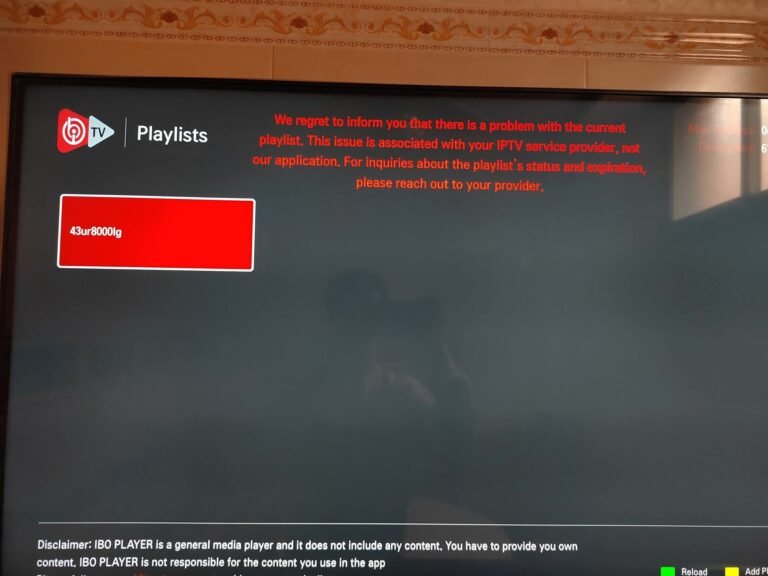
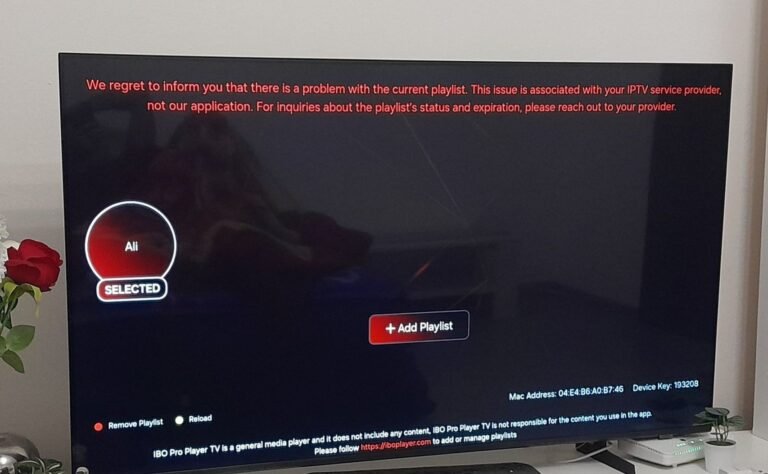
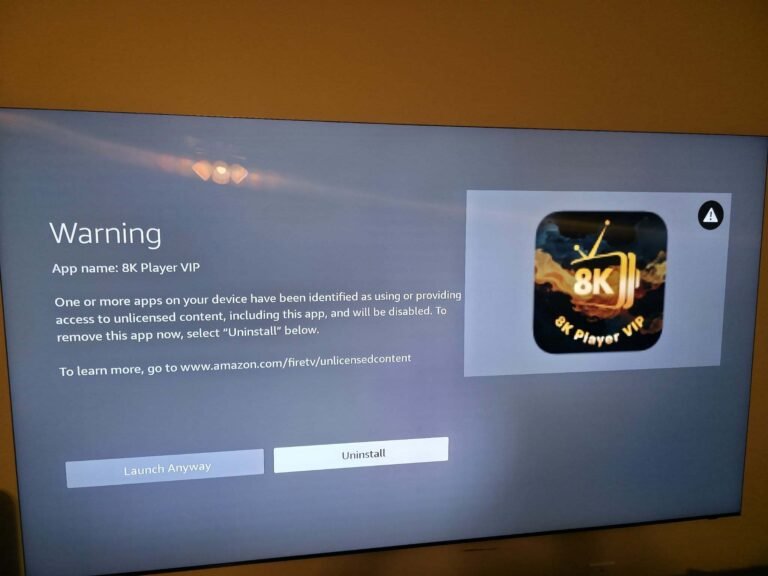
You sit down to watch the match, open your IPTV app…and nothing.
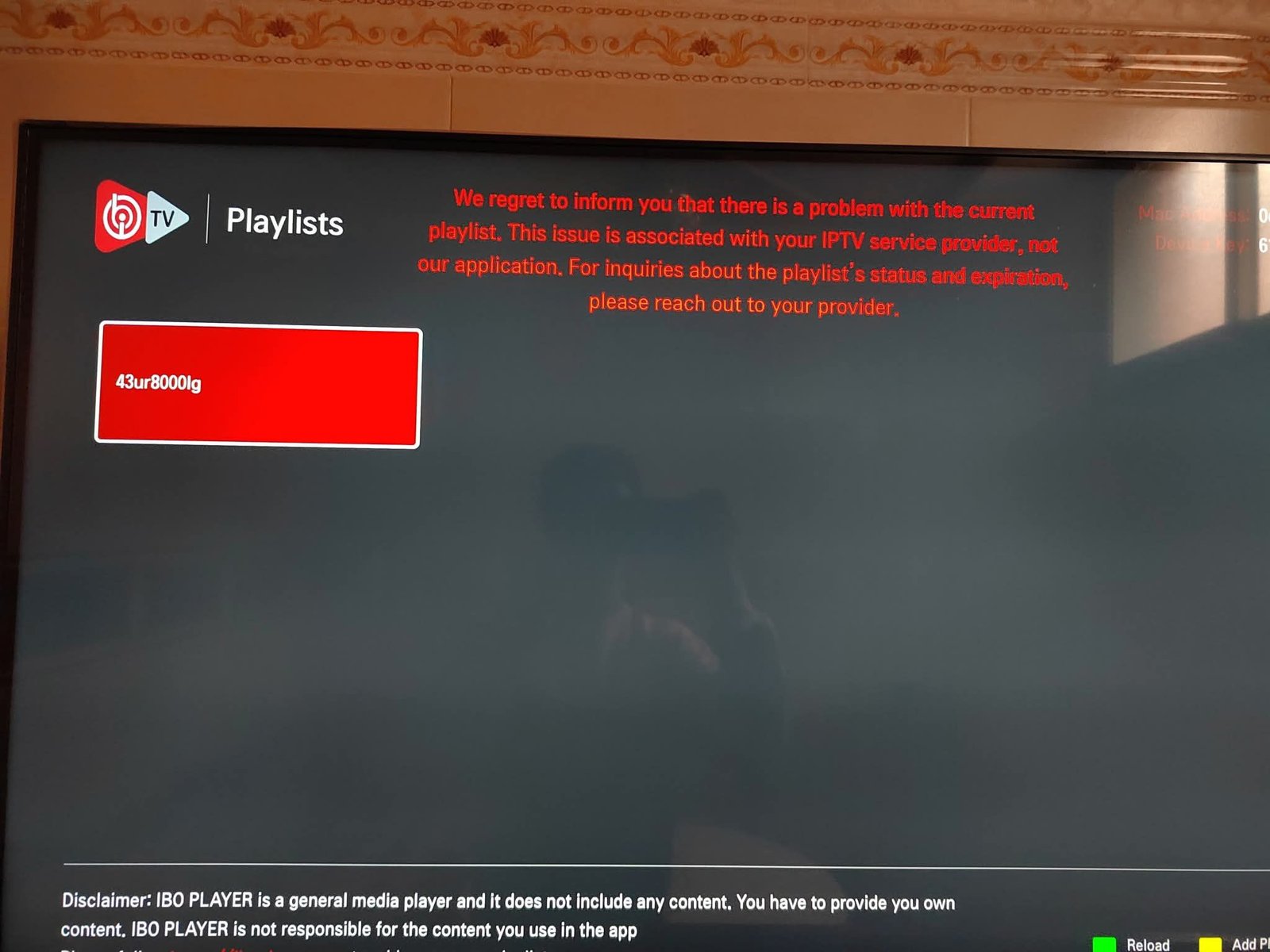
Channels won’t load, the app crashes, or streams just spin forever. You’re thinking: “Why does my IPTV stop working?”
UKIPTVSUB is the most stable IPTV I’ve used – no buffering even during live sports!
 Rated 4.8| Excellent
 Trustpilot
This guide explains the most common reasons IPTV is not working, how to fix issues step by step on Firestick, Android TV and Smart TVs, and when the problem is your internet, your app, or the IPTV server itself.
I’ll also show you how using a stable, legal IPTV service like UKIPTVSUB can reduce outages and “IPTV stops working” moments in the first place.
Quick Summary
Quick Summary
When IPTV is not working, it usually comes down to three things: your internet/Wi‑Fi, your device/app, or the IPTV server/provider. To fix it, you should check your connection, restart and update your device/app, verify your subscription details, and confirm whether the IPTV server is down. If you’re with a legal, stable provider like UKIPTVSUB, support can quickly help pinpoint the cause.
Key points:
- If all apps are slow, it’s usually your internet or Wi‑Fi.
- If only your IPTV app not working, clear cache, update or reinstall it.
- If IPTV channels not loading or many users report “IPTV not working today”, the server may be down.
- Cheap pirate providers disappear often; a legal service like UKIPTVSUB is far more reliable.
- A basic restart and a few checks solve most cases where IPTV stopped working suddenly.
Table of Contents
- Why IPTV “Stops Working”: The Basics
- Step-by-Step: What to Do When IPTV Is Not Working
- Tips, Best Practices & Mistakes to Avoid
- Real-World Scenarios & What They Usually Mean
- Troubleshooting: Common “IPTV Not Working” Problems
- FAQ: IPTV Not Working Today, Channels Not Loading & More
- Conclusion: Make Your IPTV Setup More Reliable with UKIPTVSUB
Why IPTV “Stops Working”: The Basics
When you see IPTV not working or your IPTV randomly stopped, it feels like everything has broken at once. In reality, it’s almost always one of a few simple things.
How IPTV actually works (quick version)
For a legal IPTV service like UKIPTVSUB:
- Your device/app (Firestick, Android TV, Smart TV, phone, etc.)
- Connects over your home internet (BT, Sky, Virgin, TalkTalk…)
- To the IPTV servers run by your provider
- Which send back the TV stream or on‑demand video
If any piece in that chain fails—or slows down—your IPTV stops working, or channels won’t load.
Three main failure points
- Your internet / Wi‑Fi / router
- Slow speeds, dropped Wi‑Fi, router crash
- Your device or IPTV app
- App update needed, corrupted cache, low storage, device glitch
- The provider side
- Temporary IPTV server down, maintenance, or poor-quality provider
Understanding which applies to you is the key to fixing the problem quickly.
Legal / disclaimer note (UK)
This guide assumes you’re using a legal, subscription-based IPTV service such as UKIPTVSUB.
- IPTV itself is legal—problems arise when people use pirate streams or “fully loaded” boxes.
- Illegal providers are far more likely to vanish overnight, causing “IPTV stopped working suddenly” with no warning or support.
- In the UK, watching or recording live TV on any service, or using BBC iPlayer, usually requires a TV Licence. Check TV Licensing for details.
If you’re unsure about your provider, read: Is IPTV legal?
Step-by-Step: What to Do When IPTV Is Not Working
This section is your practical checklist for when IPTV stops working. Follow the steps in order.
Step 1: Check if Your Internet Is Actually Online
First, make sure the problem isn’t simply your broadband.
- On your phone or laptop, using the same Wi‑Fi as your IPTV device, try to:
- Open a web page (e.g. BBC, Google), and/or
- Run a speed test at Speedtest.net.
- If pages don’t load or the speed test fails:
- Turn your router off at the plug for 30 seconds, then back on.
- Wait a couple of minutes, then test again.
Aim for at least:
- 10–15 Mbps for SD
- 25 Mbps+ for HD
- 50 Mbps+ for multiple devices or 4K
If your entire internet is out or very slow, that’s why IPTV is not working today—contact your ISP (BT, Sky, Virgin, etc.) or wait for them to fix an area issue.
Step 2: Test Other Apps on the Same Device
Next, check whether it’s just your IPTV app or the device itself.
On your Firestick/Android TV/Smart TV:
- Open another streaming app (e.g. YouTube, Netflix, Prime Video).
- Try playing a short video in HD.
If other apps also buffer or don’t load:
- The issue is likely your network or device, not specifically the IPTV app.
If other apps work fine but only IPTV stopped working:
- The problem is either the IPTV app or the provider/servers.
Step 3: Restart Your Device and IPTV App
A simple restart fixes a surprising number of cases where IPTV randomly stopped.
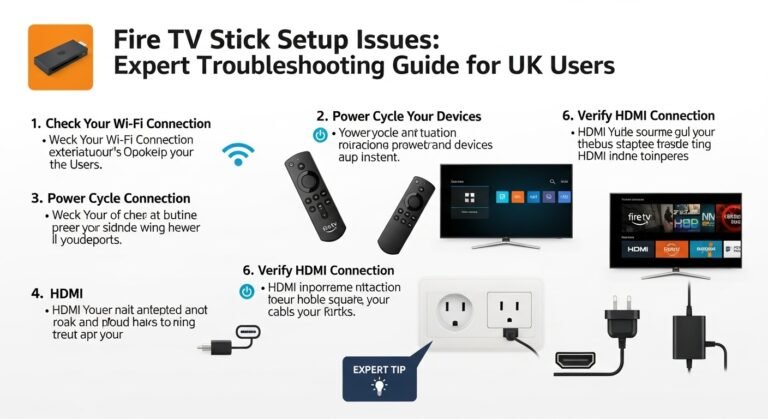
On Firestick:
- Hold the Select + Play/Pause buttons together for ~5 seconds (quick restart), or
- Go to Settings → My Fire TV → Restart.
Then:
- Re-open your IPTV app and test a few channels.
On Android TV:
- Hold the Power button and choose Restart, or
- Unplug the TV/box for 30 seconds, then plug back in.
Re‑open IPTV and test.
If your IPTV app not working still, continue.
Step 4: Check Your IPTV Subscription & Login Details
Sometimes IPTV stops working suddenly because:
- Your subscription expired, or
- You changed your password, or
- You typed your credentials or portal URL incorrectly.
Do this:
- Find your welcome or renewal email from your provider (e.g. UKIPTVSUB).
- Confirm:
- Subscription status (dates, active/expired).
- Correct username/password or activation code.
- In your IPTV app, log out and log back in carefully using that info.
If you’re with UKIPTVSUB and still unsure, log into your account on the website or contact support for confirmation.
Step 5: Refresh Channels and EPG (Guide)
If IPTV channels not loading but the app itself opens:
- Open your IPTV app.
- Look in Settings or Tools for options like:
- “Refresh Channels”
- “Reload EPG”
- “Update TV Guide”
- Run these refresh options, then restart the app and test again.
If the app doesn’t offer these options, moving to Step 6 (cache and update) is helpful.
Step 6: Clear Cache & Update/Reinstall the IPTV App
An outdated or corrupted app is a common cause of IPTV app not working.
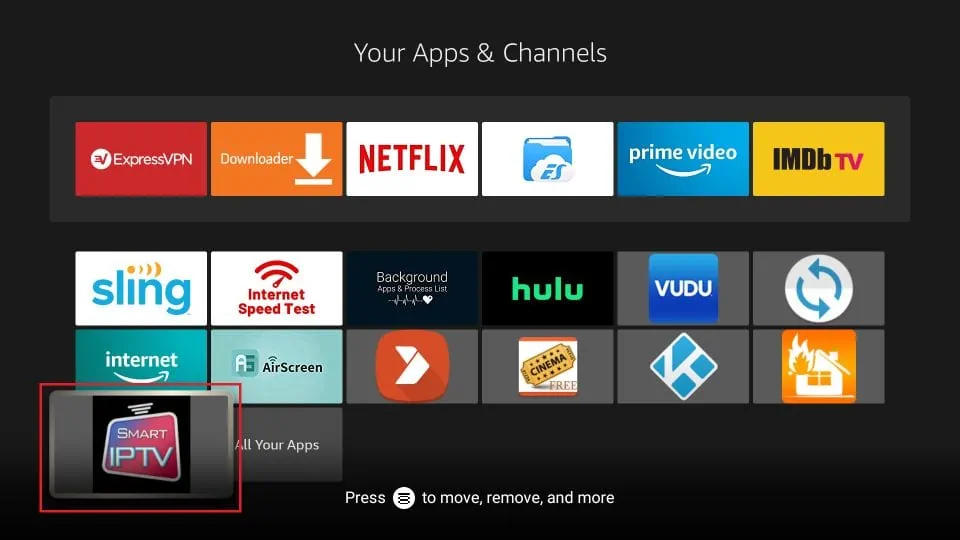
On Firestick:
- Go to Settings → Applications → Manage Installed Applications.
- Find your IPTV app, select it.
- Choose Clear cache (and only if needed, Clear data).
- Go back and check for Updates in the Fire TV Appstore.
- If problems continue, Uninstall, then reinstall the latest version from the store or official download.
On Android TV:
- Go to Settings → Apps → See all apps.
- Select your IPTV app → Clear cache.
- Go to the Google Play Store, find the app and make sure it’s updated.
- If still broken, uninstall and reinstall.
Official help pages:
Step 7: Check If the IPTV Server Is Down
If:
- Internet is fine,
- Other apps work,
- Your subscription is active, and
- The app is updated…
…but IPTV channels not loading or you see errors like “cannot connect to server”, the IPTV server may be down.
Signs of IPTV server down:
- You see “IPTV not working today” or similar reports from other users (forums, Telegram, provider status page).
- Every channel fails even though the app opens.
- It worked fine yesterday and nothing changed on your side.
If you’re with UKIPTVSUB:
- Check for any maintenance/status messages (email, site, or dashboard).
- Contact support with your email, device type and a screenshot of the error.
If you’re using a shady/cheap provider and everything just went offline, they may have disappeared—this is sadly common with illegal services.
Step 8: If All Else Fails, Contact Support or Consider Switching Provider
You’ve done:
- Internet check
- Device restart
- App update/reinstall
- Subscription/login check
- Server status check
If IPTV not working still:
- Reach out to your provider’s support with all details.
- If support is non-existent or unhelpful, consider switching to a stable, legal provider with real support and clear status updates.
To see what a stable option looks like in practice, compare plans and support details here:
👉 UKIPTVSUB IPTV subscription plans
Tips, Best Practices & Mistakes to Avoid
Best Practices to Keep IPTV Working Smoothly
- Use Ethernet for your main TV device if possible—far more stable than Wi‑Fi.
- Stick to HD (1080p) instead of 4K if your line is borderline.
- Restart your router and streaming device once a week.
- Keep both your device firmware and IPTV app up to date.
- Use a legal service like UKIPTVSUB so you actually have support when things go wrong.
Internet & Wi‑Fi Tips (UK Specific)
- Aim for at least 25 Mbps down for one HD stream, more if multiple people are watching.
- If you’re on older ADSL lines, consider upgrading to fibre if available in your area.
- Place your router high, central, and away from thick walls.
- Use 5 GHz Wi‑Fi instead of 2.4 GHz for better speed at short range.
The UK regulator Ofcom has a helpful page on improving broadband speeds:
Ofcom – Boost your broadband
Common Mistakes That Lead to “IPTV Not Working”
- Only restarting the app, never the router or device.
- Ignoring obvious errors like “invalid login” or “subscription expired”.
- Using cheap, no-name Android boxes with poor Wi‑Fi and no updates.
- Relying on pirate IPTV providers that vanish or are constantly “server down”.
- Trying to stream 4K on low-speed broadband and wondering why it stutters.
Device & App Choice
From practical use in UK homes:
- Firestick 4K / 4K Max and modern Android TV boxes are the most reliable.
- Native Smart TV apps can work, but some older TVs have weak processors or limited app support.
- Mobiles and tablets are fine as secondary devices, but not ideal for the main big-screen experience.
For a full beginner-friendly overview, see:
UK IPTV beginner’s guide
Real-World Scenarios & What They Usually Mean
Let’s translate typical “IPTV not working” complaints into likely causes.
Scenario 1: IPTV Stopped Working Suddenly Mid-Match
- Other apps (YouTube/Netflix) also start buffering?
→ Likely ISP issue or router crash. - Only IPTV freezes while other apps fine?
→ Possibly IPTV server under heavy load (common in big matches on poor providers).
What to do:
- Restart router + device, test again.
- If issue only with IPTV provider while others are fine, contact provider or consider if their infrastructure can’t handle live sports.
Scenario 2: IPTV Randomly Stopped After an Update
- Device OS or IPTV app just updated.
- Now the IPTV app not working or crashes on launch.
Likely cause:
- New bug, compatibility issue, or corrupted data.
Fix:
- Clear app cache and data, reinstall the app in its latest version.
- Check provider documentation (like UKIPTVSUB’s app guides) for known issues after OS updates.
Scenario 3: Only Some Channels Don’t Work
- News channels load fine, but a few sports or film channels say “error” or spin forever.
Likely cause:
- Specific source/channel issue on provider side, not your device or internet.
Fix:
- Try alternative channels.
- Report the broken channels to your provider (channel name, time, device).
- A good provider like UKIPTVSUB will investigate and fix or re-route those specific streams.
Scenario 4: IPTV Not Working Today Across Many Users
You see:
- Lots of people posting “IPTV not working today” for the same provider.
- Official status or social channels mention maintenance or DDoS attacks.
Likely cause:
- IPTV server down (planned or unplanned).
Fix:
- There’s nothing you can do on your side except wait and monitor updates.
- If this happens frequently with no communication, consider changing providers to something more robust.
Comparison Table: Symptom vs Likely Cause vs Action
| Symptom | Likely Cause | First Actions |
|---|---|---|
| All apps offline, nothing loads | ISP / router issue | Reboot router, contact ISP |
| Only IPTV app broken, others fine | App bug/corruption | Clear cache, reinstall, update |
| Most IPTV channels won’t load | Provider server problem | Check status, contact provider |
| One or two channels fail, others OK | Specific channel/source problem | Test others, report to provider |
| IPTV worked yesterday, now “invalid login” | Expired subscription or wrong details | Check email, renew or correct login |
For more on how a strong provider should behave, see:
Best UK IPTV service guide and
United Kingdom IPTV overview
Troubleshooting: Common “IPTV Not Working” Problems
Problem 1: IPTV App Not Working on Firestick
Symptoms:
- App won’t open or crashes immediately.
- Black screen, then back to Firestick home.
Fix (Firestick):
- Settings → Applications → Manage Installed Applications → [IPTV App] → Clear cache.
- If still broken, Force stop the app there.
- Uninstall the app, reboot Firestick, reinstall the latest version.
- Make sure Fire OS is updated: Settings → My Fire TV → About → Check for Updates.
More Firestick help here:
How to set up Fire Stick IPTV
Problem 2: IPTV Channels Not Loading (But App Opens)
Symptoms:
- App login OK, but every channel hangs or shows error.
- EPG maybe loads, but streams don’t.
Likely causes:
- Wrong portal/M3U URL or outdated details.
- IPTV server down or overloaded.
Fix:
- Double-check portal URL/M3U and login in your app against your provider email.
- Refresh channel list and EPG if the app allows it.
- Test on a second device (e.g. phone using mobile data).
- If same on all devices, contact provider; likely a server-side issue.
Problem 3: IPTV Not Working Today Only (Intermittent)
Symptoms:
- Works fine most days, but suddenly no picture or constant buffering today.
- Maybe only at certain times (e.g., evenings).
Likely causes:
- Temporary ISP issue or local congestion.
- Provider maintenance or partial outage.
Fix:
- Test other apps and run speed test.
- If general internet is also slow: wait or contact ISP.
- If only IPTV impacted: check provider’s status/announcements.
- If your provider is constantly “down today”, consider switching to something more stable like UKIPTVSUB.
Problem 4: IPTV Keeps Buffering (But Doesn’t Fully Cut Out)
Symptoms:
- Streams play but buffer frequently.
- Quality jumps up and down.
Likely causes:
- Weak Wi‑Fi, poor signal.
- Pushing 4K on a line that can only really handle HD.
Fix:
- Move device closer to router or switch to Ethernet.
- In app settings, limit quality to 1080p or Auto (not forced 4K).
- Pause heavy downloads or other streams during big games.
- See our full buffering guide: How to eliminate IPTV buffering in 2025
FAQ: IPTV Not Working Today, Channels Not Loading & More
Why is my IPTV not working at all?
If IPTV is completely not working, check in order:
- Is your internet up and fast enough?
- Do other apps (YouTube/Netflix) work?
- Is your subscription active and login correct?
- Is your IPTV app updated and not corrupted?
- Has your provider reported any server issues?
Answering these narrows down the cause quickly.
Why did my IPTV stop working suddenly?
IPTV stopped working suddenly usually because:
- Your router or ISP glitched.
- The IPTV app crashed or needed an update.
- Your provider’s server went down.
Power‑cycle your router and device, update/reinstall the IPTV app, and check provider status. If you’re using a low‑quality provider, sudden outages are common.
Why are my IPTV channels not loading but the app opens?
If the IPTV app loads but no channels start:
- Your portal/M3U URL or login may be wrong or expired.
- The IPTV server may be down.
Verify your details from your welcome email, refresh channels/EPG, and test on another device. If it’s still bad everywhere, contact your provider.
Why is my IPTV app not working on Firestick?
On Firestick, common issues are:
- App cache corruption.
- Outdated app or Fire OS.
- Not enough free storage.
Clear cache, update the app, and if needed reinstall it. Ensure Fire OS is up to date as well.
How do I know if the IPTV server is down?
Signs of IPTV server down:
- All channels fail, even though the app opens.
- Multiple people online report “IPTV not working today” for the same provider.
- Provider posts about maintenance or outage.
If you’re with UKIPTVSUB, watch for official messages or contact support for confirmation.
Will switching provider stop IPTV randomly stopping?
A more stable, legal provider like UKIPTVSUB can’t fix your internet or Wi‑Fi, but it can:
- Reduce “server down” incidents.
- Provide proper support and guidance.
- Offer apps and setups tested for UK networks.
So if you’ve eliminated local issues and still have constant outages, yes—changing provider can make a big difference.
Conclusion: Make Your IPTV Setup More Reliable with UKIPTVSUB
When IPTV is not working, it’s frustrating—but in most UK homes, it’s fixable.
If you check your internet, restart and update your device, verify your login and subscription, and confirm whether the IPTV server is down, you’ll solve the vast majority of “IPTV stopped working suddenly” issues.
The final piece of the puzzle is your choice of provider. A legal, subscription-based IPTV service like UKIPTVSUB is built for reliability, UK channels, Premier League viewing, and real support—so you don’t get left in the dark when something goes wrong.
If you’re ready for a more stable experience, take a look at the current IPTV subscription plans and pick the one that fits your home and devices:
👉 Explore IPTV subscription plans at UKIPTVSUB
With the right setup and provider, IPTV can be as dependable as traditional TV—just more flexible and usually far cheaper.