Introduction
You sit down to watch a Premier League match, hit play on your IPTV app…and the stream freezes every 10 seconds.
You’ve restarted the app, maybe even the Firestick, but the buffering keeps coming back and ruins the game.
This guide explains why IPTV buffers, how to eliminate IPTV buffering in 2026 on Firestick and Android TV, and which simple changes make the biggest difference in a real UK home.
I’ll also show where a good provider like UKIPTVSUB makes a difference—and where the problem is usually your Wi‑Fi, not your IPTV subscription.
UKIPTVSUB is the most stable IPTV I’ve used – no buffering even during live sports!
 Rated 4.8| Excellent
 Trustpilot
Quick Summary
To eliminate IPTV buffering on Firestick and Android TV in 2025, you need a mix of solid internet, correct device settings, and a stable, legal IPTV provider. Check your speed, fix your Wi‑Fi, adjust app quality and buffer settings, clear device cache, and avoid overloaded or illegal streams.
Key takeaways:
- Most buffering is caused by Wi‑Fi or internet issues, not always the IPTV service.
- Aim for 25 Mbps+ per stream and use Ethernet where possible.
- On Firestick/Android TV, clear cache, update apps, and lower quality from 4K to HD if needed.
- Avoid shady providers; use a legal, subscription-based service like UKIPTVSUB optimised for UK viewers.
- If nothing fixes it, the issue may be with your IPTV provider’s servers—not your setup.
Table of Contents
- Why IPTV Buffers on Firestick & Android TV (2026 Basics)
- Step-by-Step: How to Eliminate IPTV Buffering in 2026
- Tips, Best Practices & Mistakes to Avoid
- Real-World Stable IPTV Setups in the UK
- Troubleshooting Common IPTV Buffering Problems
- FAQ: How to Fix IPTV Buffering on Firestick & Android TV
- Conclusion: Get a Stable IPTV Experience with UKIPTVSUB
Why IPTV Buffers on Firestick & Android TV (2026 Basics)
Before fixing anything, it helps to understand why IPTV buffers in the first place.
Buffering is when your stream runs out of data because:
- Your internet can’t keep up, or
- The server you’re connecting to is congested, or
- Your device/Wi‑Fi is struggling.
Main causes of IPTV buffering in UK homes
From real-world experience in the United Kingdom, the biggest culprits are:
- Weak Wi‑Fi signal between router and Firestick/Android TV
- Slow or unstable broadband, especially at peak times
- Overloaded IPTV servers (common with cheap/illegal services)
- 4K streams on lines that barely handle HD
- Overheating or cluttered devices—especially older Firesticks with little free space
Quick legal / disclaimer note
IPTV itself is legal. Problems arise when people use pirated streams or “fully loaded” boxes.
- Always use a legal, subscription-based IPTV service like UKIPTVSUB, which only delivers content it’s allowed to.
- Avoid illegal restreams; they are often unstable and prone to shutdowns.
For details on legality, see: Is IPTV legal?
Even with a good provider, you’ll still see buffering if your Wi‑Fi or device isn’t set up correctly. The rest of this guide focuses on those practical fixes.
Step-by-Step: How to Eliminate IPTV Buffering in 2026
This section is your practical answer to “How to fix IPTV buffering?”, especially on Firestick and Android TV.
Follow these steps in order—they build on each other.
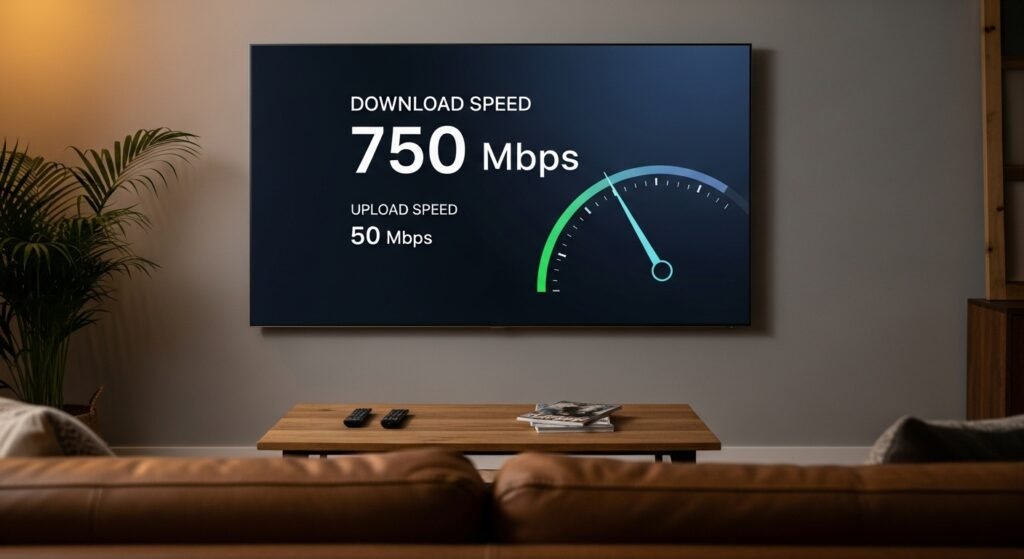
Step 1: Test Your Internet Speed (Properly)
- On a phone or laptop, stand near your Firestick/Android TV.
- Go to Speedtest.net or a similar site.
- Run a test and look at your download speed.
Targets (per active stream):
- SD: 10–15 Mbps
- HD (1080p): 25 Mbps+
- 4K: 50 Mbps+
If you’re on BT, Sky, Virgin, TalkTalk, etc., remember the “up to” speed is not what you always get—especially at 8pm on a Saturday when everyone is streaming.
If your result is much lower than your package:
- Reboot your router.
- Make sure nobody is running huge downloads or cloud backups.
- If speeds are always low, consider an upgrade or different ISP.
Step 2: Move from Weak Wi‑Fi to Strong Wi‑Fi or Ethernet
If your speed test is fine but IPTV still buffers, the next question is:
How strong is the connection between your device and the router?
Best to worst for stability:
- Ethernet cable direct from router to Firestick/Android TV (via adapter if needed)
- 5 GHz Wi‑Fi line-of-sight
- 2.4 GHz Wi‑Fi through several walls
Actions you can take:
- For Firestick:
- Use an Ethernet adapter for Fire TV (plugs into the micro‑USB/USB‑C power).
- Or move your router closer to the TV, or vice versa.
- For Android TV box:
- Plug an Ethernet cable straight from router to box if there’s a port.
- On your router:
- Make sure devices are using the 5 GHz network where possible.
Official guides:
- Fire TV network help: Amazon Fire TV Support
- Generic Wi‑Fi optimisation: Ofcom broadband tips
Step 3: Lower Stream Quality from 4K to HD
If you try to push 4K on a borderline connection, buffering is guaranteed.
In your IPTV app:
- Go to Settings → Video / Player / Quality (wording varies).
- Set maximum resolution to 1080p or Auto instead of 4K/UHD.
- Restart the stream.
From practical use:
- On a 50–70 Mbps fibre line in the UK, 1080p is usually far more stable than 4K, especially at busy times.
- The picture difference is small on many TVs, but the buffering difference is huge.
Step 4: Adjust Player & Buffer Settings in the IPTV App
Many modern IPTV apps (especially for UKIPTVSUB) allow you to:
- Switch between different video players (e.g. “ExoPlayer”, “Media Player”, “Built‑in”).
- Change buffer size (small/medium/large).
What to do:
- In the app, open Settings → Player / Playback.
- Try switching the player to the recommended one (your provider will usually specify this).
- Increase buffer size to Medium or Large.
- This makes the stream load a bit longer initially but reduces stutters.
If your provider has a knowledge base, check for recommended settings or ask support.
Step 5: Clear Cache & Free Space on Firestick/Android TV
On older or cheap devices, low storage and cache build-up can cause stutters.
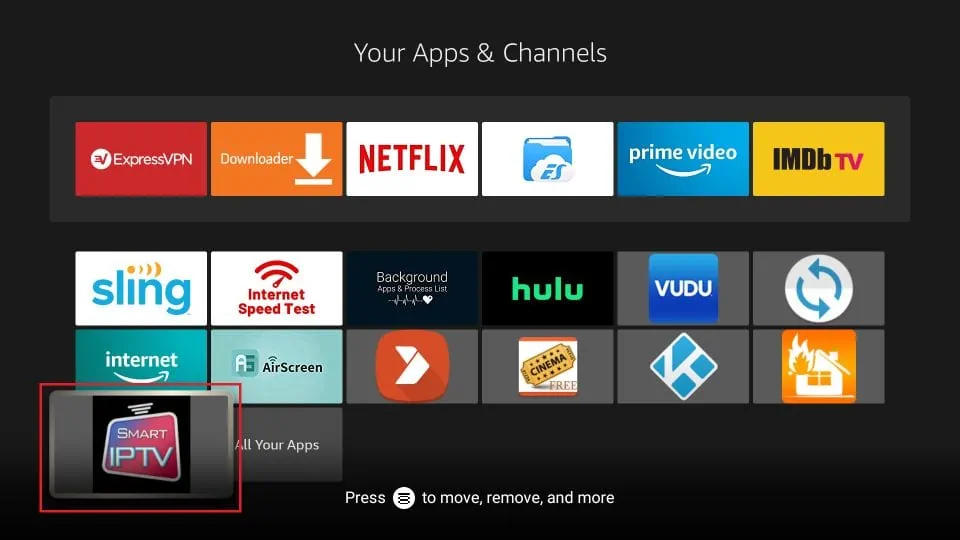
On Firestick:
- Go to Settings → Applications → Manage Installed Applications.
- Select your IPTV app.
- Choose Clear cache (and only if necessary, Clear data).
- Repeat for other video apps you use a lot.
Also:
- Uninstall apps you never use.
- Reboot the Firestick: Settings → My Fire TV → Restart.
On Android TV / Google TV:
- Go to Settings → Apps → See all apps.
- Select your IPTV app.
- Choose Clear cache.
- Restart your TV/box.
Step 6: Reduce Background Load on Your Network
Even with good broadband, your IPTV can buffer if your home network is overloaded.
Common culprits in UK homes:
- Cloud backups (OneDrive, iCloud, Google Photos)
- Game downloads/updates on consoles or PCs
- 4K Netflix/Disney+ in another room
Try this:
- During important matches or films, pause large downloads.
- Avoid running multiple 4K streams at once if you’re on mid-range fibre.
- Schedule heavy tasks (backups, updates) for late at night.
Step 7: Check If the Problem Is the Channel or the Provider
Sometimes the issue is not your device or internet.
Ask:
- Does every channel buffer, or just certain ones?
- Does VOD buffer as well, or only live TV?
- Do you experience the same issue on another device (e.g. phone on mobile data)?
If:
- Only one or a few channels buffer → likely channel/route issue on the provider’s side.
- It buffers at the same time on different devices and connections → likely provider/server congestion.
This is where using a stable provider like UKIPTVSUB matters; they optimise servers for UK viewers and sports peak times.
Step 8: As a Last Resort – Restart Router & Contact Support
If you’ve done all the above and IPTV still buffers badly:
- Power off your router for 30 seconds, then turn it back on.
- Restart your Firestick/Android TV.
- Retest channels.
If it’s still bad:
- Contact your IPTV provider’s support, giving:
- Your location (UK)
- Your ISP
- Affected channels and time of day
- What you’ve already tried
If you’re with UKIPTVSUB, their support team can also check server-side load and suggest the best app/settings for your device.
Tips, Best Practices & Mistakes to Avoid
This section focuses on “How to make IPTV more stable?” in day-to-day use.
Best Practices
- Use Ethernet where possible
- Especially for your main TV and during big matches.
- Consider Powerline adapters if running a direct cable is impossible.
- Keep devices cool
- Overheating Firesticks under hot TVs can slow down.
- Ensure there’s airflow; avoid hiding devices behind thick panels.
- Update regularly
- Keep Fire OS / Android TV and your IPTV app updated.
- Updates often include performance and buffering fixes.
- Use quality hardware
- Very cheap, no‑name Android boxes usually cause more issues.
- Fire TV Stick 4K / Max or reputable Android TV boxes are worth it.
- Choose off-peak replays when possible
- If your internet/area is congested live, watching on-demand replays later is smoother.
Common Mistakes to Avoid
- Blaming the provider for everything
- In many UK homes, the real issue is weak Wi‑Fi or low speeds.
- Always test speed and Wi‑Fi first.
- Running 4K on poor connections
- Drop to 1080p; you’ll barely notice the picture difference but will notice the stability.
- Using illegal/overloaded IPTV
- Pirate providers cram thousands of users on underpowered servers.
- They’re the worst offenders for buffering and sudden shutdowns.
- Ignoring device storage
- A Firestick with 200MB free space will struggle—offload unused apps.
Mid-Article CTA
If you’ve done the basics and still get random buffering, your provider might simply not be up to the job.
You can switch to a legal, stable IPTV subscription built for UK viewers and sports by checking out UKIPTVSUB’s IPTV subscription plans here:
👉 View IPTV subscription plans at UKIPTVSUB
Real-World Stable IPTV Setups in the UK
Here are practical setups I’ve seen work extremely well for UK homes trying to eliminate buffering.
1. Sports-Focused Living Room
- User: Premier League / Champions League / F1 fan
- Internet: 150 Mbps Virgin fibre
- Device: Fire TV Stick 4K Max, wired via Ethernet adapter
- Result: Stable 1080p/4K sports with minimal buffering, even at peak times.
Key points:
- Runs nothing else heavy on the network during big matches.
- Uses a legal service (UKIPTVSUB) optimised for sports.
- Sticks to 1080p for maximum reliability unless the line is crystal clear.
2. Family Home with Multiple TVs
- User: Parents + two kids
- Internet: 70 Mbps BT fibre
- Devices:
- Living room: Android TV with Ethernet
- Kids’ rooms: Firesticks on 5 GHz Wi‑Fi
- Result: Smooth HD streaming on 2–3 screens when not all in 4K.
Key points:
- IPTV app quality set to Auto/1080p.
- Scheduled console game updates overnight, not during evenings.
3. Flat with Only Wi‑Fi
- User: Single or couple in a rented flat
- Internet: 40–50 Mbps Sky fibre
- Devices: One Firestick on 5 GHz Wi‑Fi within line-of-sight of router.
Key points:
- Router positioned high and central, away from metal objects.
- Uses medium buffer size in the IPTV app to smooth fluctuations.
Comparison Table: Connection Types for IPTV Stability
| Connection Type | Stability for IPTV | Typical Use Case | Notes |
|---|---|---|---|
| Direct Ethernet | Excellent | Main living-room TV, sports fans | Best option; minimal interference. |
| Powerline (Ethernet over mains) | Very Good | Where direct cable isn’t possible | Dependent on home wiring quality. |
| 5 GHz Wi‑Fi (strong signal) | Good–Very Good | Flats, close router-TV distance | Shorter range but faster than 2.4 GHz. |
| 2.4 GHz Wi‑Fi (through walls) | Fair–Poor | Old houses, far from router | Most likely to cause buffering. |
Troubleshooting Common IPTV Buffering Problems
Here we’ll answer the specific questions like “Why is my IPTV buffering on my Firestick?” and “How do I fix excessive buffering?”
Problem 1: Why is my IPTV buffering on my Firestick?
Likely causes:
- Weak Wi‑Fi signal to the Firestick.
- Firestick overheating or low on storage.
- App cache bloated.
Step-by-step fix:
- Move router closer to TV or vice versa; connect to 5 GHz Wi‑Fi.
- Use an Ethernet adapter if possible.
- Go to Settings → Applications → Manage Installed Applications → [Your IPTV App] → Clear cache.
- Uninstall unused apps; reboot Firestick.
- Lower stream resolution to 1080p and select recommended player in app.
For a full Firestick setup walkthrough:
How to set up Fire Stick IPTV
Problem 2: How to fix IPTV buffering on Android TV?
Likely causes:
- Wi‑Fi signal drop, especially on cheap Android boxes.
- Outdated firmware or app.
Step-by-step fix:
- If possible, plug in Ethernet.
- On Android TV: Settings → Network & Internet – ensure you’re on the best network (preferably 5 GHz).
- Go to Settings → Apps → [IPTV App] → Clear cache.
- Update both Android TV system and IPTV app.
- In app settings, lower quality to HD and increase buffer size.
Problem 3: How do I fix excessive buffering only during big games?
Likely causes:
- ISP congestion in your area at peak times.
- Provider’s sports servers overloaded (common with shady services).
Step-by-step fix:
- Test another app (e.g. YouTube in 1080p) at the same time – if it buffers too, it’s likely ISP congestion.
- If other apps are fine and only IPTV sports buffer, it’s probably the provider’s servers.
- Make sure you’ve tried Ethernet, lower resolution, and buffer settings.
- If issues persist only with IPTV, consider switching to a more stable provider like UKIPTVSUB.
See this guide on provider choice:
Best UK IPTV service
Problem 4: Channels or VOD stop and spin every few seconds
Likely causes:
- Insufficient buffer size.
- Wrong player engine selected.
Step-by-step fix:
- In the IPTV app, go to Settings → Player / Playback.
- Switch to a different player (e.g. “ExoPlayer” → “Built‑in” or vice versa).
- Set buffer to Medium or Large.
- Restart the app and test again.
FAQ: How to Fix IPTV Buffering on Firestick & Android TV
Why IPTV buffers even with fast internet?
Even if your speed test shows 100 Mbps, buffering can occur because:
- Your Wi‑Fi link to the device is weak.
- The IPTV server is overloaded.
- The route between your ISP and the IPTV server is congested.
Use Ethernet where possible, adjust quality to 1080p, and make sure you’re with a stable, legal provider like UKIPTVSUB.
Why is my IPTV buffering on my Firestick more than on my phone?
Phones often use Wi‑Fi 5/6 antennas that are better than the tiny Firestick’s. Also, your phone may be closer to the router. Improve the Firestick’s connection (Ethernet or 5 GHz Wi‑Fi, better placement) and clear its cache.
How to fix IPTV buffering quickly before a match?
- Reboot router and Firestick/Android TV.
- Close other apps and clear IPTV app cache.
- Drop quality to 1080p/Auto.
- Use Ethernet if available.
- Ask others in the house not to download or stream 4K during the match.
How to make IPTV more stable long term?
- Use a decent device (Firestick 4K / good Android TV).
- Use Ethernet or strong 5 GHz Wi‑Fi.
- Stay on top of updates (device + app).
- Choose a legal, well-run IPTV provider like UKIPTVSUB, not the cheapest pirate service.
How do I fix excessive buffering on just some channels?
If only a few channels buffer:
- It’s likely an issue at the channel or provider side.
- Try other channels; if they’re fine, report the specific ones to support.
- Your provider may have alternative sources or can escalate it.
Will a VPN fix IPTV buffering?
Sometimes a VPN can improve routing, but it can also slow your speed if the VPN server is far away or overloaded. For legal IPTV in the UK, a VPN is usually not required. Try all other fixes first.
Conclusion: Get a Stable IPTV Experience with UKIPTVSUB
Constant buffering can make IPTV feel unusable, but in most UK homes, it’s fixable with a few targeted changes.
If you:
- Confirm your speed
- Improve your Wi‑Fi or switch to Ethernet
- Optimise app settings and device health
- And use a reliable, legal provider
…you’ll eliminate 90% of IPTV buffering issues on Firestick and Android TV.
If you’re currently battling endless buffers with a cheap or questionable provider, it may be time to move to a service that invests in proper infrastructure and UK‑focused support.
You can review UKIPTVSUB’s IPTV subscription plans—built for stability, UK channels, Premier League viewers, and easy setup across Firestick and Android TV—here:
👉 Explore IPTV subscription plans at UKIPTVSUB
With the right setup and provider, IPTV can finally feel like “normal TV”…just cheaper and more flexible.